Set up Ringotel Softphone Extension
Ringotel is a softphone application that allows users to make and receive calls using their NexusUC extension from a mobile device or computer. Setting up Ringotel requires linking a user account to the extension and activating the Ringotel license.
-
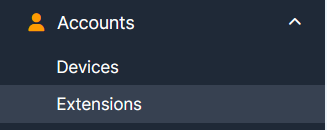
Navigate to Accounts → Extensions.
-
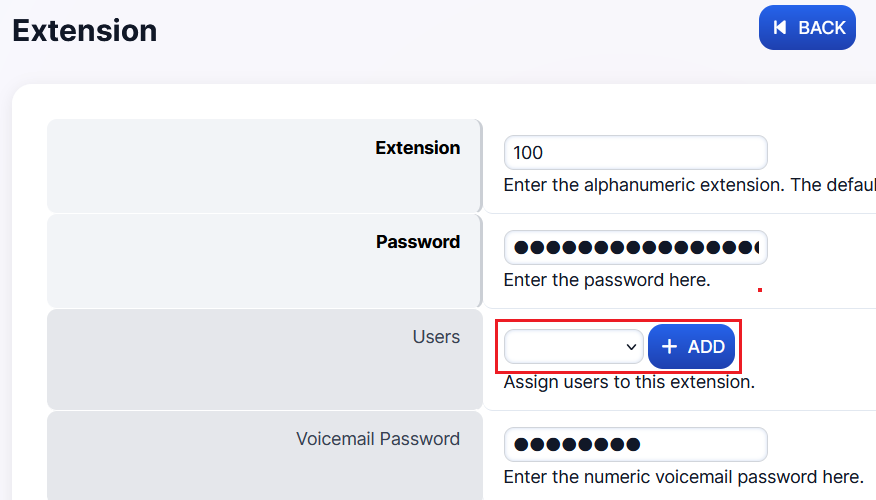
Click on the extension you want to set up and check whether a user is attached to it.
-
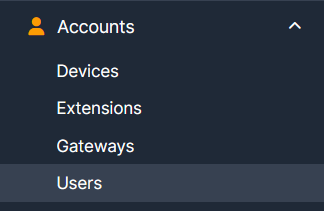
If no user is attached, navigate to Accounts → Users and create a new user with the same extension number (e.g., 100).
-
Click +ADD to create a new user.

-
Fill in the following details:
Field Description Username Can be the same as the extension number Password Must contain 12 characters (numbers, lowercase & uppercase) Email Email address where Ringotel credentials will be sent Status Set to Available First Name & Last Name User's name (if required) Groups User group assignment. Select "admin" for admin rights if needed. 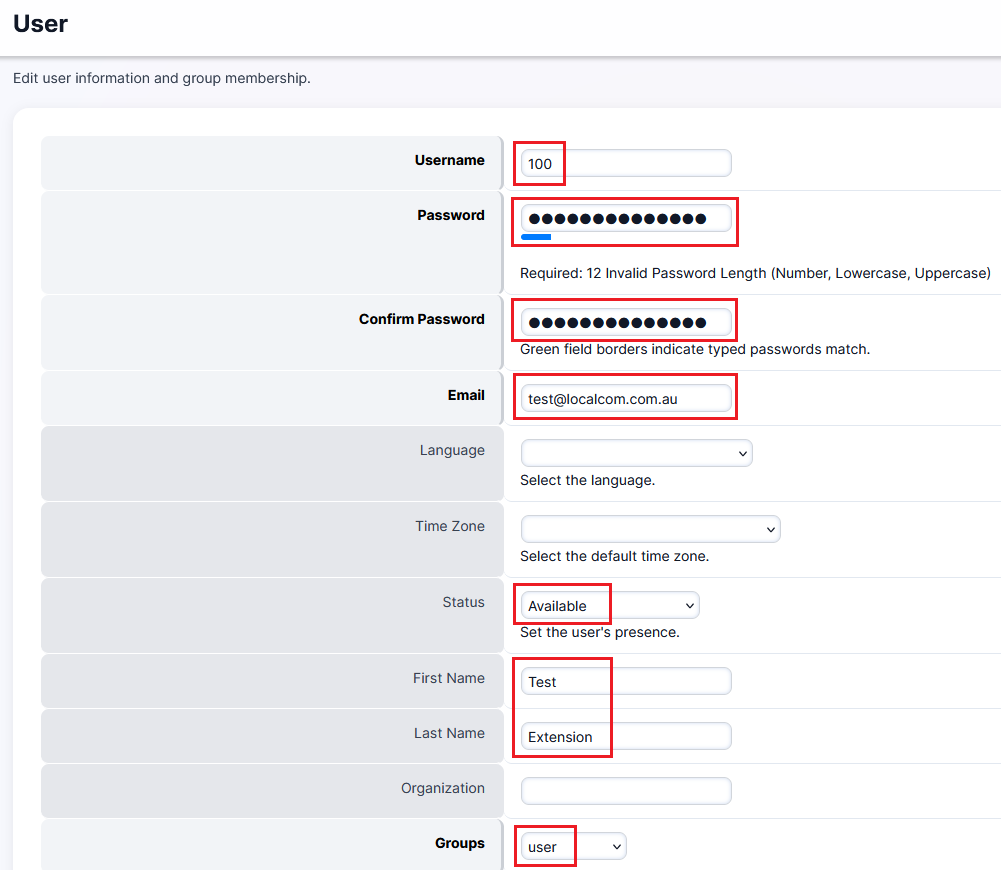
-
Click Save to create the user.
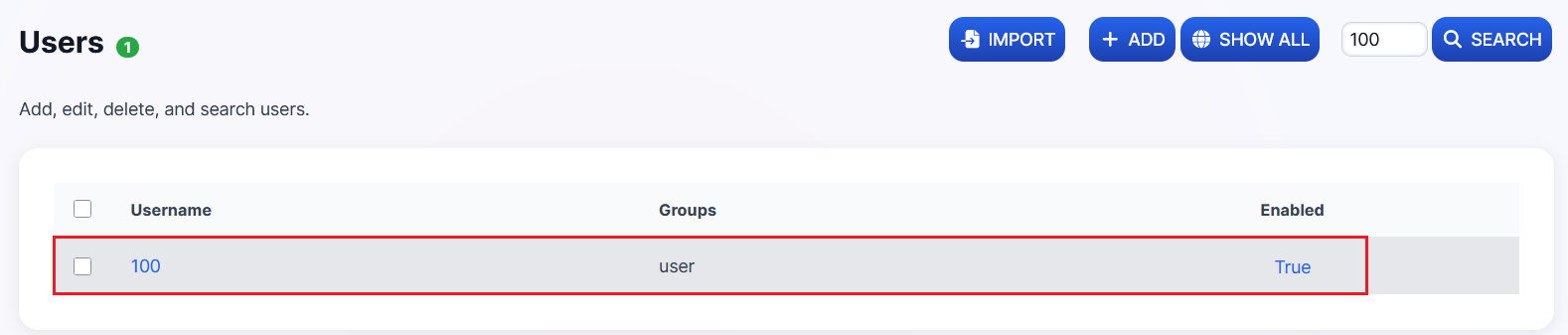
Result: The newly created user will appear as shown below.
-
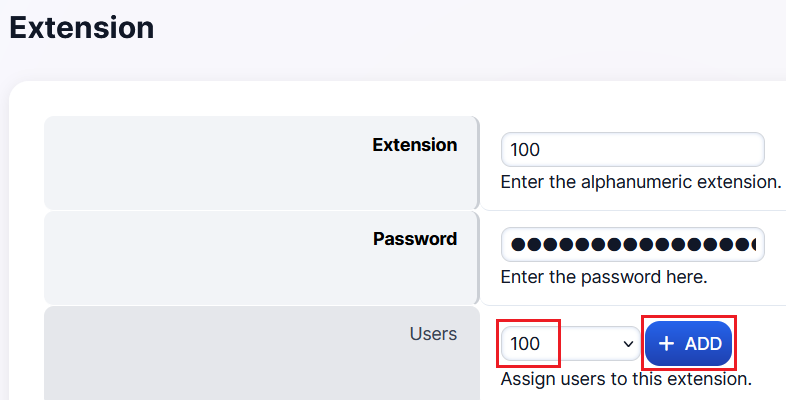
Navigate back to Accounts → Extensions, click on the extension, attach the user from the dropdown, and click +ADD to save.
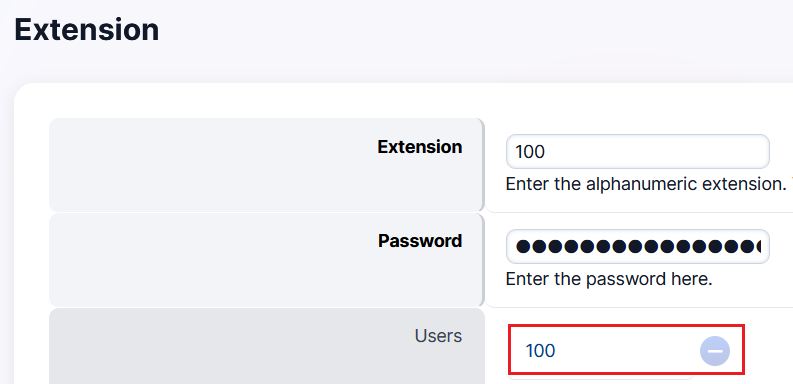
Once the user is attached:
Activating Ringotel
-
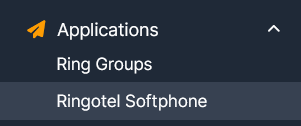
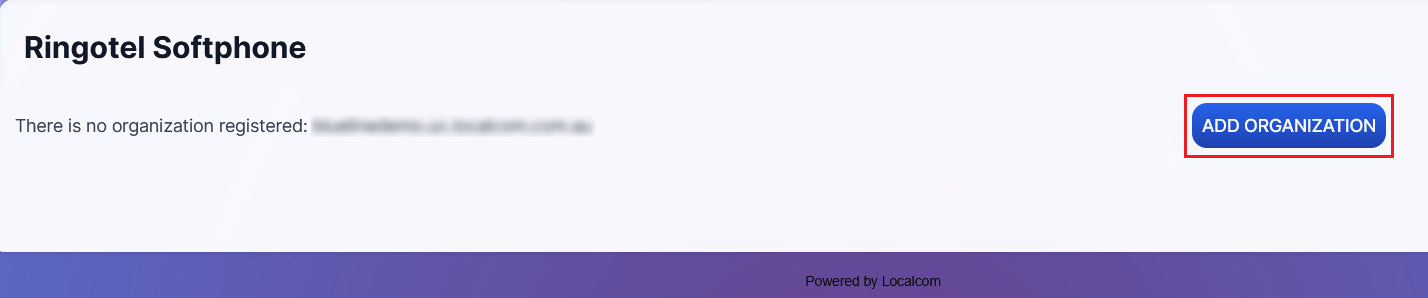
Navigate to Applications → Ringotel Softphone.
-
Click ADD ORGANIZATION to add a new Ringotel domain on the Ringotel server.
Note
This step is only required for new domains.
The new Ringotel softphone extension record:

-
Tick the checkbox next to the extension and click ACTIVATE USERS to activate the Ringotel license.

-
The Ringotel extension license is now Active, and credentials will automatically be sent to the specified email address.

-
If credentials don't arrive, tick the checkbox and click RESET PASSWORDS to resend them to the email.