Set up Call Center Queues and Agents
Call Center Queues allow you to route inbound calls to a pool of agents with advanced queuing strategies, hold music, and performance statistics. Before creating a queue, you must first create the agents who will handle calls.
Creating Call Center Agents
-
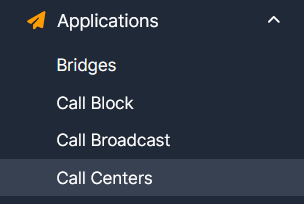
Navigate to Applications → Call Centers.
-
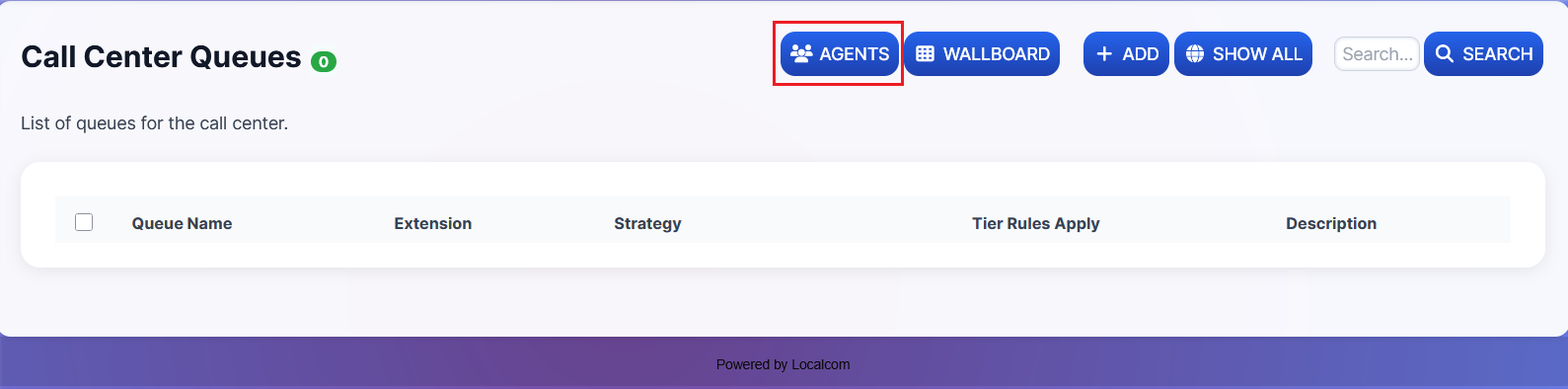
Click the AGENTS button to manage call center queue agents.
-
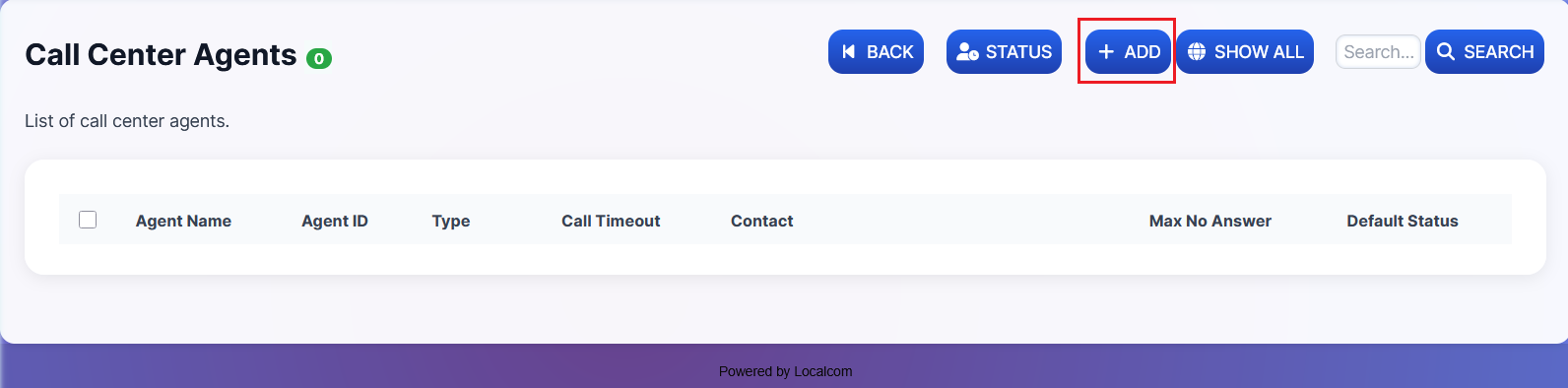
Click the +ADD button to open a new call center queue agent form.
-
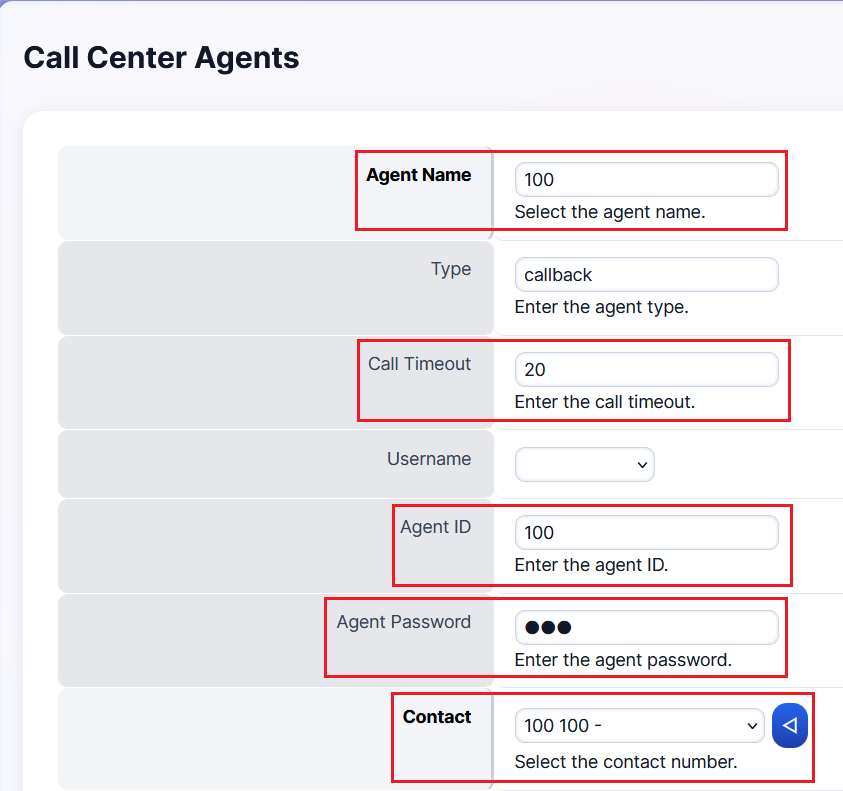
Fill in the agent details:
- Name — Should match the user's name specified in the extension
- Call Timeout — Set according to your needs (e.g., 30 seconds, 60 seconds)
- Agent ID — Same as the extension number
- Password — Should match the Agent ID
- Contact — Select from the dropdown (e.g., Extension 100)
-
Set the default agent status. If left blank, it retains the last known status upon restarting the queue. Typically, this is set to "Available" to keep the agent always logged in.

-
Configure additional timing settings (all specified in seconds):
Setting Description No Answer Delay Time Time the system waits before trying the agent again if they didn't answer within the Call Timeout Max No Answer Maximum attempts to call the agent. If set to 1, one missed call removes them from the round. If set to 2, they get two chances. Wrap Up Time Time allocated between calls for the agent Reject Delay Time Wait time before offering a new call to an agent who manually rejected a call Busy Delay Time Wait time before trying an agent who is on Do Not Disturb Record Enable or disable recording of all inbound queue calls 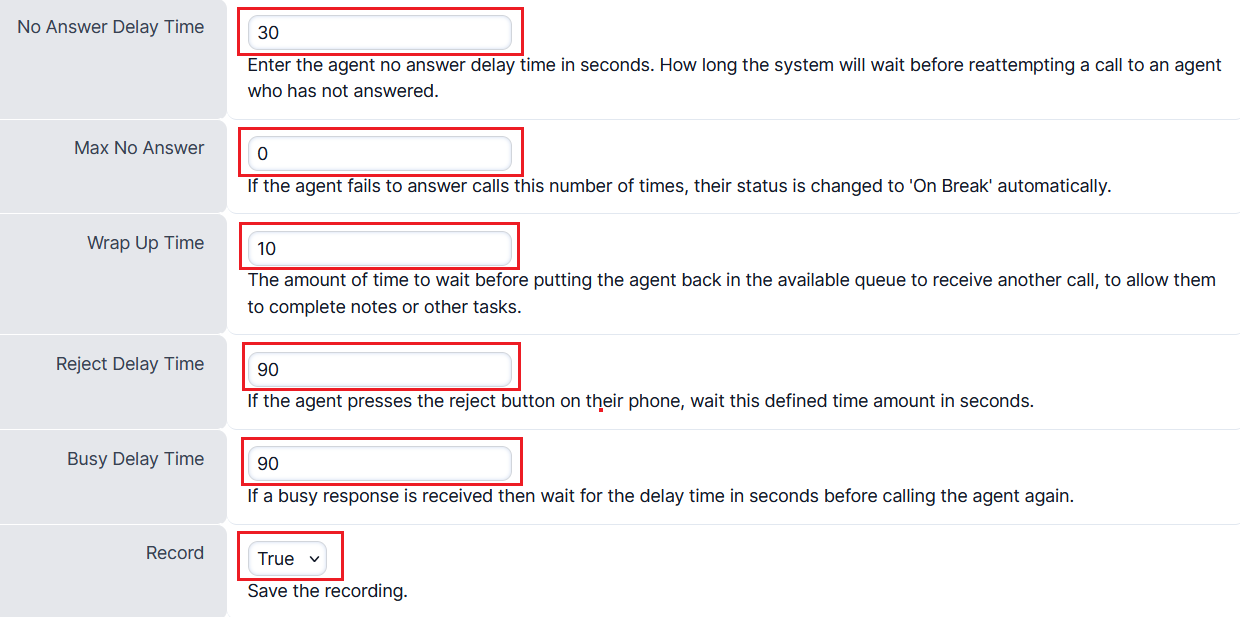
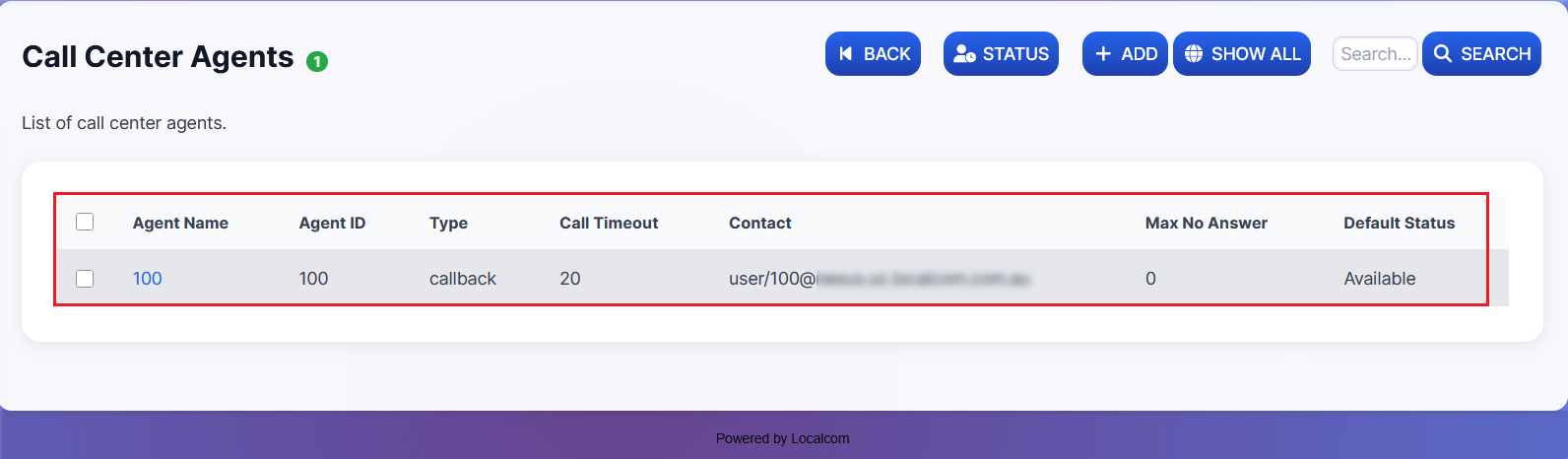
Result: Once the new call center agent has been successfully created, it will appear as shown below.
Creating a Call Center Queue
-
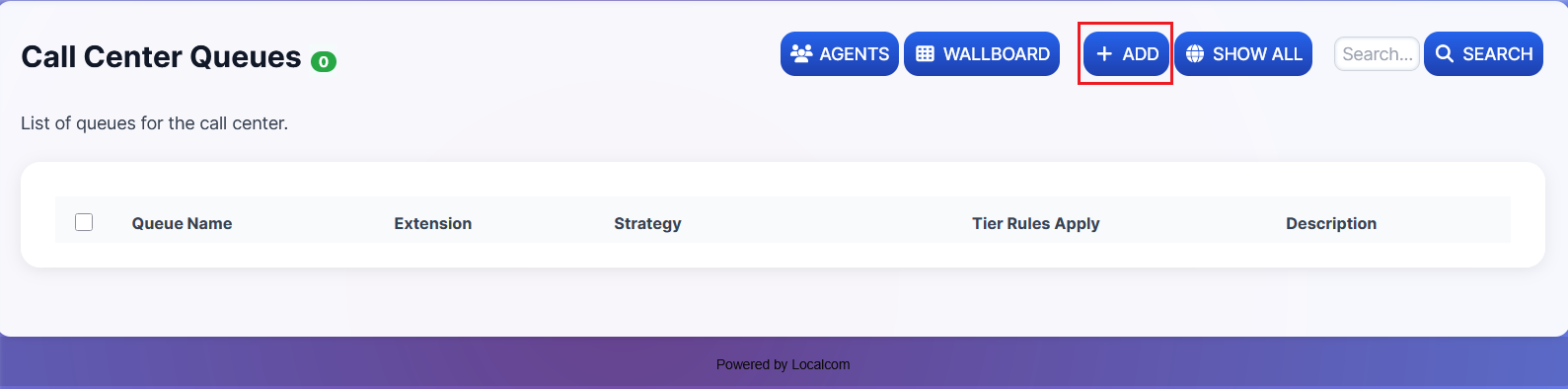
Click the Back button, then click +ADD to open a new call center queue form.
-
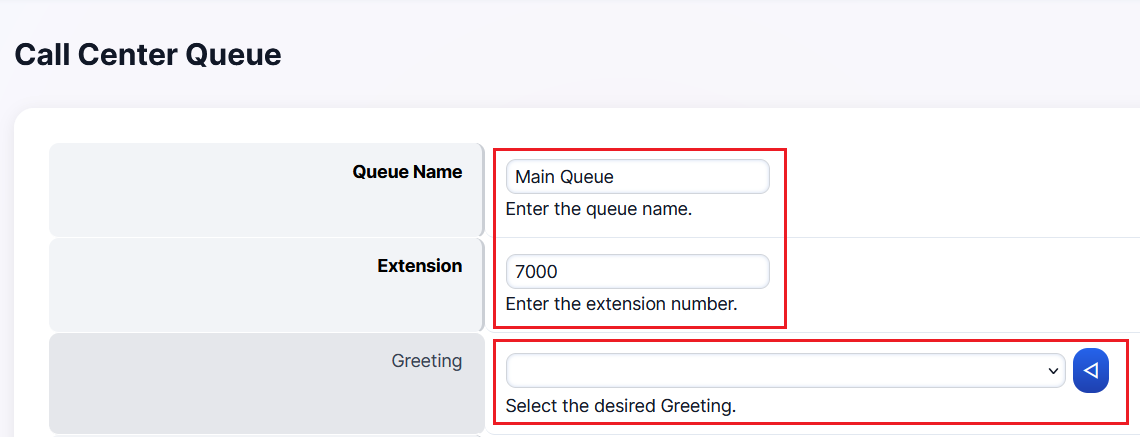
Specify a suitable name for the queue along with its standard category extension. You may also attach a greeting that will play when a call reaches this queue.
-
Select the ringing strategy for the queue:
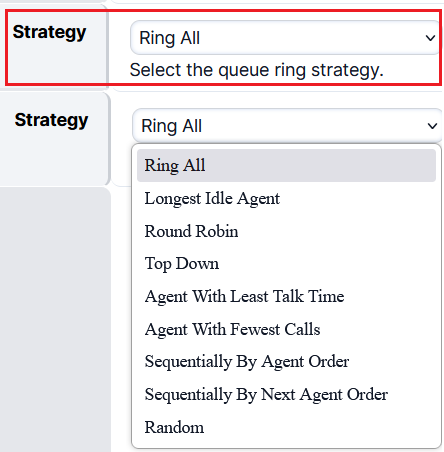
Strategy Description Ring All All agents ring simultaneously Longest Idle Agent The agent who has been idle the longest rings, depending on tier level Round Robin Rings the next available agent in line Top Down Agents ring from the first to last in order Agent With Least Talk Time Rings the agent with the least total talk time Agent With Fewest Calls Rings the agent with the fewest calls Sequentially By Agent Order Agents ring in sequence by tier and tier order Sequentially By Next Agent Order Agents ring in sequence by tier and tier order Random Rings agents randomly in no particular order -
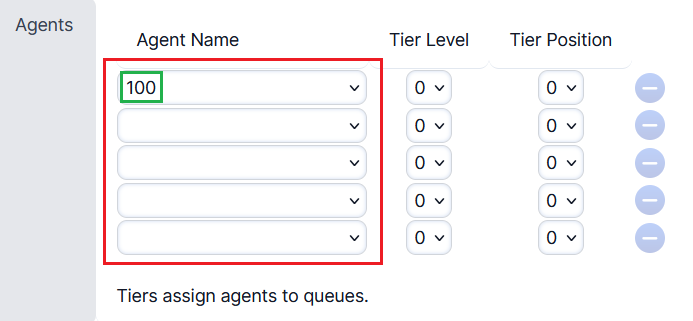
Select agents from the dropdown list. You may specify the tier level and tier position if required.
-
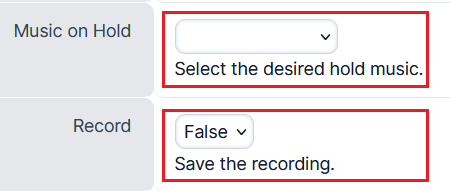
Choose a custom hold music or use the system default. You may also enable or disable call recording for inbound calls to the queue.
-
Configure advanced queue settings (usually kept on default):
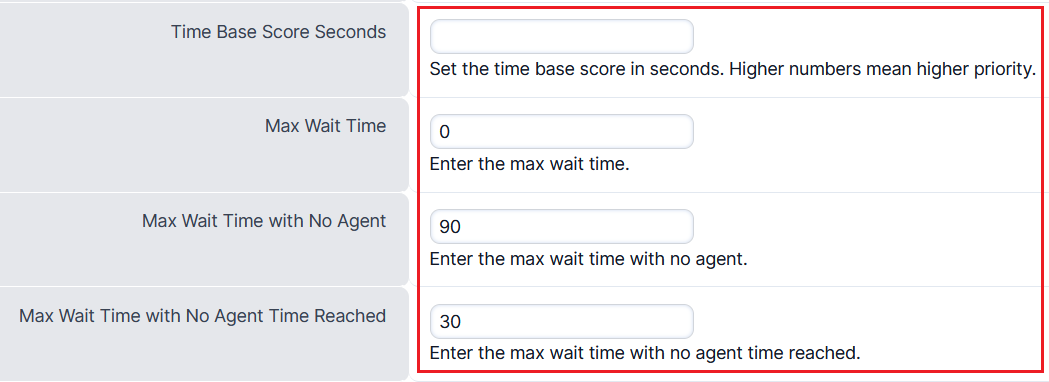
Wait Time Settings:
- Time Base Score — Determines whether the caller's wait time resets when switching queues (Queue) or continues system-wide (System)
- Time Base Score - Seconds — Allows assigning a custom wait time score to prioritize calls across queues
- Example 1: Prioritize VIP callers by assigning a higher wait score, even if they entered the queue later
- Example 2: Set a time threshold (e.g., 5 minutes) where regular callers gain equal priority to VIP callers
- Max Wait Time — Maximum time a caller can wait in the queue (0 = unlimited)
- Max Wait Time with No Agent — How long a caller waits when no agents are available before triggering a timeout action (default: 90 sec)
- Max Wait Time with No Agent Time Reached — Alternate timeout when no agent is available (default: 30 sec)
Tier Settings:
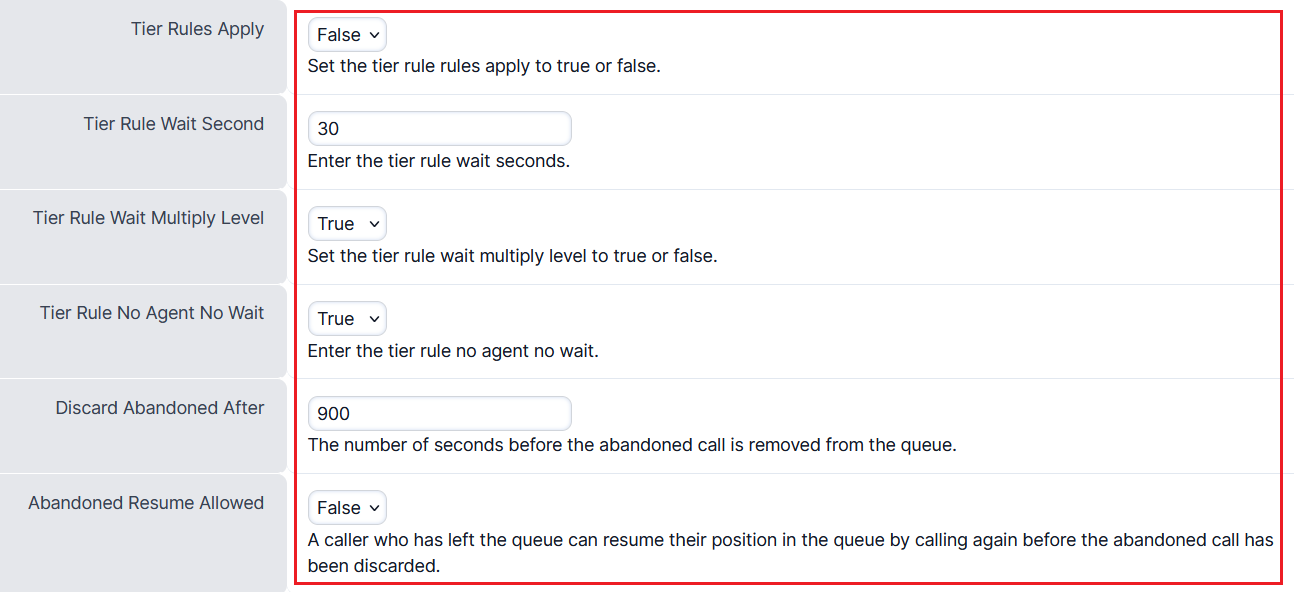
- Tier Rules Apply — Whether to apply tier-specific rules (True) or use all tiers equally (False)
- Tier Rule Wait Second — Wait time before moving to the next agent tier (default: 30 sec)
- Tier Rule Wait Multiply Level — If enabled, wait time increases between tiers; if disabled, tiers progress without extra delay
- Tier Rule No Agent No Wait — When enabled, skips waiting if no agents are available in the current tier
- Discard Abandoned After — How long to retain abandoned calls before discarding (default: 900 sec)
- Abandoned Resume Allowed — Allows callers to resume their queue position within the discard timeout
-
Set the Timeout Destination — where the call goes if no one answers when the Max Wait Time settings are reached.

-
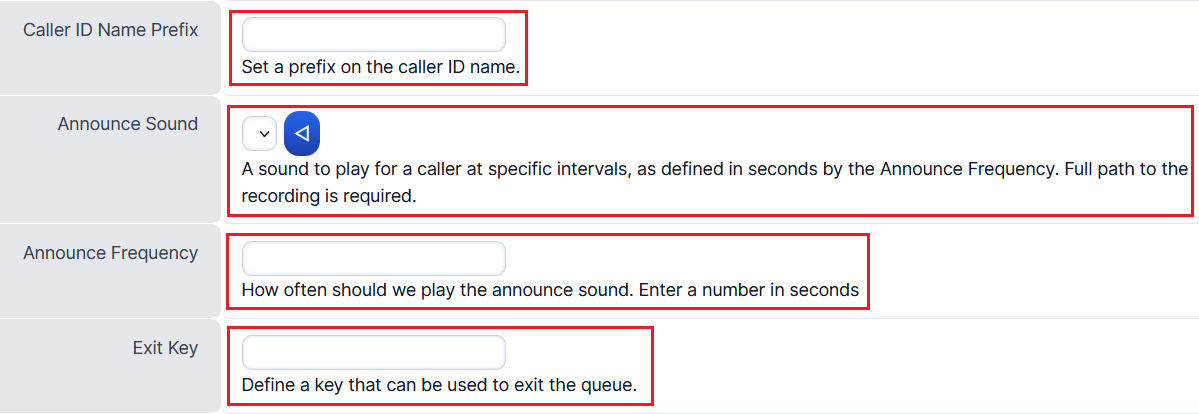
Configure additional feature settings:
- Caller ID Name Prefix — Displays a custom prefix (e.g., business name) before the caller ID on incoming calls
- Announce Sound — Plays a selected audio recording to callers at set intervals while waiting
- Announce Frequency — How often the announcement sound is played (in seconds)
- Exit Key — Allows callers to exit the queue by pressing a specified digit, triggering the timeout action
-
Give a relevant description for the queue and click SAVE.
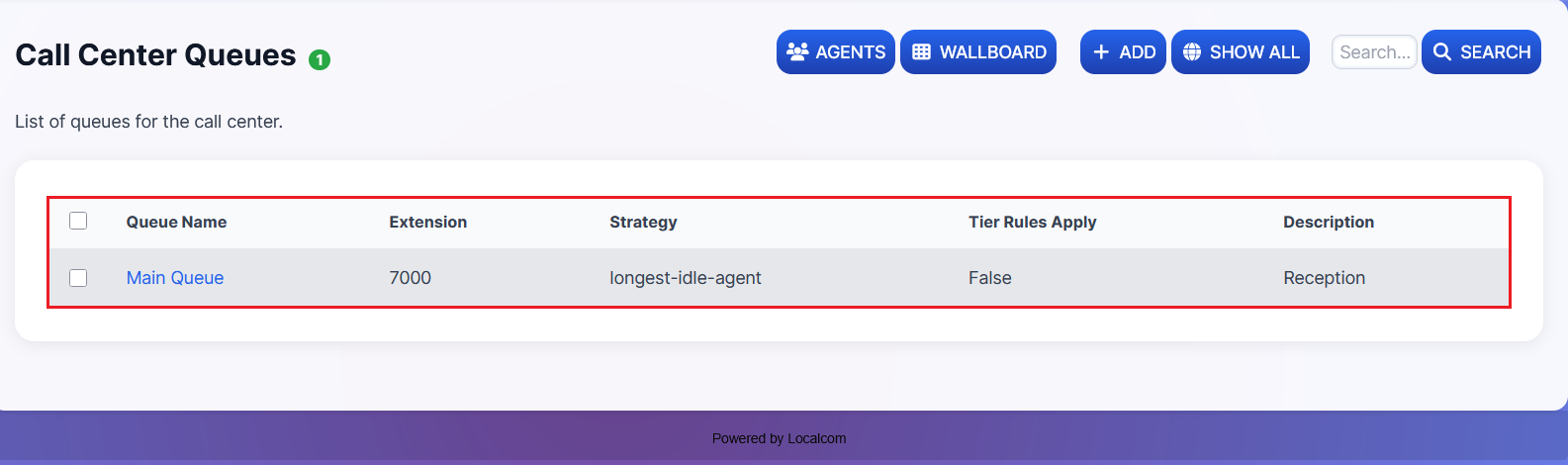
Result: Once created, the queue will appear in the list. You can assign it to any inbound destination action.
Managing and Monitoring Queues
-
The created queue can be managed and monitored using the Reload, Wallboard, and View buttons at the top right of the queue page.
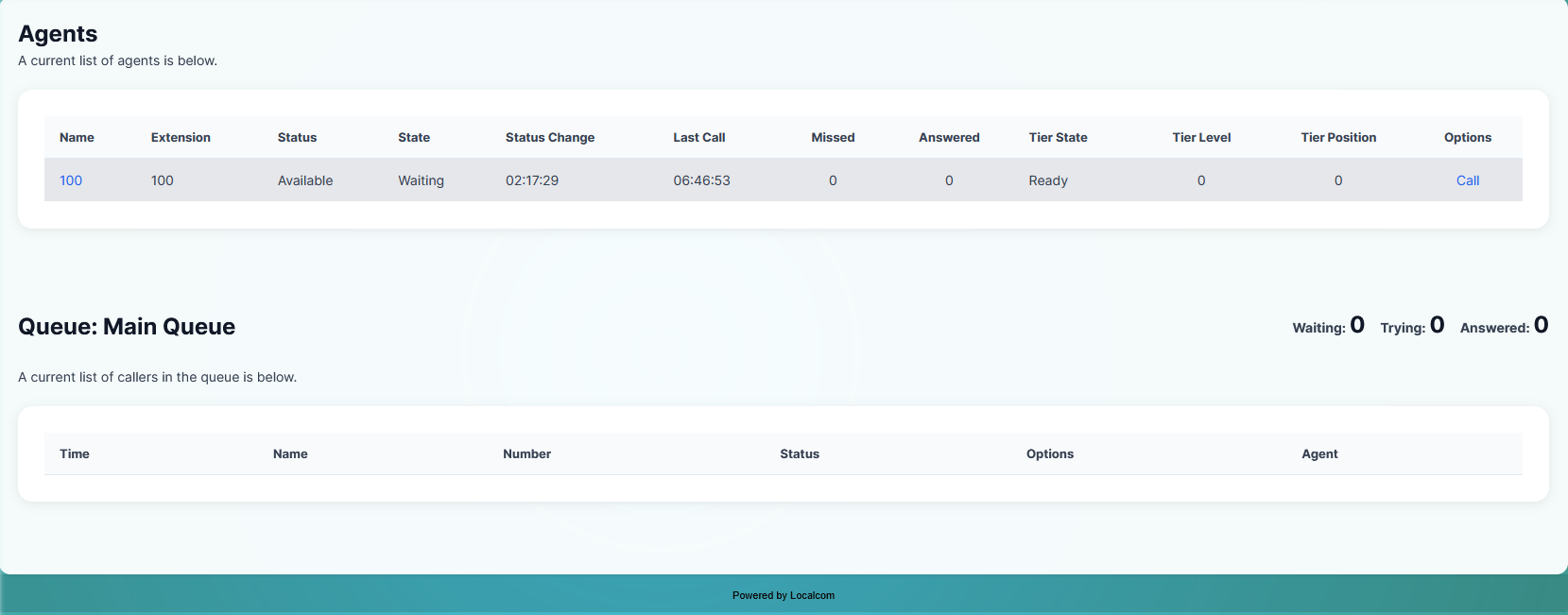
- Reload button: Restarts the queue to apply any settings changes. An OK prompt will confirm the reload.

- View button: Shows a list of agents with their statistics, including:
- Agent status and extension number
- Queue waiting status and status change time
- Missed calls and calls answered count
- Applicable tier rules
- Current callers in the queue

Wallboard for Live Monitoring
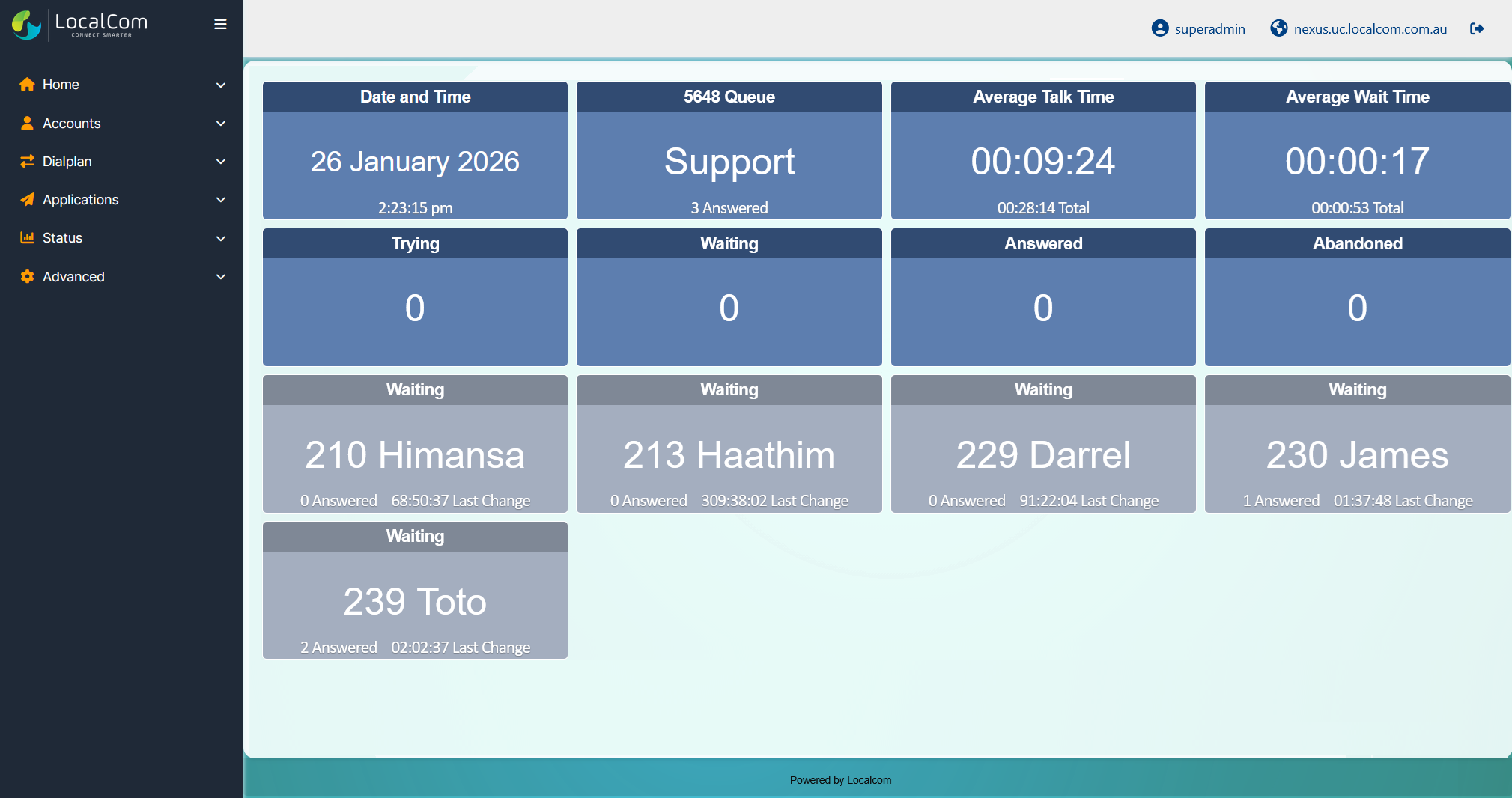
The Wallboard provides a visual real-time display featuring:
- Date and time
- Queue name and extension
- Agent currently awaiting a call
- Number of calls answered or abandoned
- Caller currently in the queue
- Count of callers attempting to reach an agent

Queue and Agent Performance Statistics
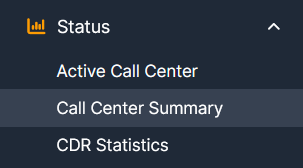
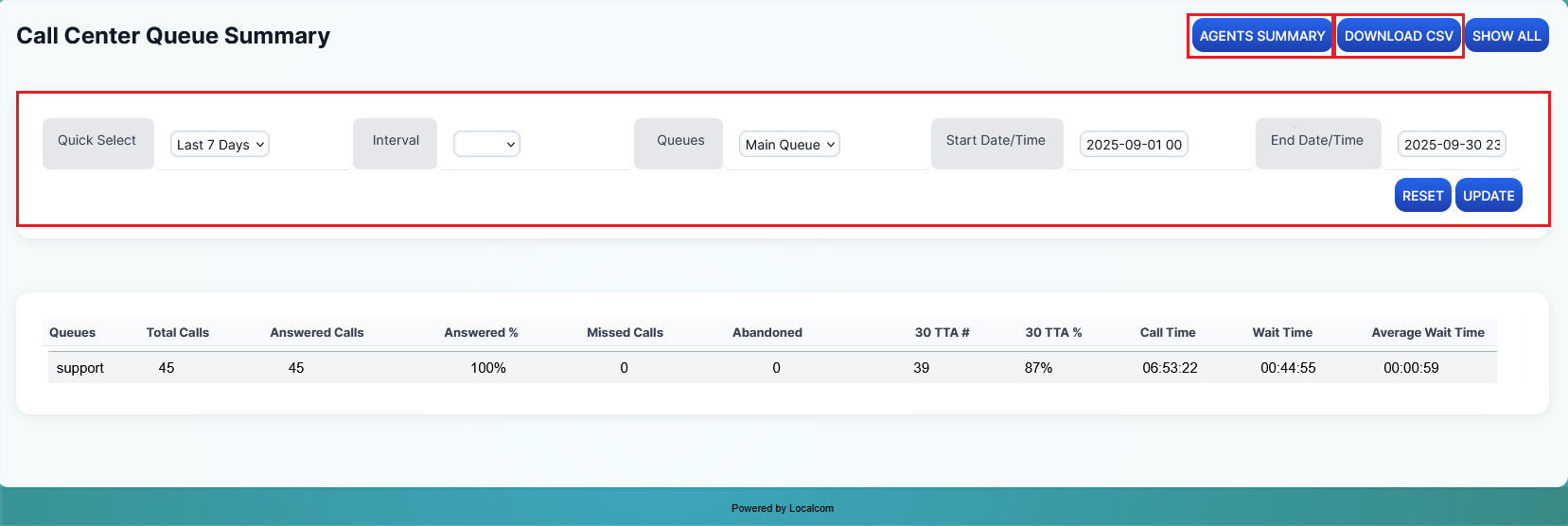
Access detailed call center statistics by navigating to Status → Call Center Summary. This view offers queue performance metrics with filters and CSV download options.
Call Center Queue Summary:
Displays statistics including:
- Total calls in queues
- Answered calls
- Missed calls
- Abandoned calls
- Call time, wait time, and average wait time
You can filter by dates, times, queue names, and intervals (hourly, daily, weekly, monthly, or yearly). The quick select dropdown allows choosing time frames like today, last seven days, this week, this month, or this year. After applying filters, click the download button to export as CSV.
Call Center Agents Summary:
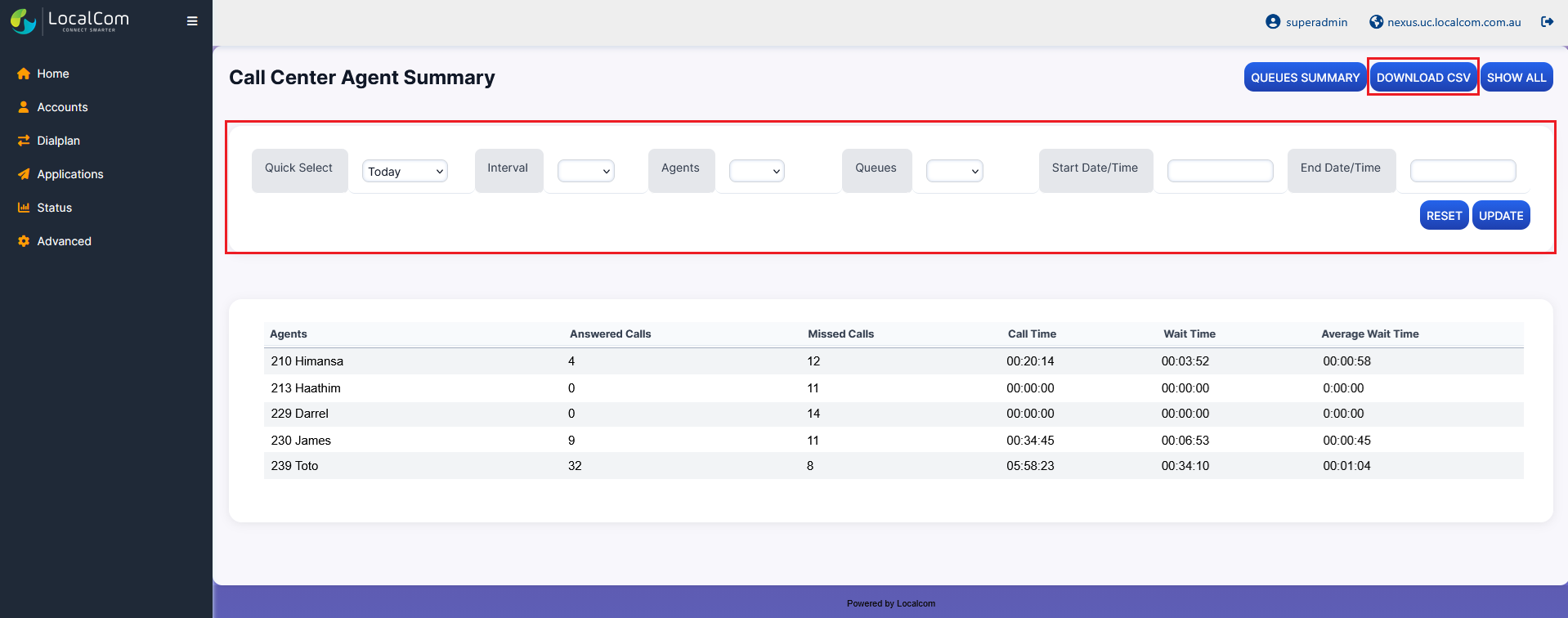
Click the agents summary button to view detailed per-agent information:
- Agent's name
- Number of calls answered
- Number of missed calls
- Call time (Duration)
- Wait time
- Average wait time
The same filters and CSV download options are available.
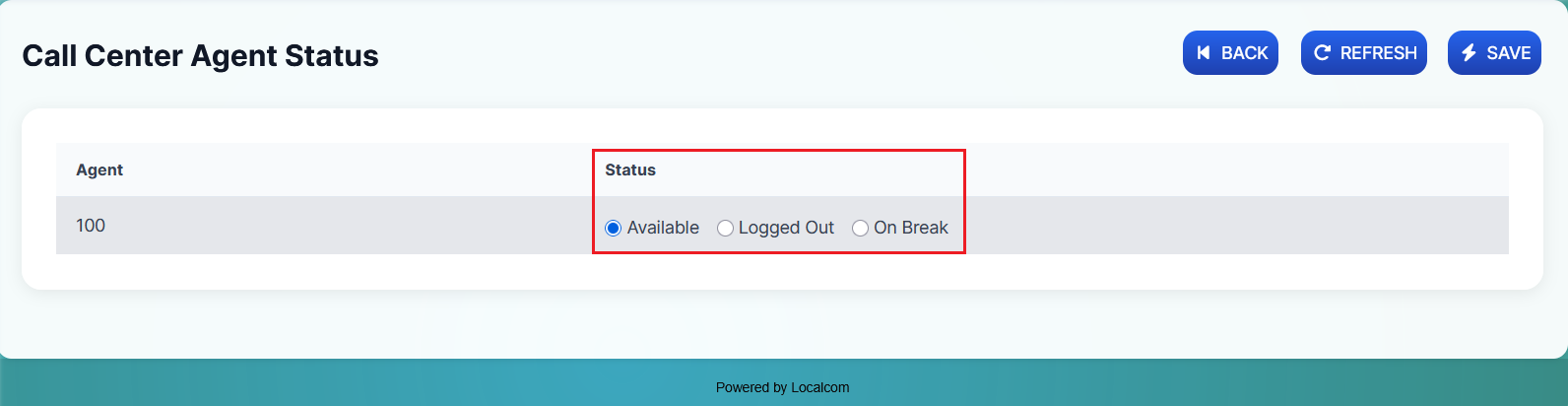
Agents Status:
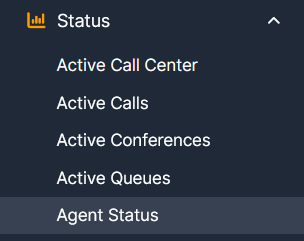
This section lists all call center agents with the option to change the status of one or more agents. Access via Status → Agents Status.