Getting Started
Installing NexusUC from ISO Image on Hypervisor (Eg, Hyper-V)
This guide walks you through installing NexusUC on a Hyper-V virtual machine — from enabling virtualization to logging into your new PBX. The same general process applies to other hypervisors, though specific UI steps may differ.
Step 1: Enable Virtualization & Hyper-V
Ensure that Virtualization and Hyper-V settings are enabled on your laptop or computer. You can verify this under the Performance tab of the Task Manager.
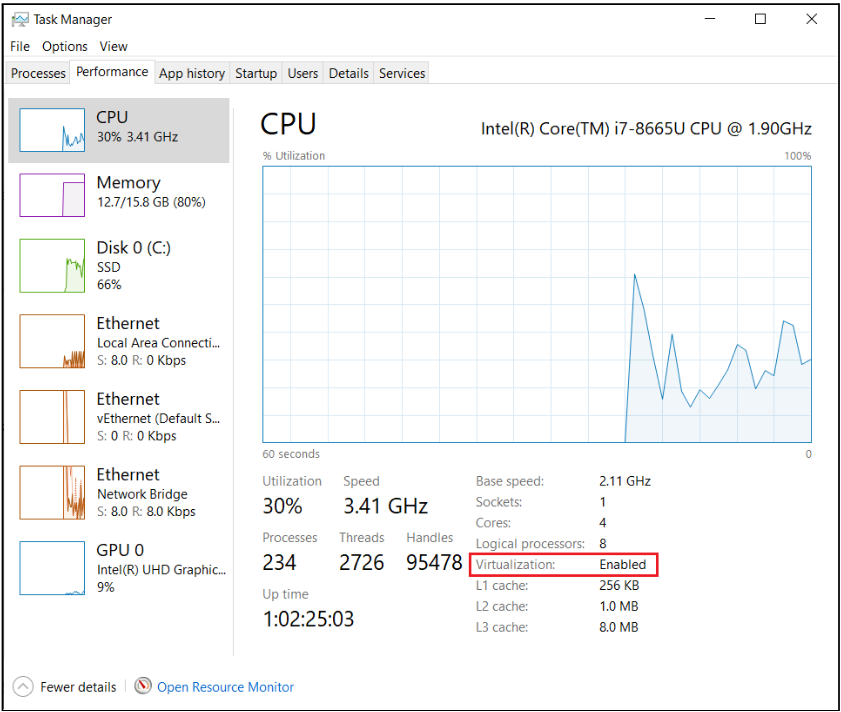
If both are enabled, proceed to the next step.
Step 2: Configure Hyper-V
-
Open Hyper-V Manager.
-
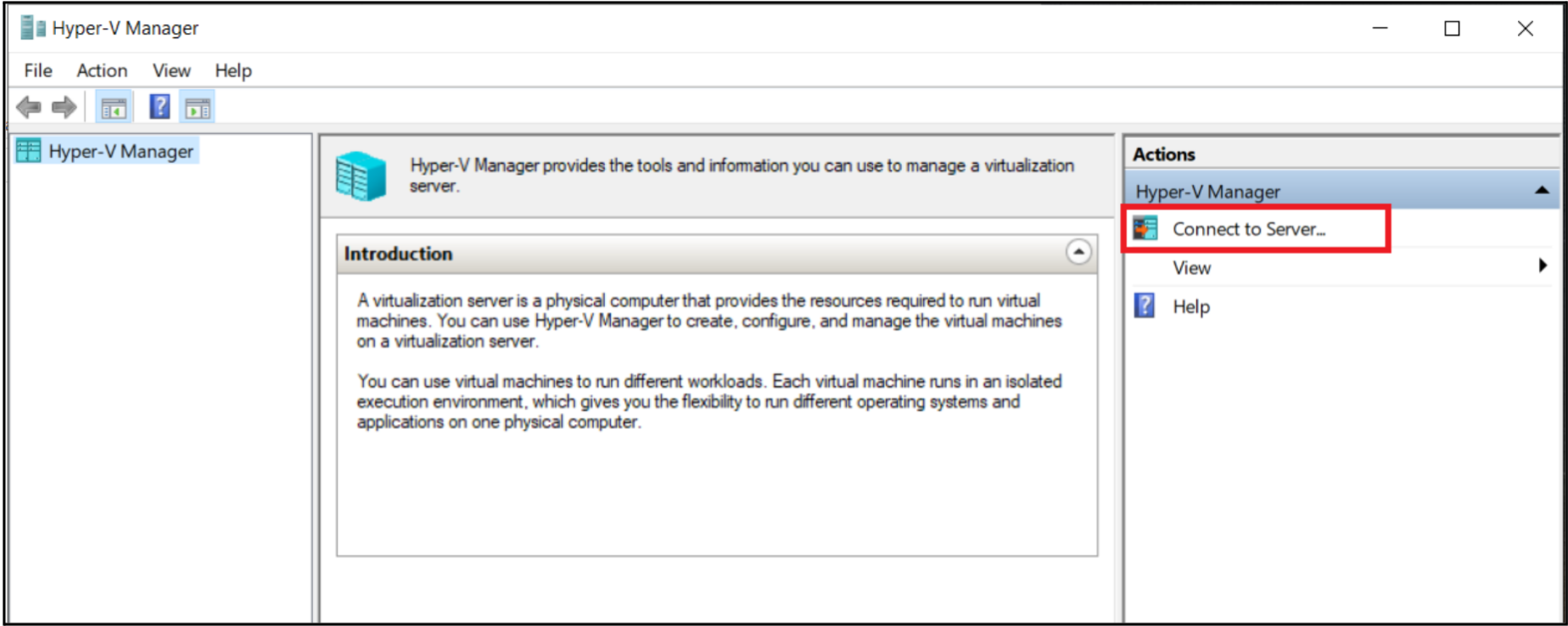
Click on Connect to Server from the Actions pane.
-
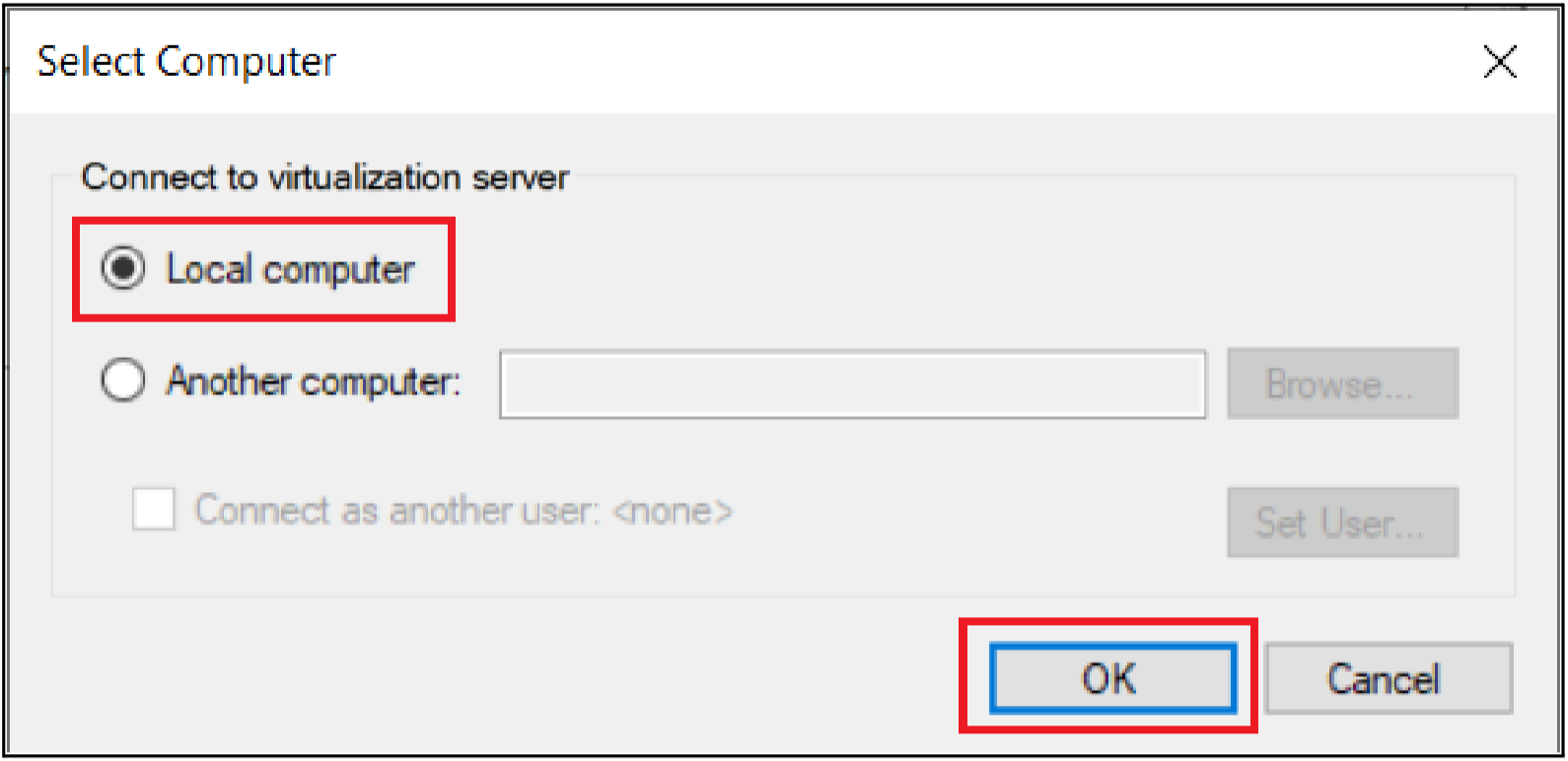
Select Local computer and click OK. Hyper-V will now be connected to your machine as the local server.
-
Click on Quick Create from the Actions pane.
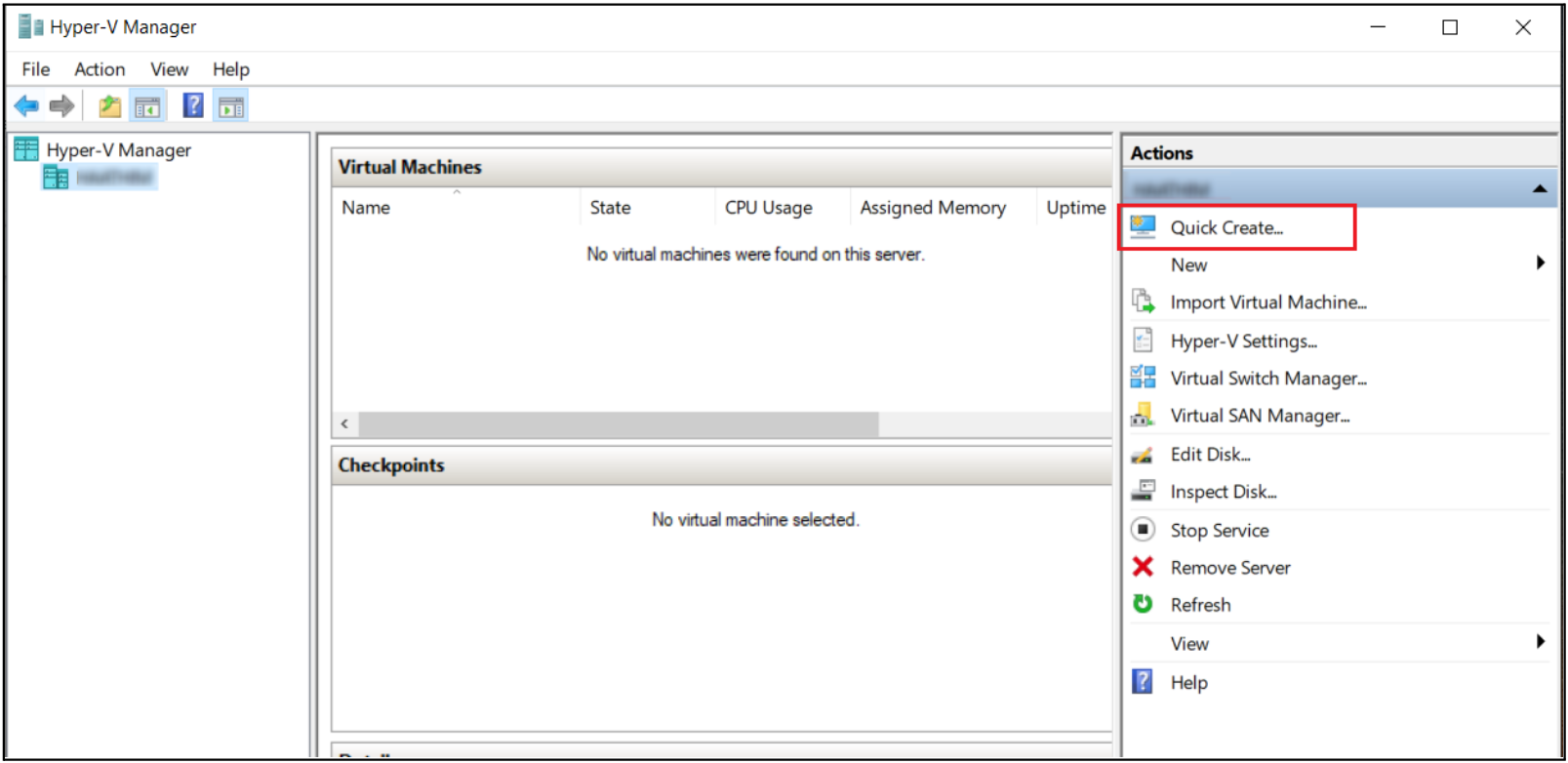
Step 3: Create a Virtual Machine
-
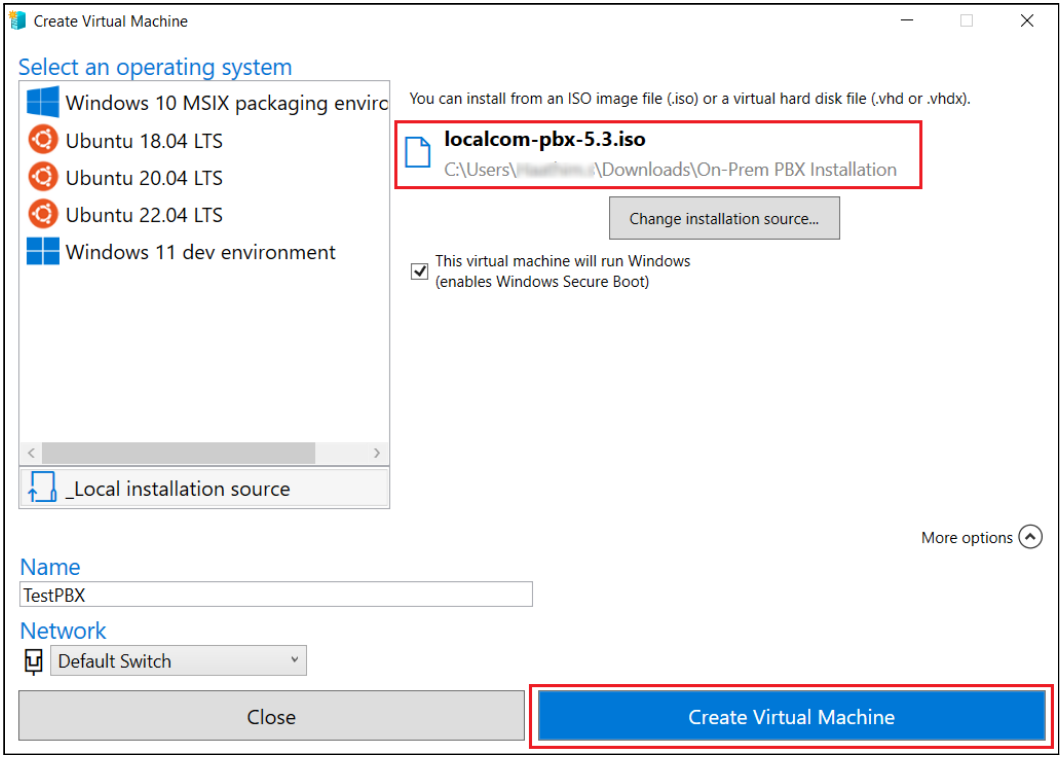
Select Local installation source, enter a suitable Virtual Machine name, and click Change Installation Source to install from an ISO (.iso) image file.
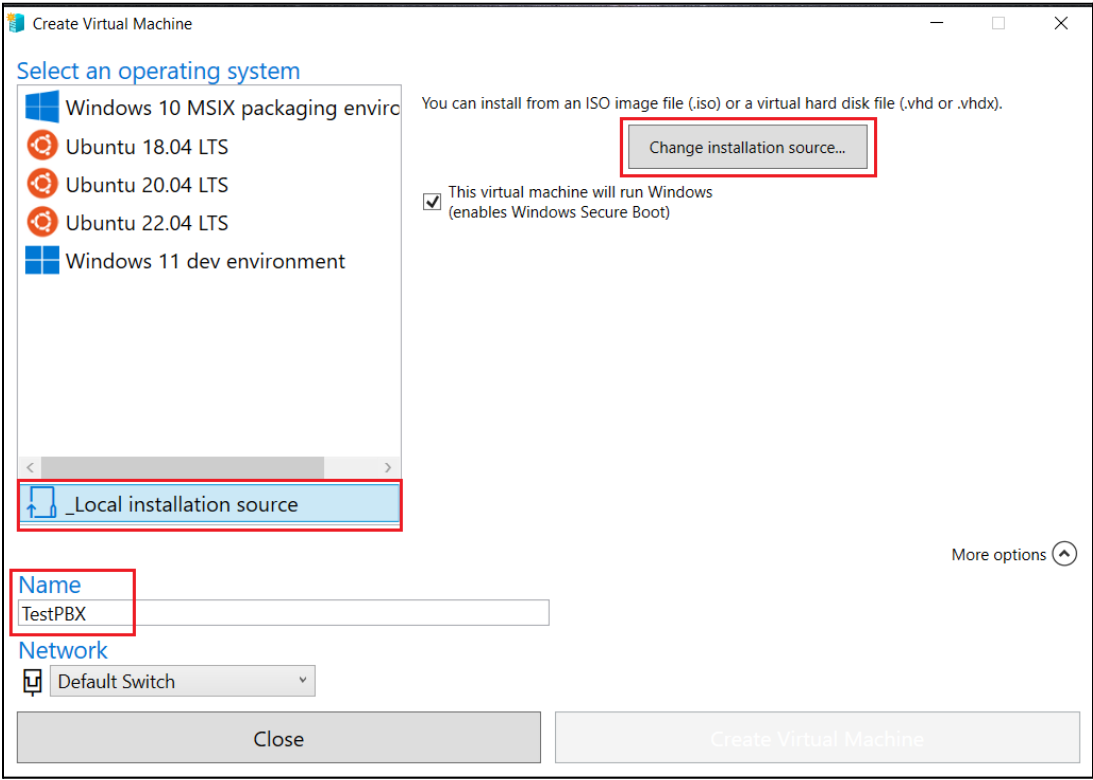
-
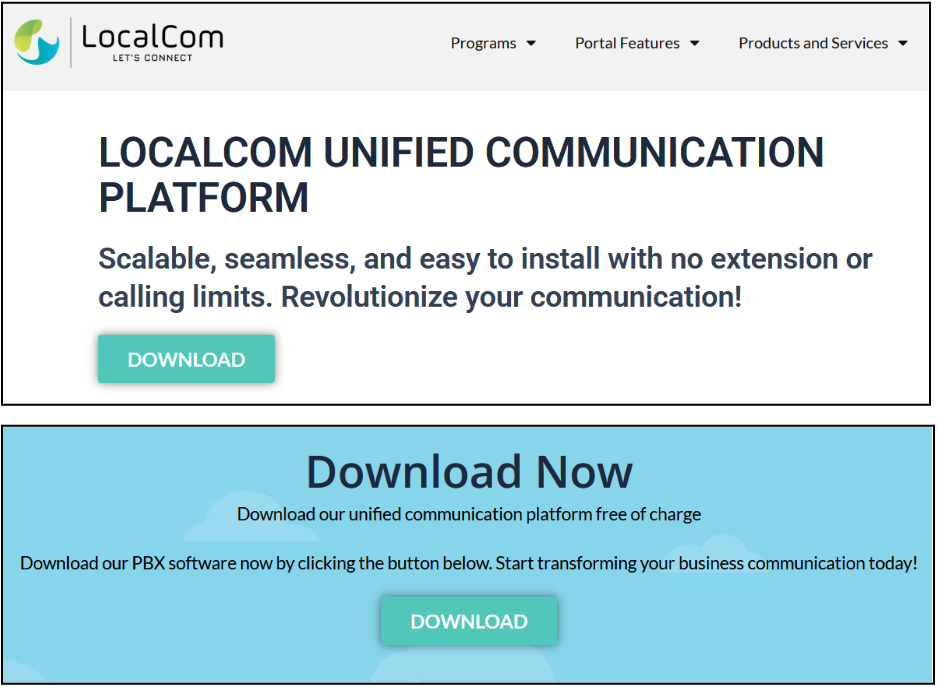
Choose the NexusUC software ISO file, which can be downloaded from Localcom: NexusUC-Platform Page
The file selection dialog will confirm the ISO file path:
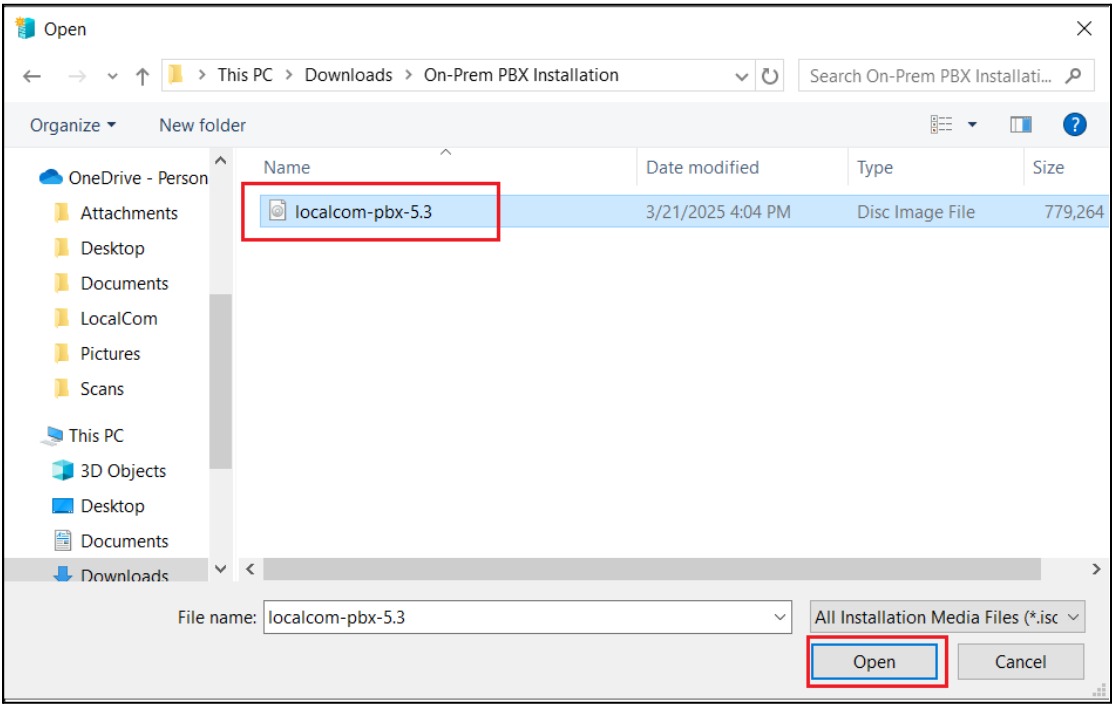
-
Click on Create Virtual Machine.
-
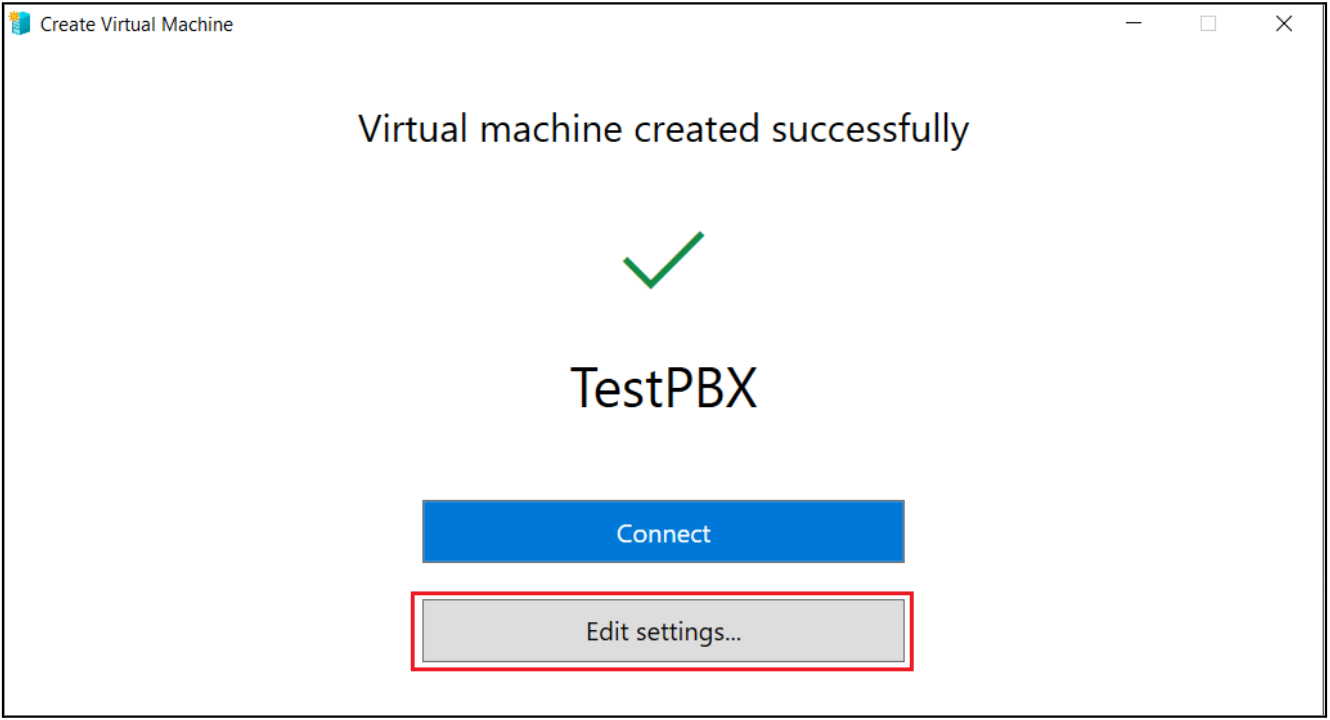
When prompted with "Virtual Machine created successfully", click on Edit Settings before connecting to the VM.
-
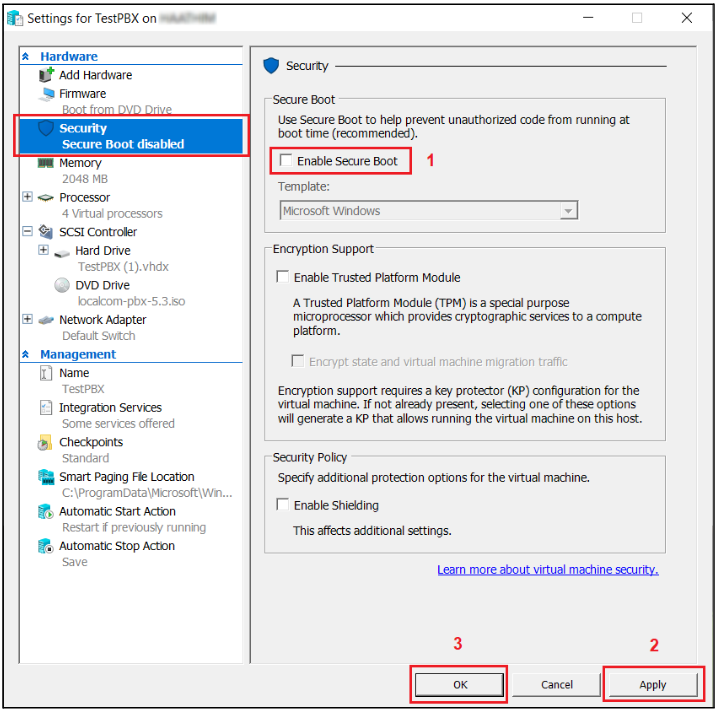
Navigate to the Security tab, uncheck Enable Secure Boot, then click Apply and OK to save changes.
Step 4: Boot Virtual Machine
-
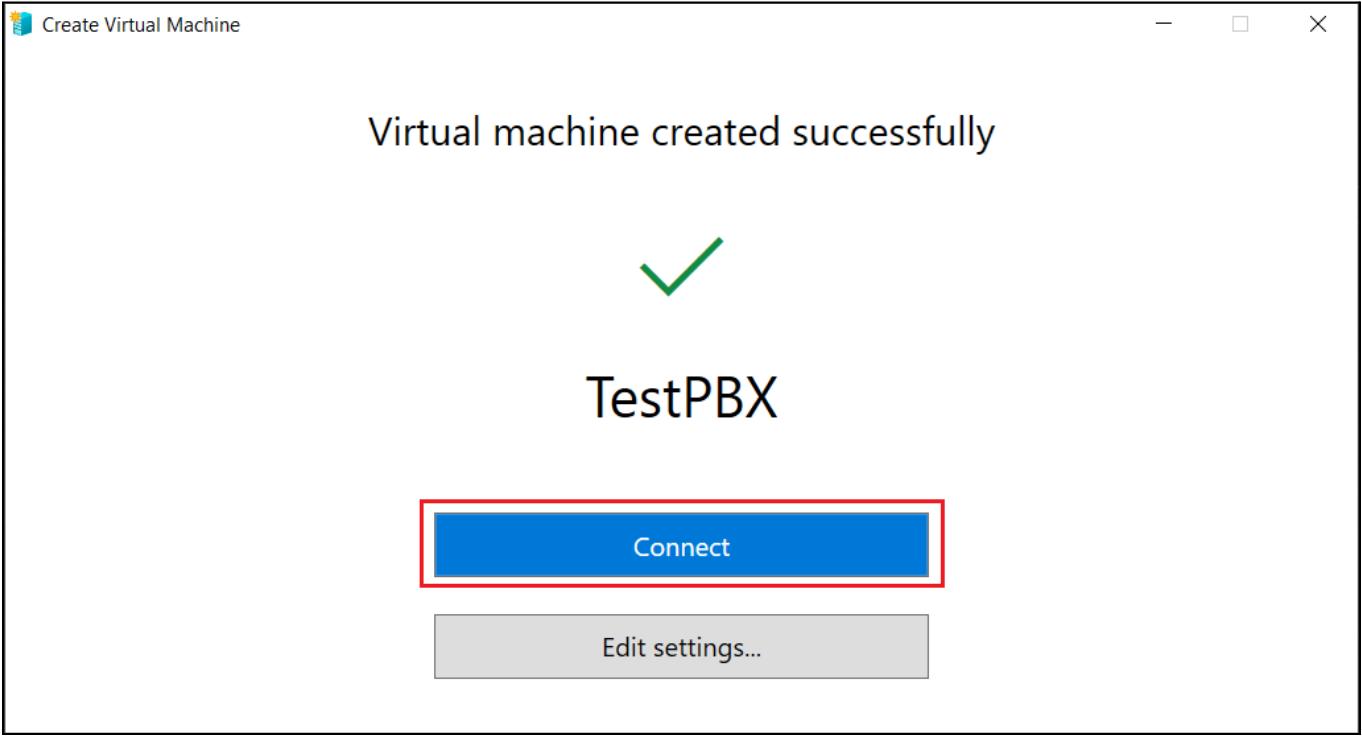
Click on Connect to open the Virtual Machine.
-
Click Start (either on-screen or from the Actions pane in Hyper-V Manager) to boot the VM.
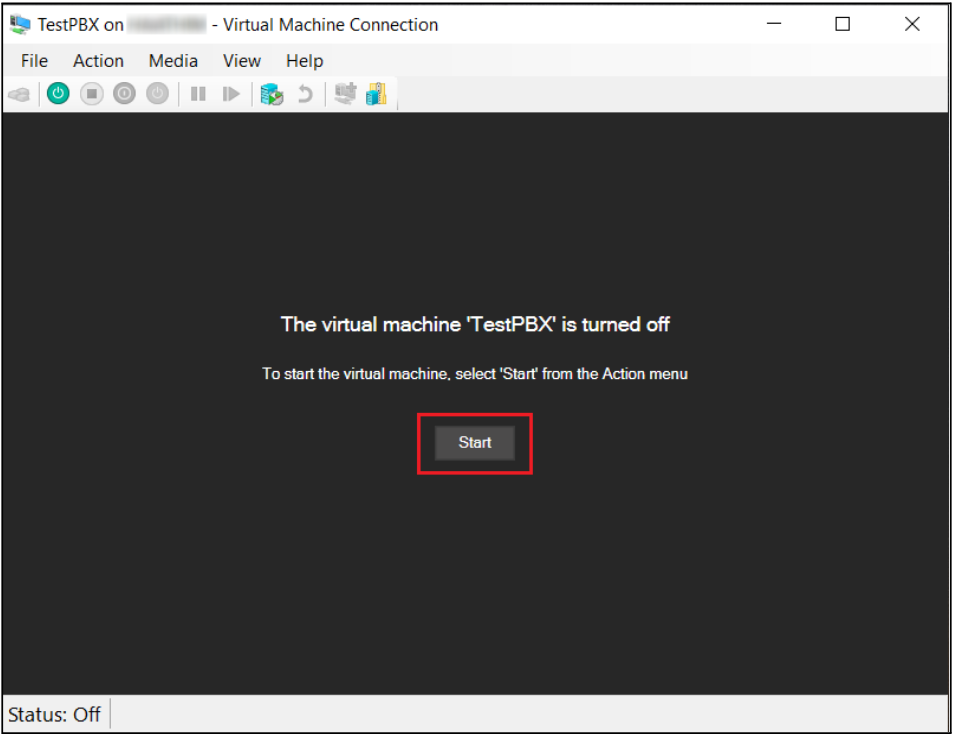
-
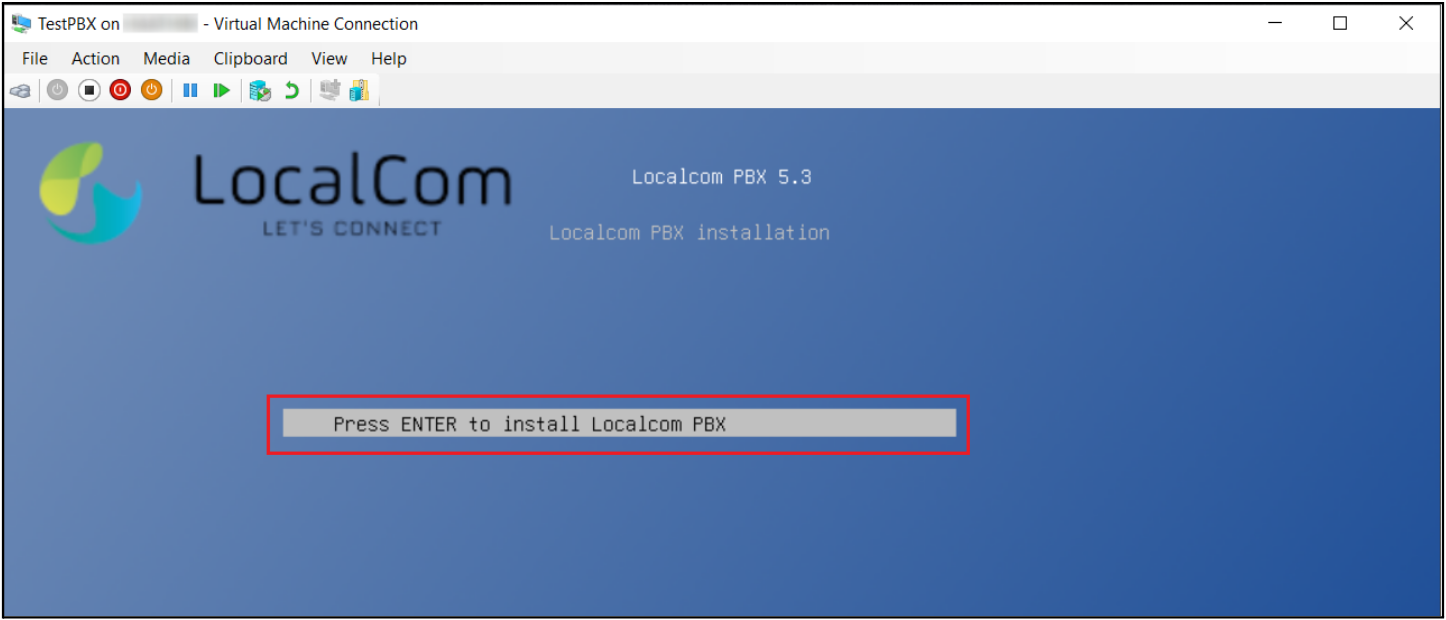
Follow the on-screen instructions to proceed with the NexusUC installation.
Note
This may take a few minutes.
The installer will display the NexusUC boot screen:
Installation progress will be shown on screen:
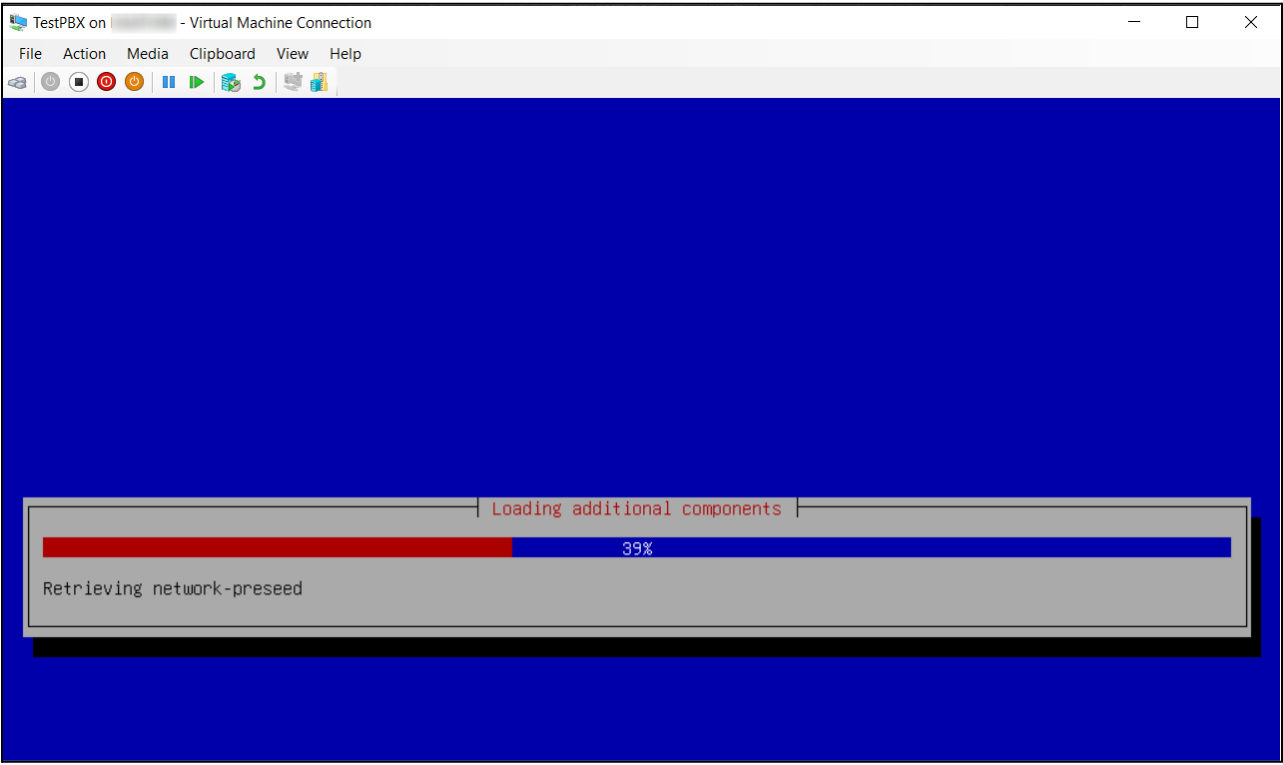
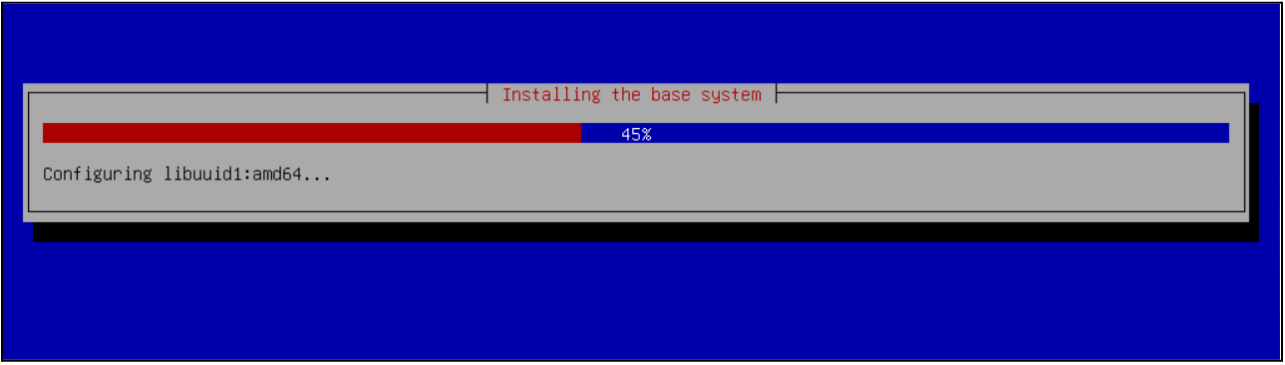
-
Once the installation is complete, click Continue to reboot the Virtual Machine.
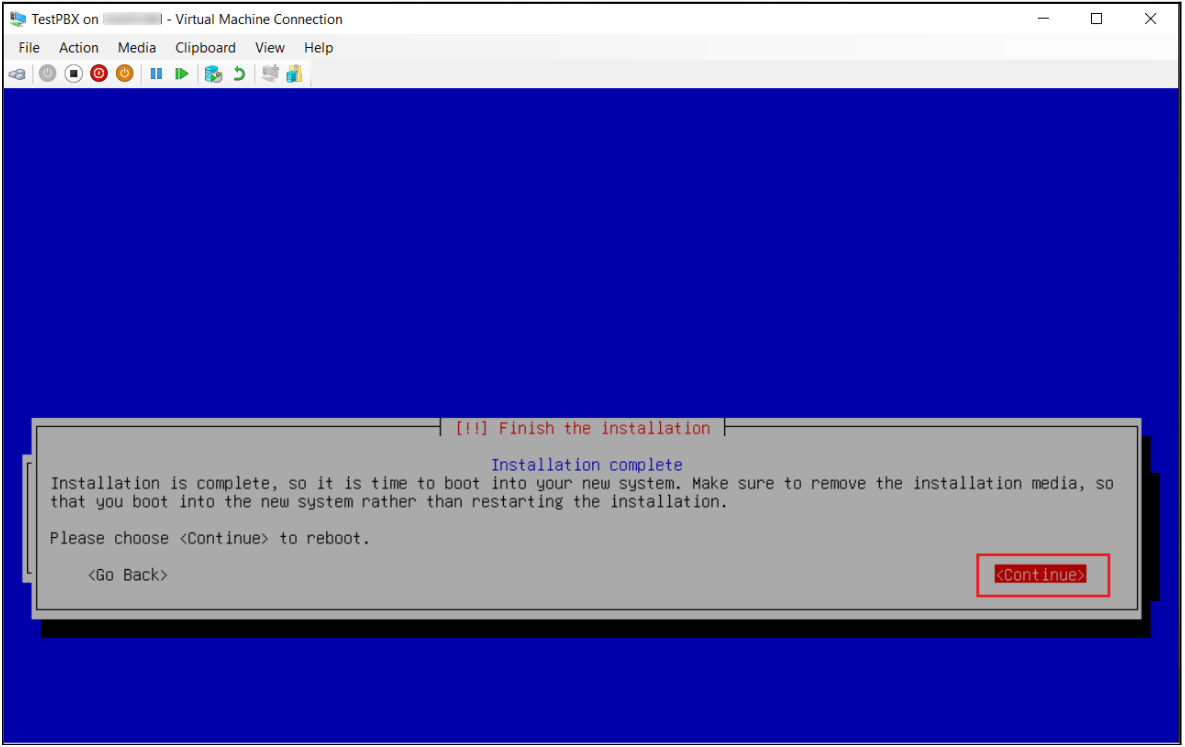
The system will reboot automatically:
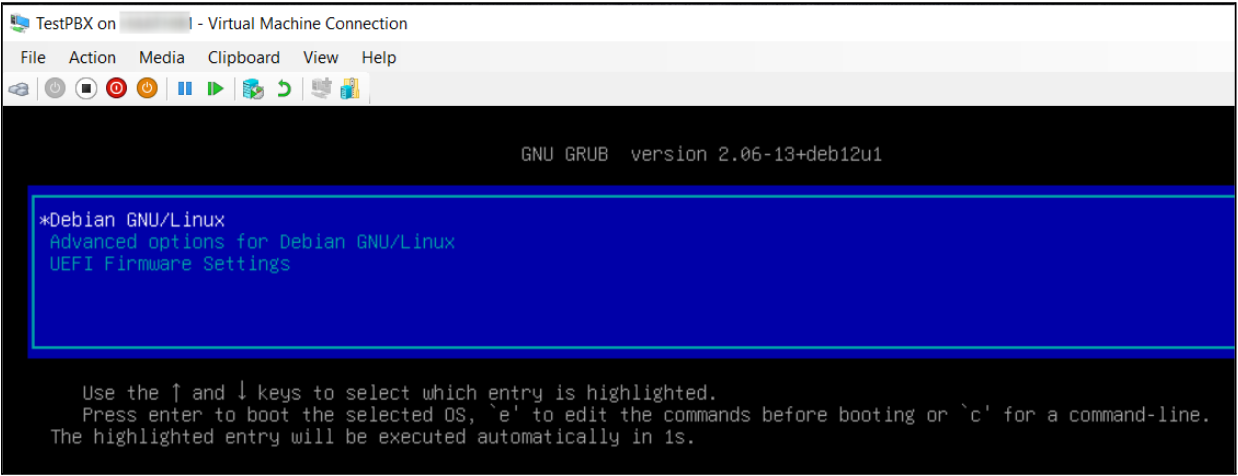
Step 5: Service Code Verification
-
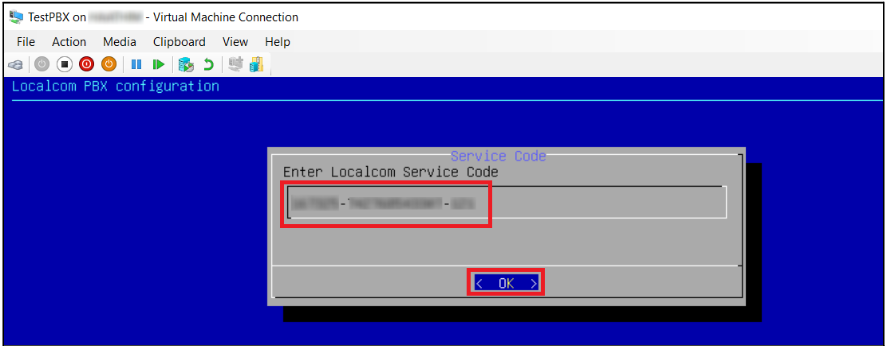
After rebooting, the configuration page will prompt you to enter your LocalCom Service Code for verification.
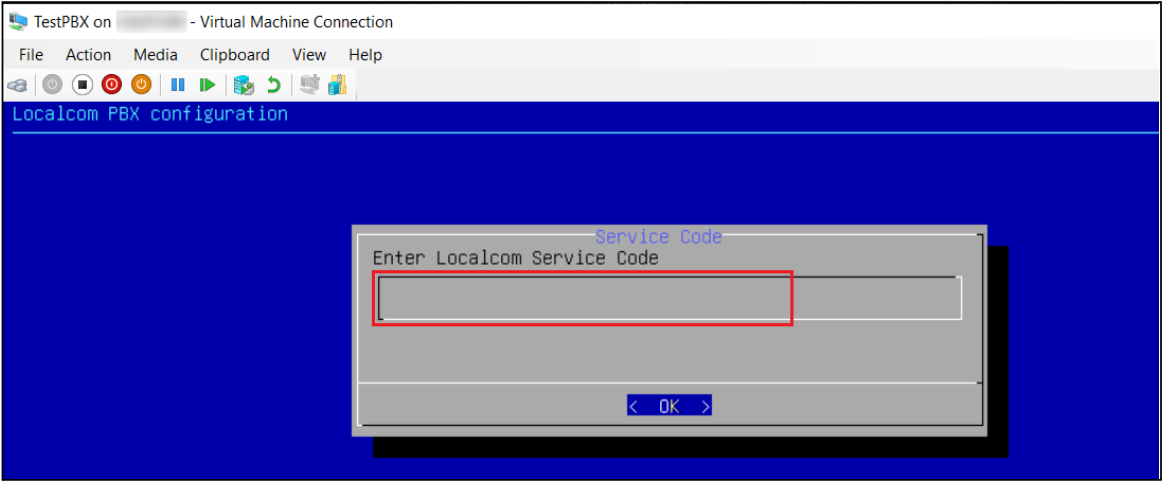
-
Your Service Code can be obtained from the portal service page after submitting your contact details on the download page.
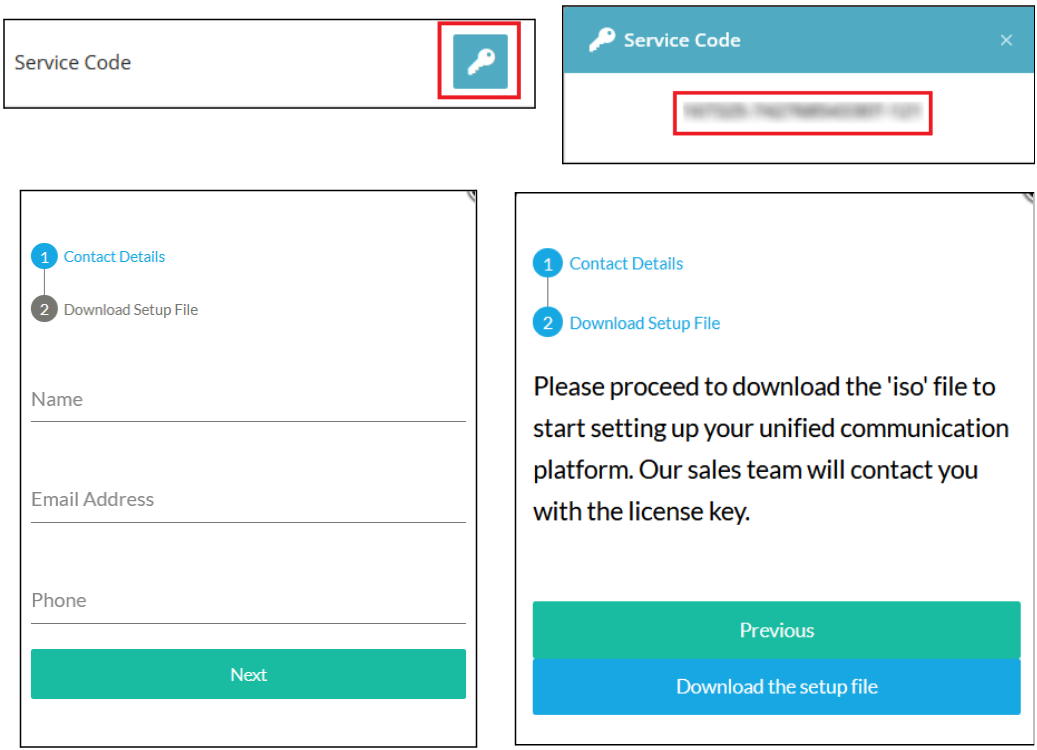
-
Once you have received your unique Service Code, enter it manually, including the hyphens (-).
Warning
Copy-pasting is not allowed. You must type each character one by one carefully.
Step 6: Finalize Installation of NexusUC
-
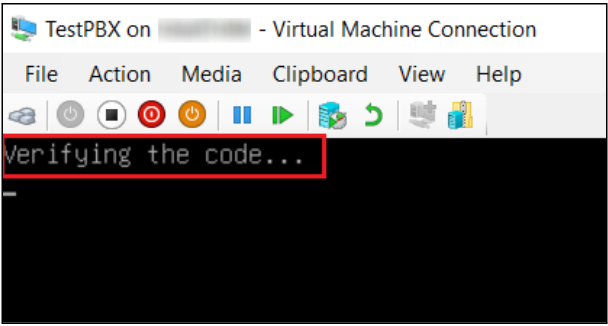
The platform will verify the service code once entered.
-
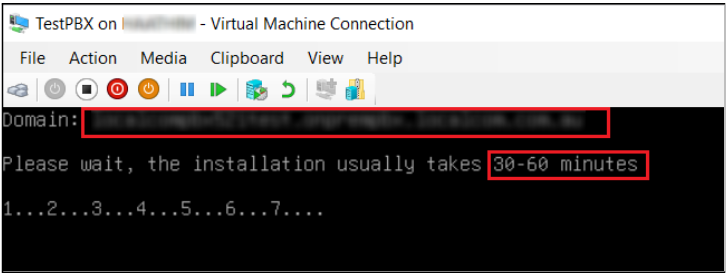
Upon verification, your domain name will be displayed, and the installation process will begin.
Note
This step takes 30–60 minutes, depending on your internet speed and storage type. SSD storage and fiber internet will consume less time to install.
-
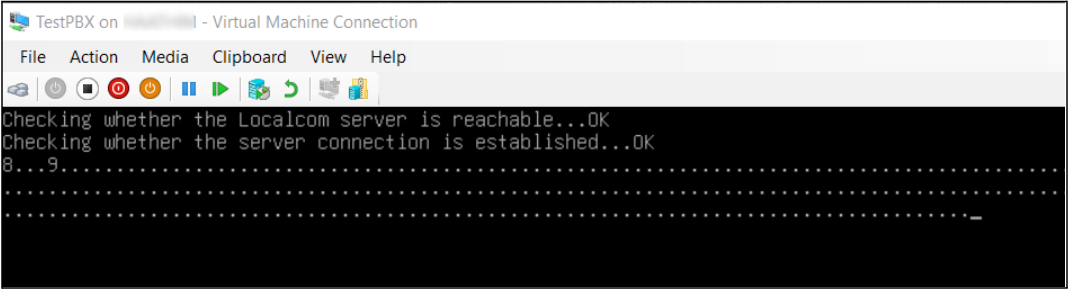
Once completed, the system will establish a connection to the LocalCom server, and the installation will continue automatically.
-
After the final installation, the login prompt will appear along with your PBX domain name. Once you see this screen, the PBX is ready for access via the LocalCom portal domain URL.
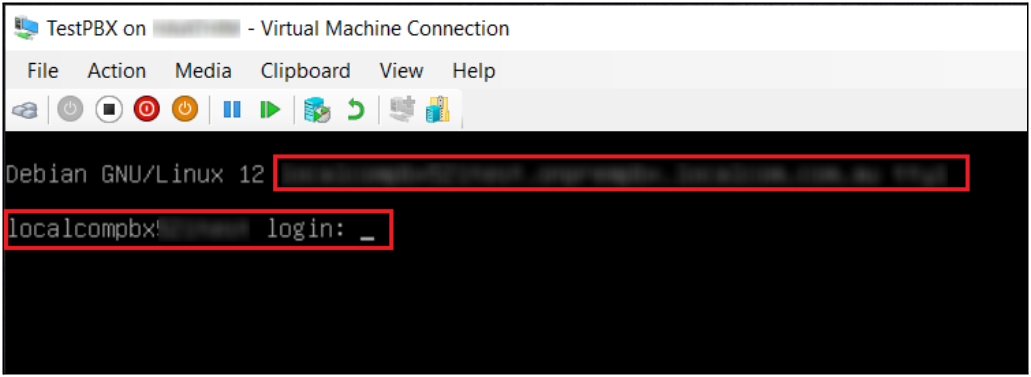
Step 7: Accessing or Logging into NexusUC from the Portal
Warning
The Virtual Machine must remain running in the background. Shutting it down will prevent access to NexusUC.
To log in to NexusUC, first log in to the Partner portal using your credentials.
Partner portal: Localcom Partner Portal
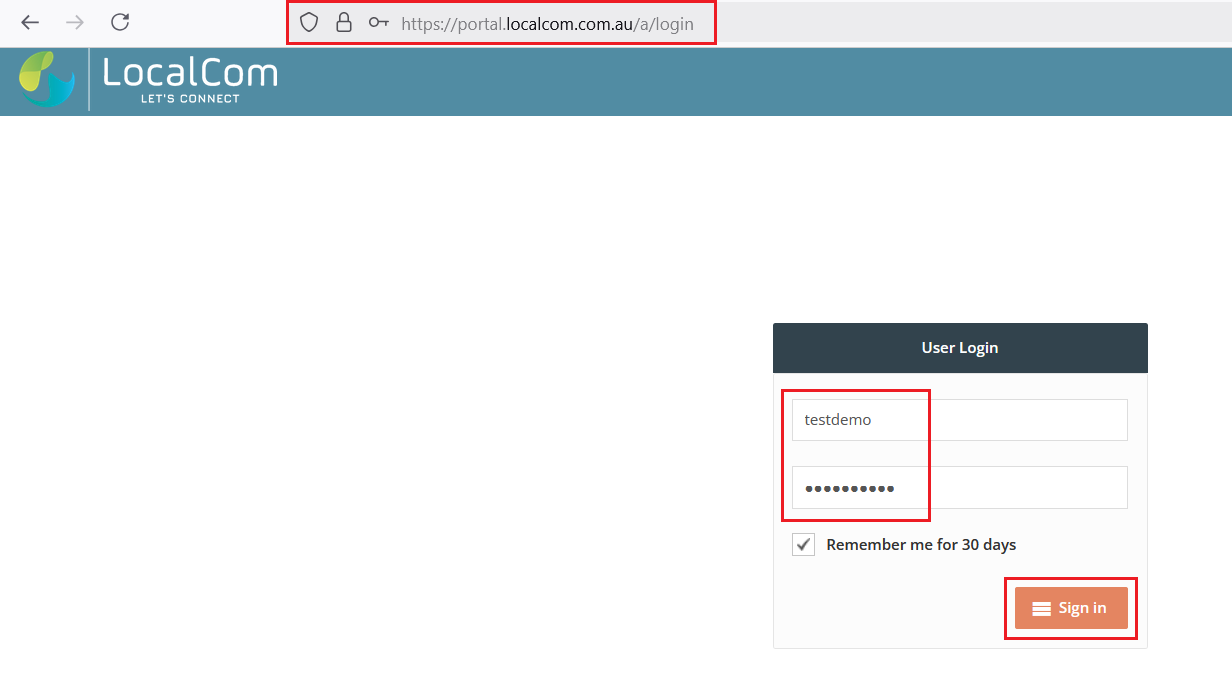
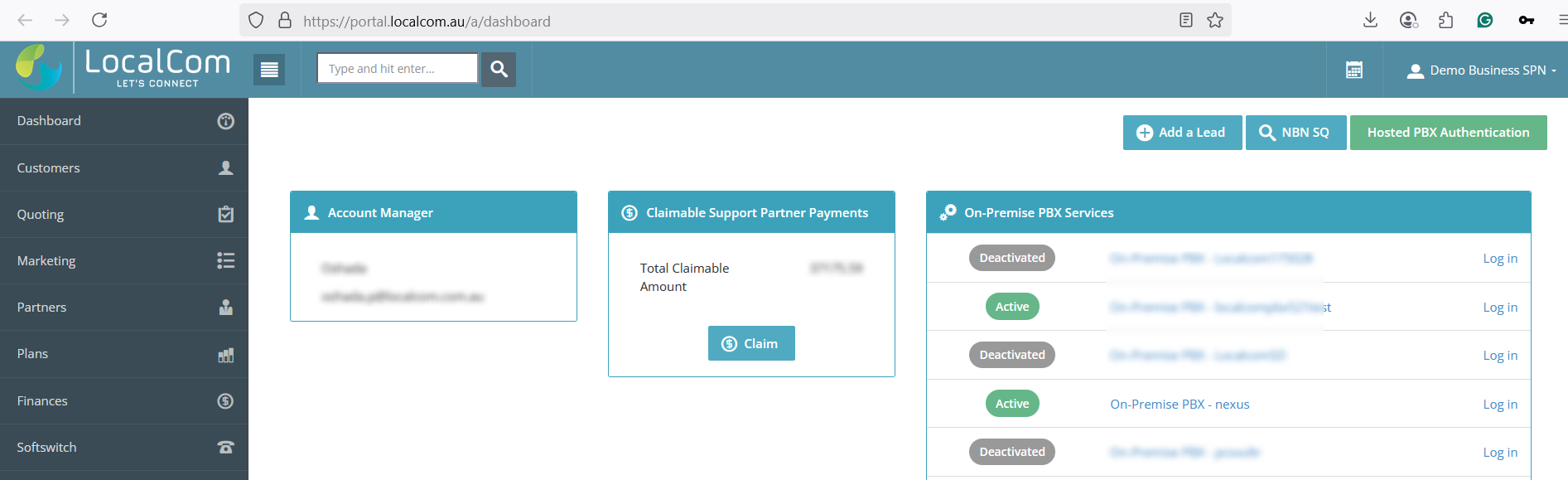
From the dashboard, you can access NexusUC in three ways:
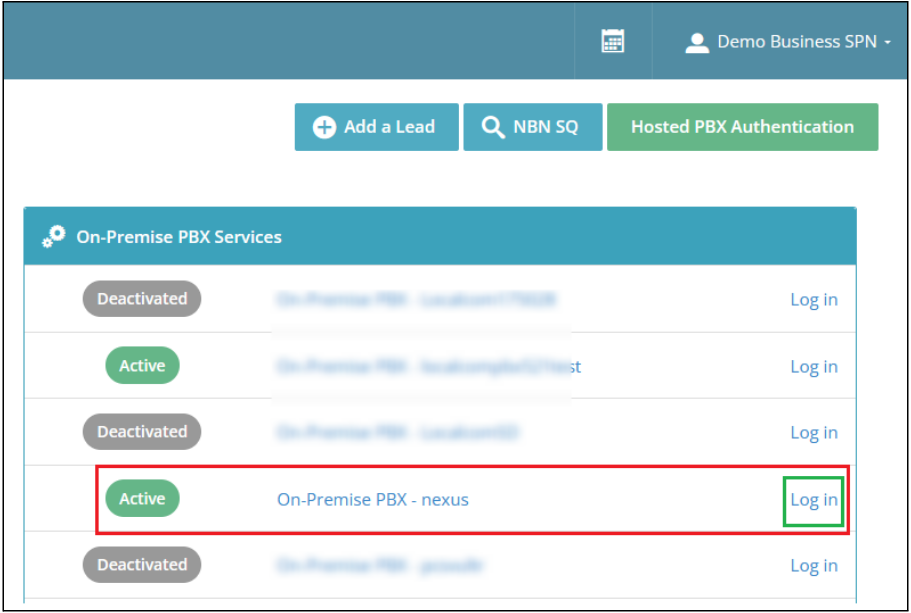
Option 1: Dashboard Widget
Click the Log in button next to the NexusUC PBX domain under the On-Premise PBX Services widget on the dashboard.
Option 2: Customers Menu
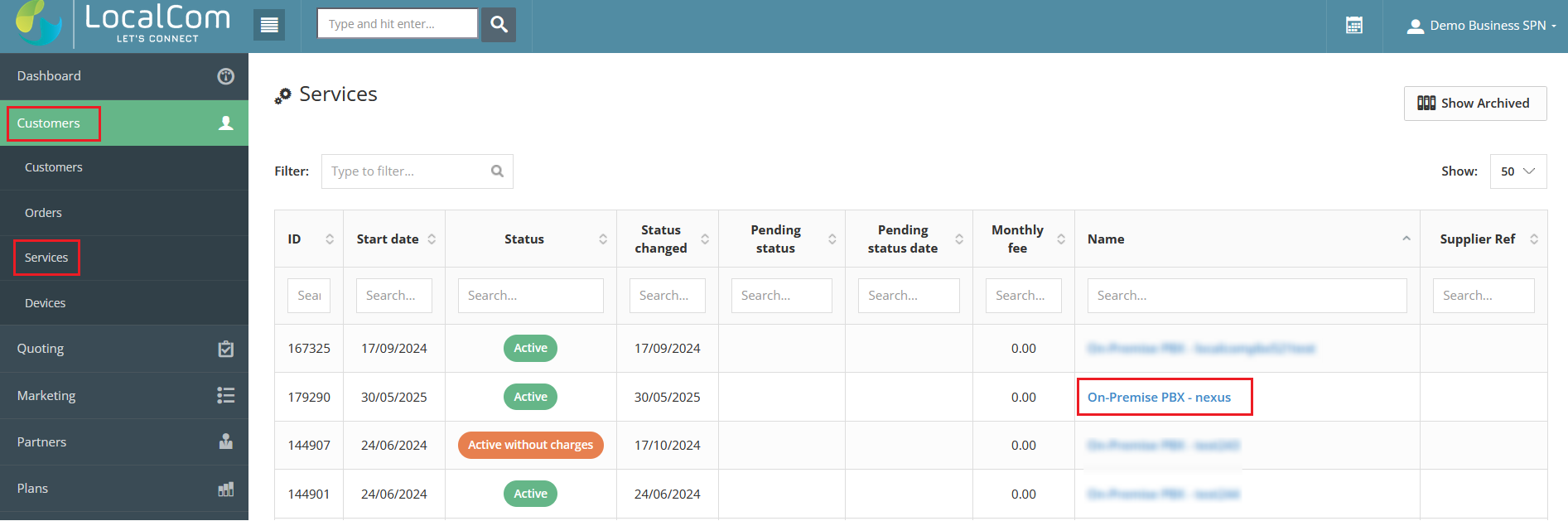
Navigate to Customers → Services → Click on the NexusUC PBX Domain.
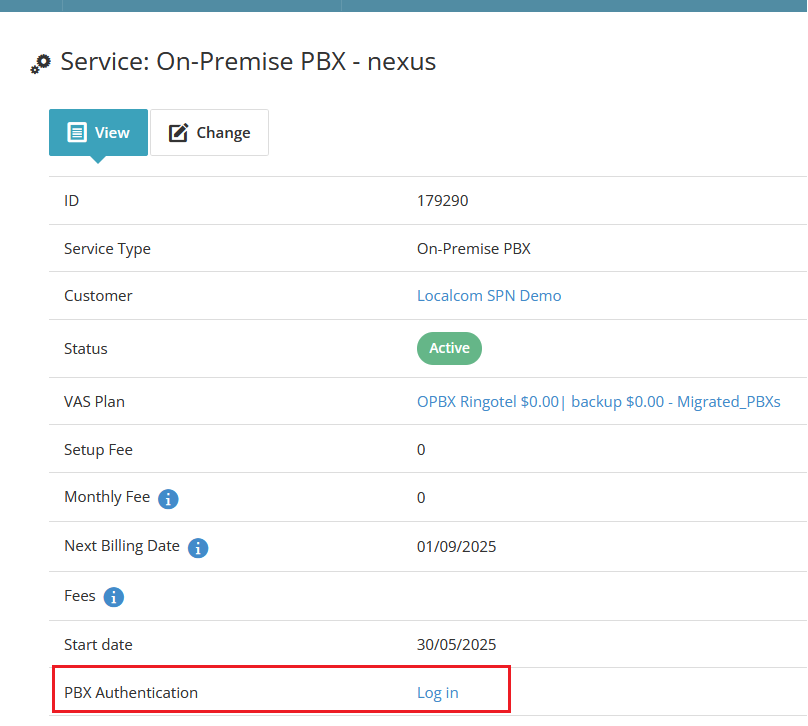
Then click the Log in (PBX Authentication) button on the domain service page to access NexusUC.
Option 3: External Site Login
Click on the PBX URL link, which will take you to the NexusUC login page.

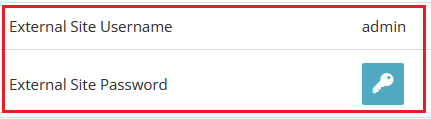
Use the External site username and password to log in.
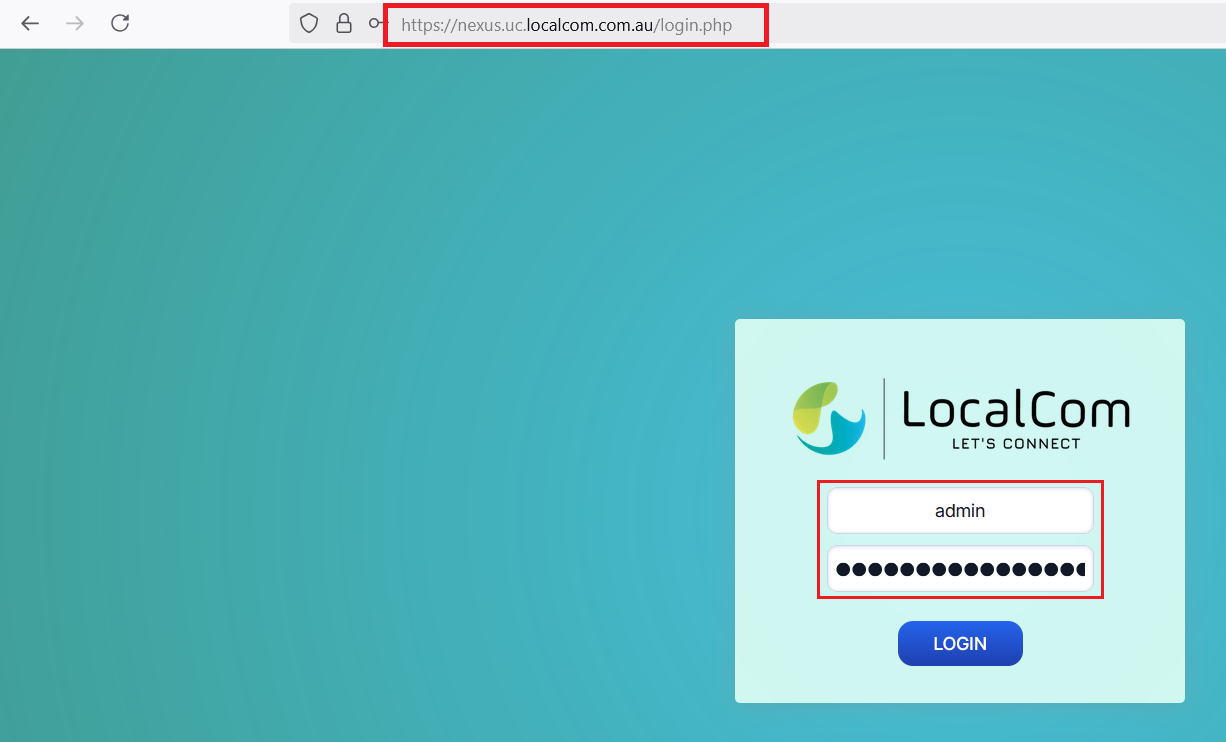
You can also copy the domain name URL into a new browser tab to access the same login page.

NexusUC Dashboard
This is how the NexusUC dashboard looks once you have logged in.
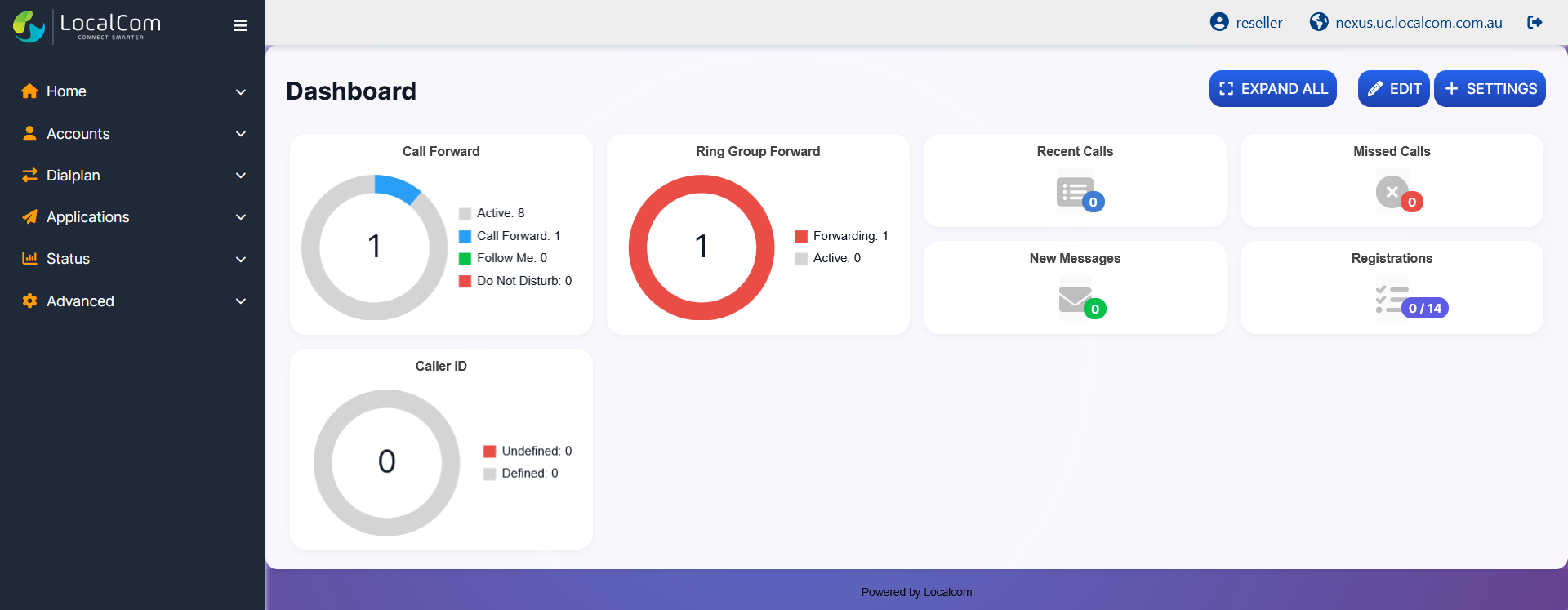
From here, you have admin privilege access to all the features, configurations, and settings of NexusUC.
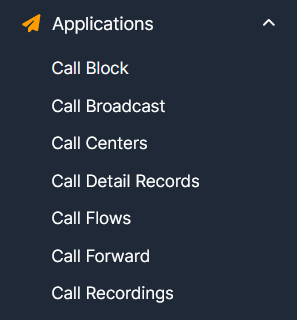
The navigation menu provides access to all major sections:
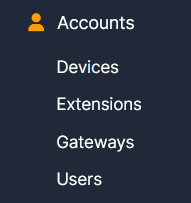
Accounts and Dialplan settings:
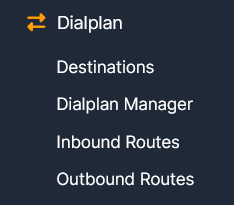
Applications and Status monitoring:
Advanced settings: