Getting Started
Configuring or Accessing the Features/Settings on NexusUC
This guide covers the setup and configuration of all major NexusUC features. Use the table of contents on the left to jump directly to the feature you need.
Recommended Extension Ranges
Before configuring your PBX, refer to the recommended extension number ranges below to keep your system organized:
| Range | Category |
|---|---|
| 3000 – 3999 | Conferences |
| 4000 – 4999 | Fax Servers |
| 5000 – 5999 | IVR Menus |
| 6000 – 6999 | Ring Groups |
| 7000 – 7999 | Call Center Queues |
| 8000 – 8999 | Time Conditions |
| 9000 – 9999 | Call Flows |
Set up New Extensions
Extensions are the foundation of your PBX — each one represents a phone line assigned to a user or device. You'll need to create extensions before configuring other features like ring groups, queues, or call forwarding.
-
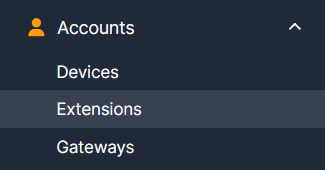
Navigate to Accounts → Extensions.
-
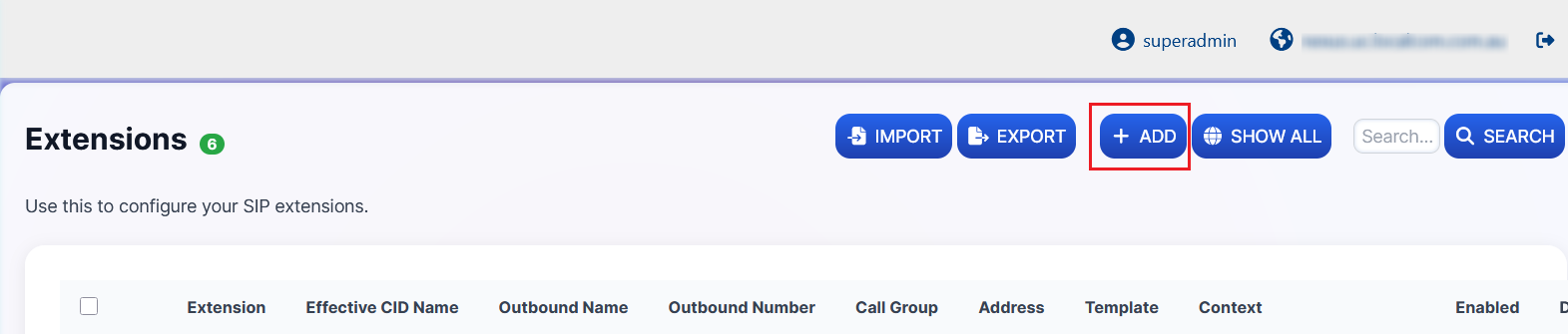
Click on the +ADD button to open a new extension add form.
-
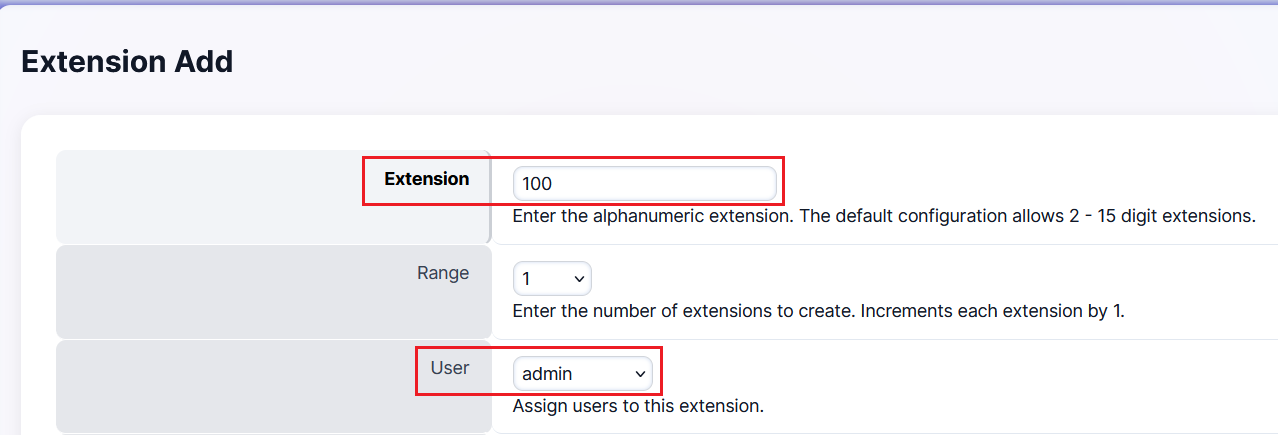
Assign an appropriate extension number and link it to the relevant user.
-
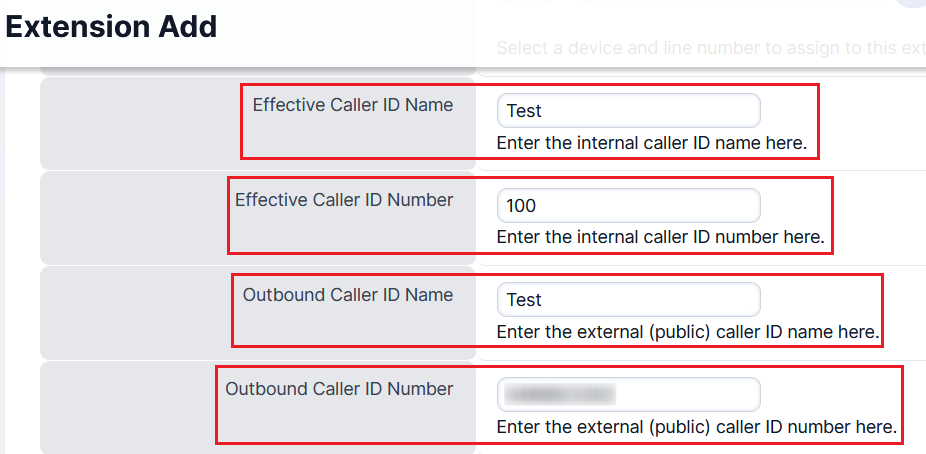
Set the caller ID fields:
- Effective Caller ID Name and Number — used for internal calls
- Outbound Caller ID Name and Number — displayed for external calls
-
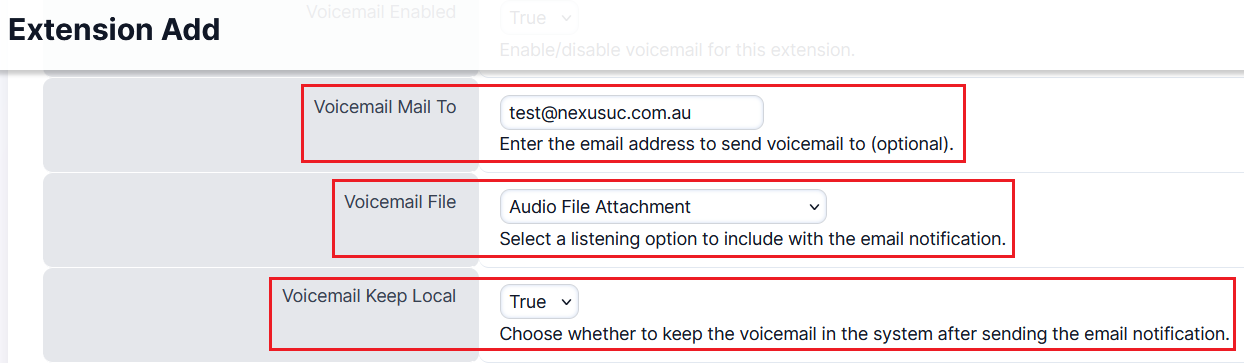
Configure the Voicemail settings (optional):
- To forward voicemails to email, enter the address in the Voicemail Mail To field and enable Audio File Attachment
- To retain voicemail recordings on the local device (phone), set Voicemail Keep Local to True; otherwise, leave it as False (default)
-
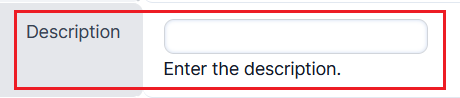
Enter a suitable descriptive name for this extension (e.g., 100 - Test), then click Save at the top right of the page.

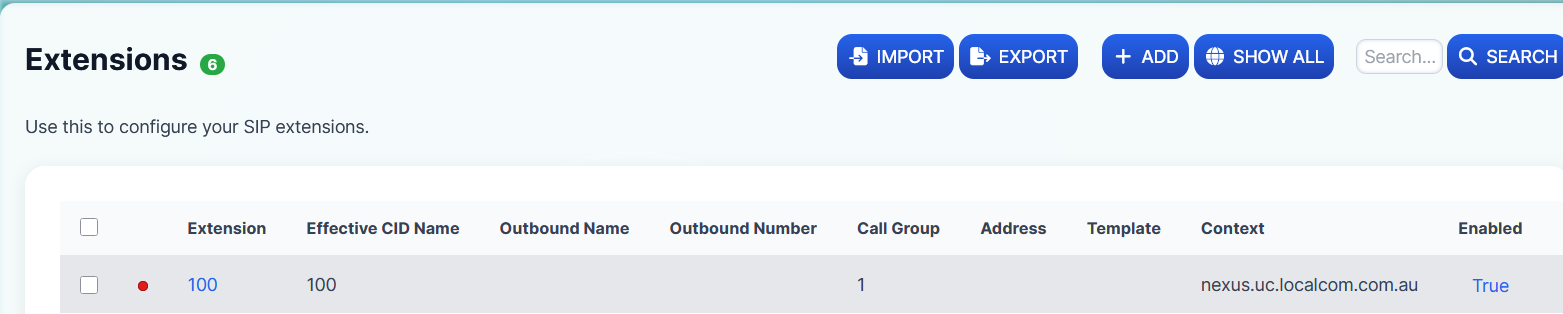
Result: Once the new extension has been successfully created, it will appear under Accounts → Extensions. You can assign this extension to any inbound destination action.
Set up and Attach Devices
Device provisioning allows you to link physical IP phones to extensions, so they automatically register and receive configuration updates from the PBX.
-
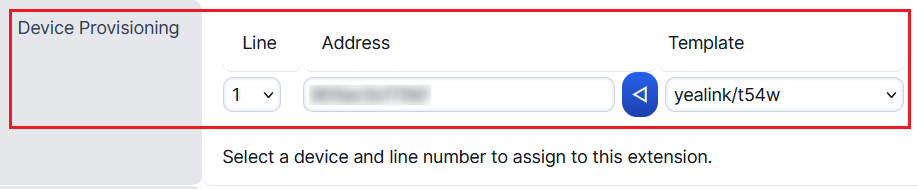
Attach a device's 12-digit MAC address to the new extension to be auto-provisioned. Select the appropriate model from the template dropdown if available (e.g., Yealink IP deskphones or cordless handsets).
-
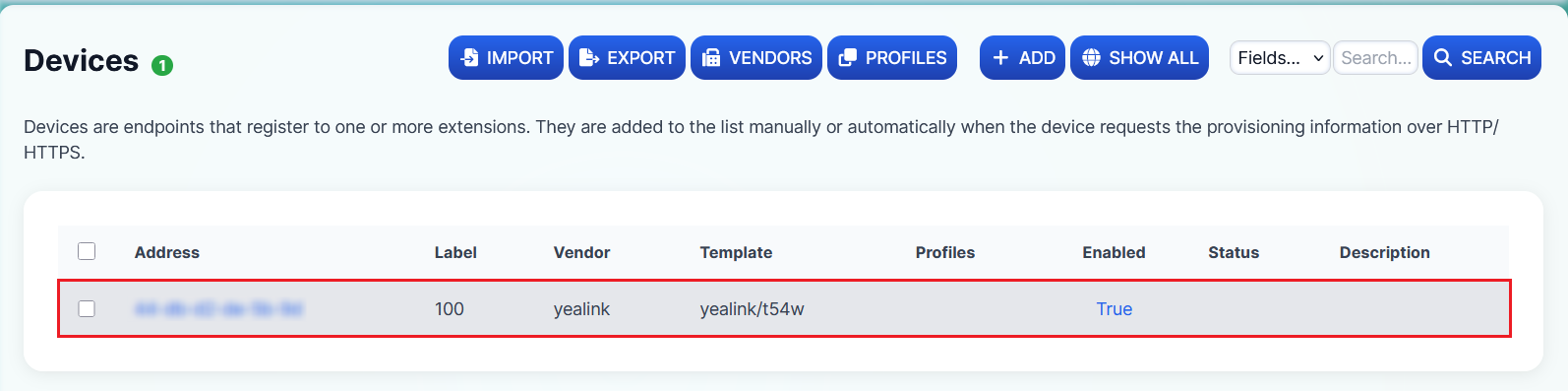
Once the above details are added and saved, the device will automatically appear under Accounts → Devices.
-
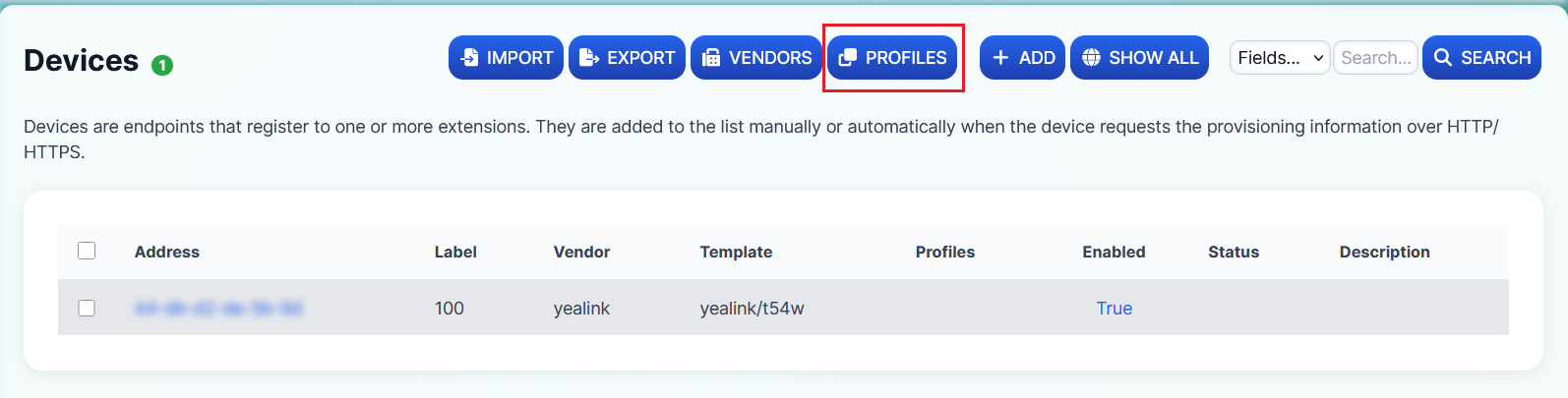
Under the PROFILES section, create a device profile to configure:
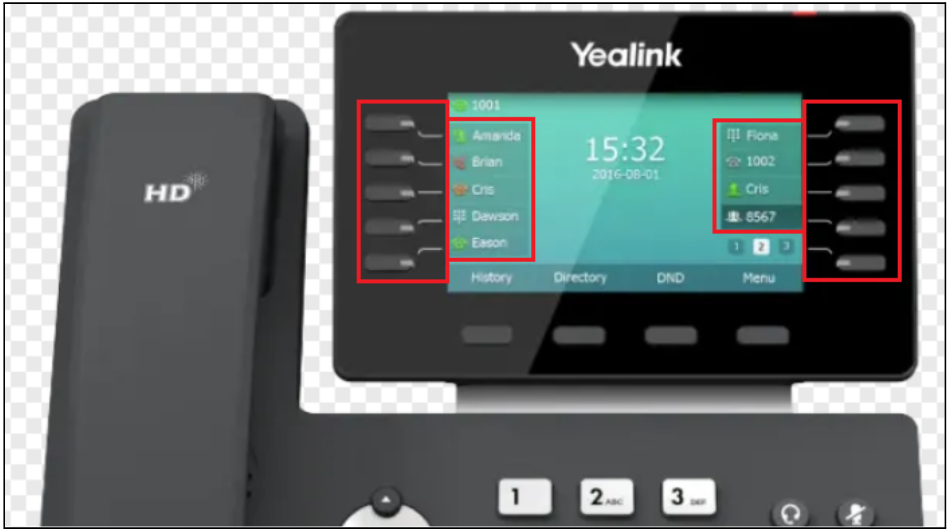
- Manual Call Flow Diversion Switch BLF keys
- Speed-Dial buttons on the phone screen
This allows users to easily toggle night switches or quickly dial specific extensions or external numbers directly from the phone.
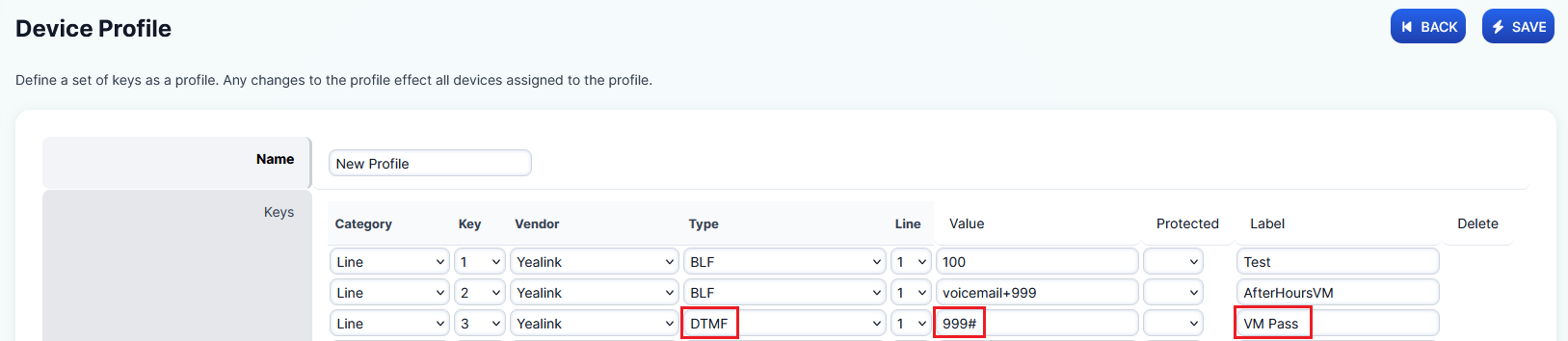
Profile key configuration screen:

Example of configured BLF and speed-dial keys:
-
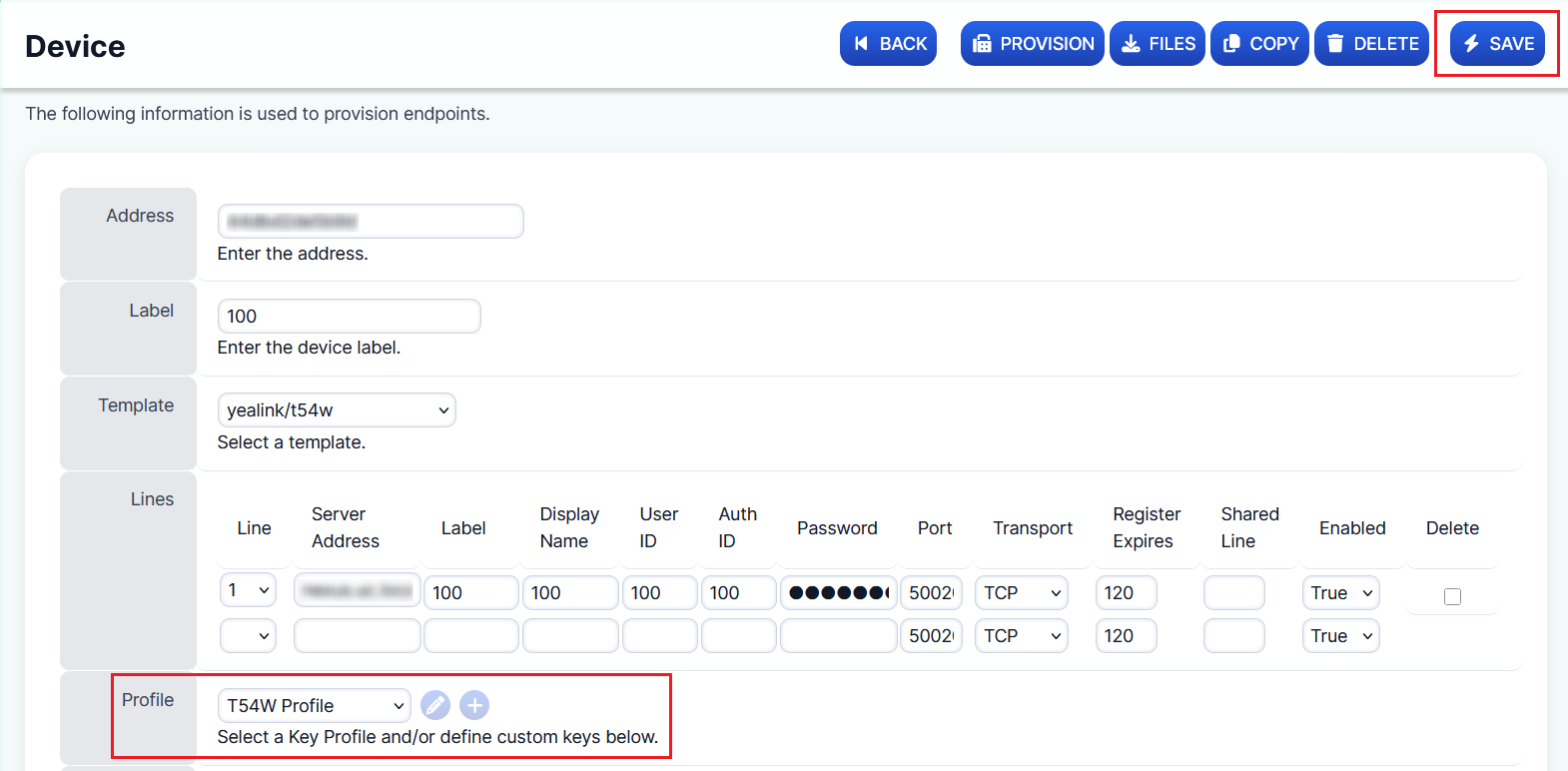
To display these keys on the phone screen, assign the created profile to each device. Navigate to Accounts → Devices, select the appropriate device, choose the correct profile from the dropdown menu, and click Save.
Note
If you make any changes to a profile, each phone using that profile must be re-provisioned for the updates to apply. Click the Provision button at the top right to push changes to the device. If changes don't reflect after provisioning, try rebooting the phone. If that still doesn't work, perform a factory reset to apply the new settings.
Registering Yealink Handsets via RPS
To register Yealink handsets via RPS, go to Applications → Yealink RPS.
Note
If this is the first time, you may need to add your domain to the RPS server (as shown below).

Once done, you'll see the newly attached Yealink devices listed. Click the '+' icon next to the relevant device to add it to the RPS server (the icon will change to a '–' to indicate success). Once added, perform a factory reset manually on the handset to complete registration.
Warning
Please allow 10–15 minutes for the factory reset or firmware updates to complete.
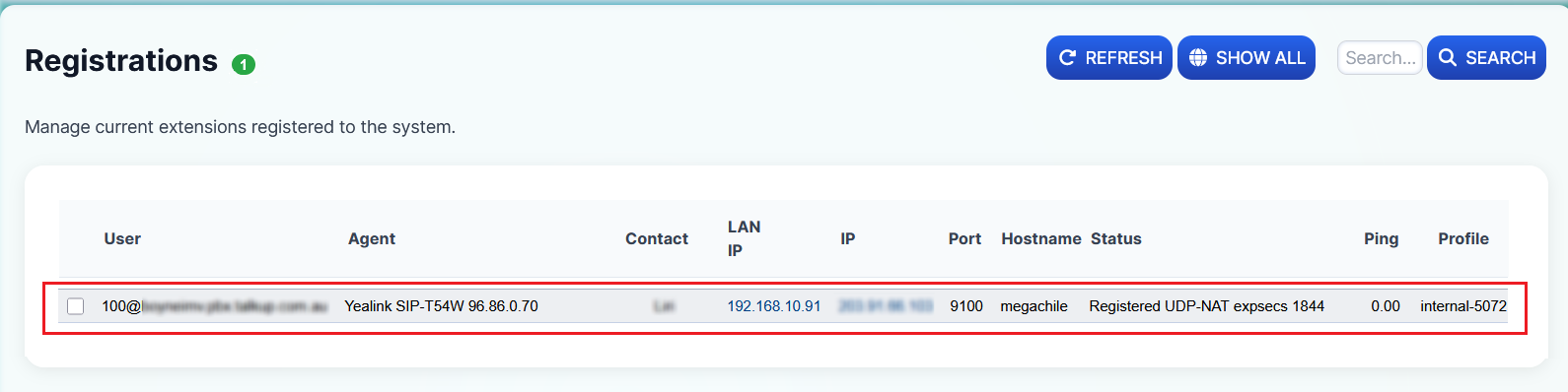
Result: Once the devices are registered, they will appear in the list as shown below.

You can also view registered devices under Status → Registrations.
SIP Endpoint Registration Options for NexusUC Domains
Localcom provides three methods for registering SIP endpoints depending on how NexusUC is deployed and where the devices are located.
1. DNS SRV (Internal Device Registration — On-Prem PBX)
When to Use:
- For locally installed On-Premise PBXs hosted NexusUC instances
- When a partner installs NexusUC on a local PC
- When using Localcom-provided mini-PCs
Configuration: Under Accounts → Devices → Selected Device
- Transport = DNS SRV
- Port = 0

2. Proxy Port (External Device Registration — Remotely Hosted NexusUC)
When to Use:
- For remotely hosted NexusUC instances (e.g., installation on a Virtual Private Server)
- Commonly used for VPS deployments
Configuration:
- Proxy Port: Can be obtained from the NexusUC service page in the portal (added by default to the device page)
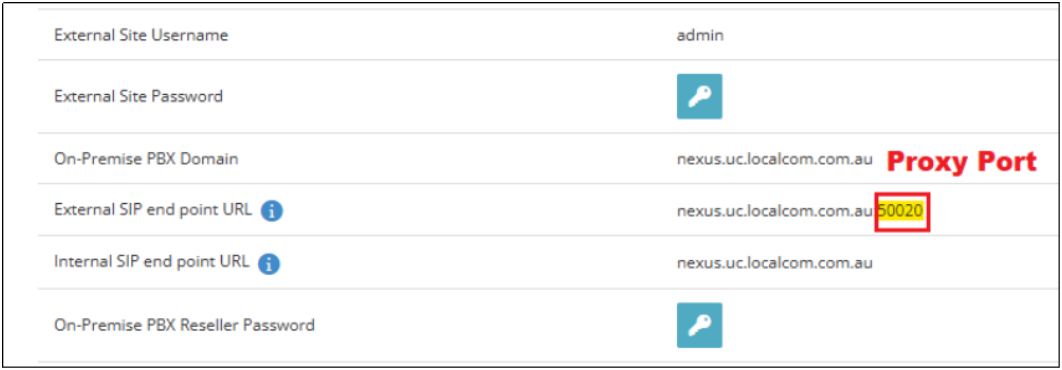
- If the proxy port is not auto-filled, manually enter it under Accounts → Devices → Selected Device:
- Transport = TCP/UDP (Standard)
- Port = Proxy Port

The system is programmed to auto-setup the proxy port by default.
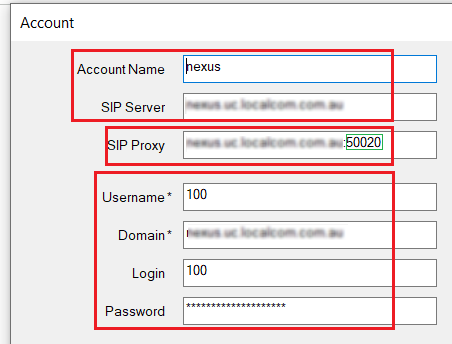
Example of proxy registration on MicroSIP:
3. Custom FQDN Registration (Custom Domain Name)
When to Use:
- For partners who do not want to use the default domain (uc.localcom.com.au)
- Allows using a custom domain instead (e.g., mypbx.example.com.au)
- The NexusUC instance must be hosted remotely
Configuration:
- Transport: TCP/UDP (standard)
- Port: 5060
- Domain: Partner's custom domain (configured on NexusUC)
Note
Custom FQDN registration does not rely on a proxy.

Set up Inbound and/or Outbound Destinations, Time Conditions, and Call Flows
Destinations define how incoming and outgoing calls are routed through your PBX. Combined with Time Conditions and Call Flows, they form the backbone of your call routing logic.
-
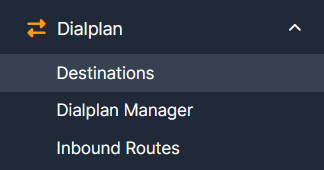
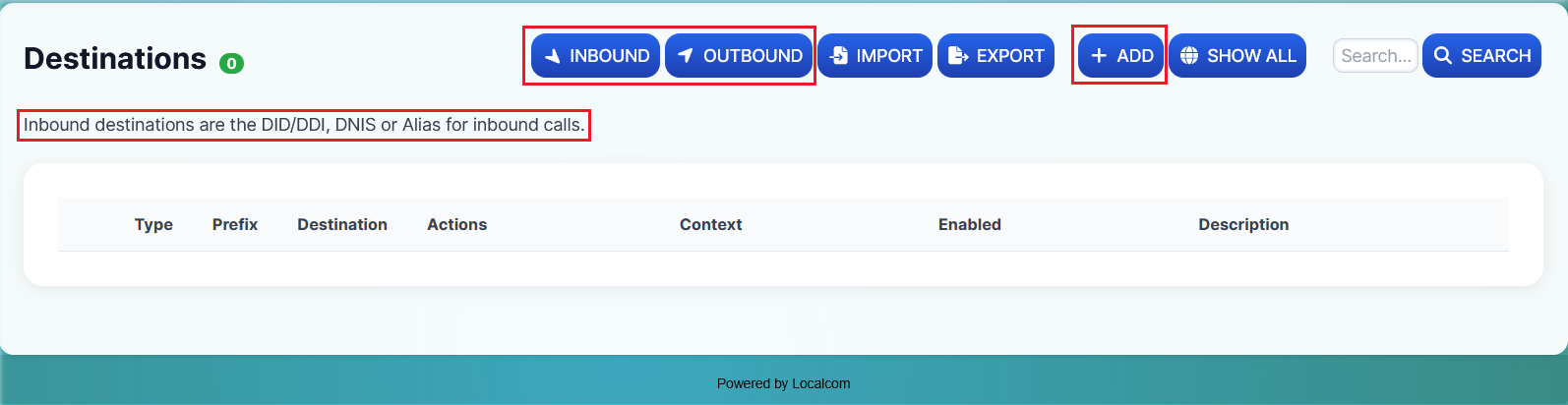
Navigate to Dialplan → Destinations.
-
Select either the Inbound or Outbound button, followed by the +ADD button to add a new destination.
-
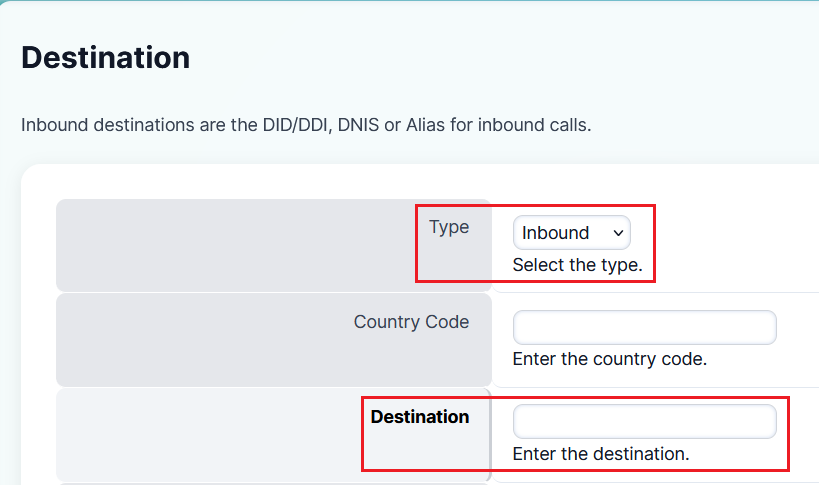
Specify the destination type (Inbound or Outbound) and enter the Destination DID number.
-
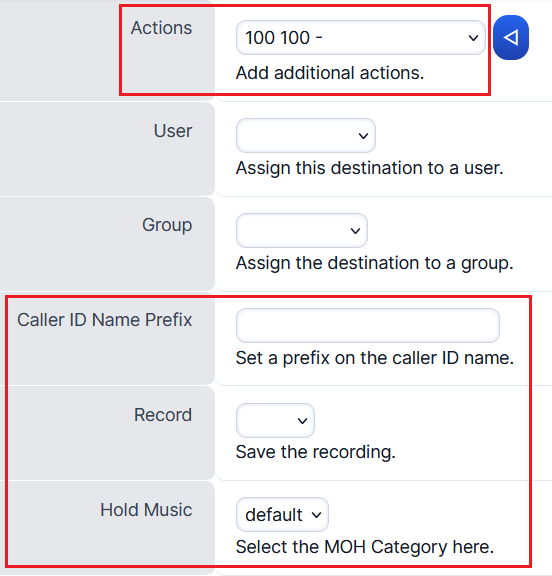
Assign an action for the Inbound Destination. This can be any of the following:
- Extension
- Call Center Queue
- Time Condition
- Manual Diversion Call Flow Switch
- Ring Group
- IVR Menu
- Outbound Destination
You can also choose to play custom hold music or use the system default, and enable or disable call recording for that destination.
Tip
You may define a Caller ID Name Prefix to help users identify the origin of calls — especially useful when handling calls from multiple site locations. The prefix displays on the phone screen before the caller ID number (e.g., Sydney#0400123123).
Recommended Inbound Destination Setup
For a robust inbound call routing setup, follow this recommended configuration:
-
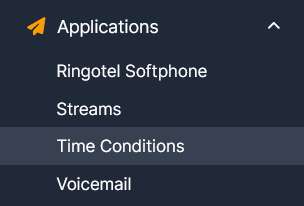
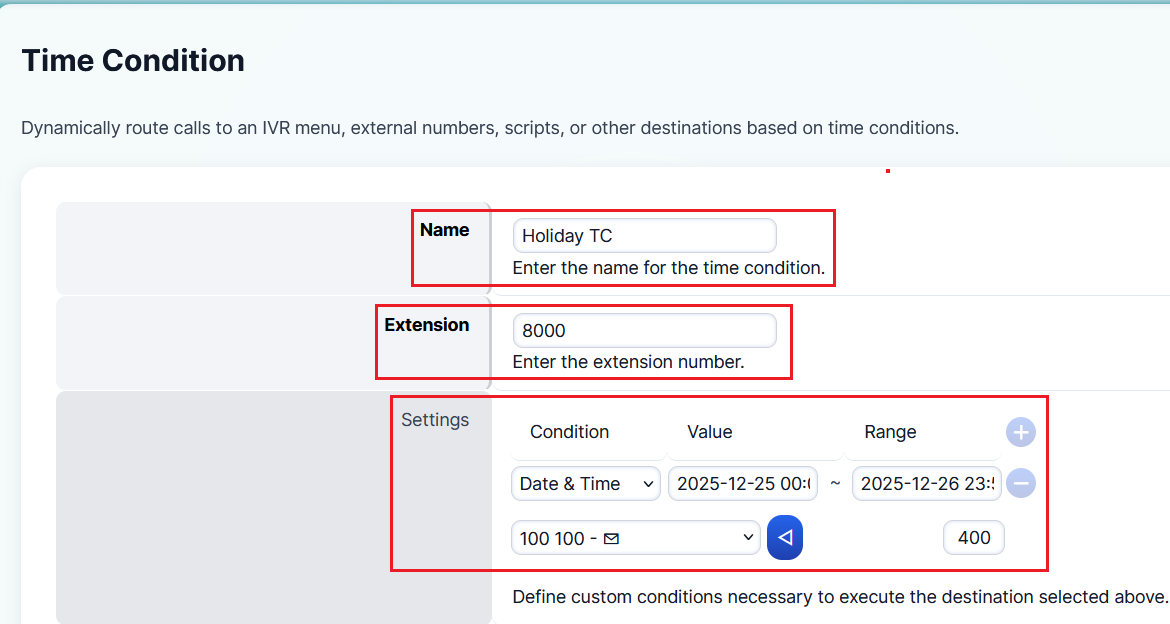
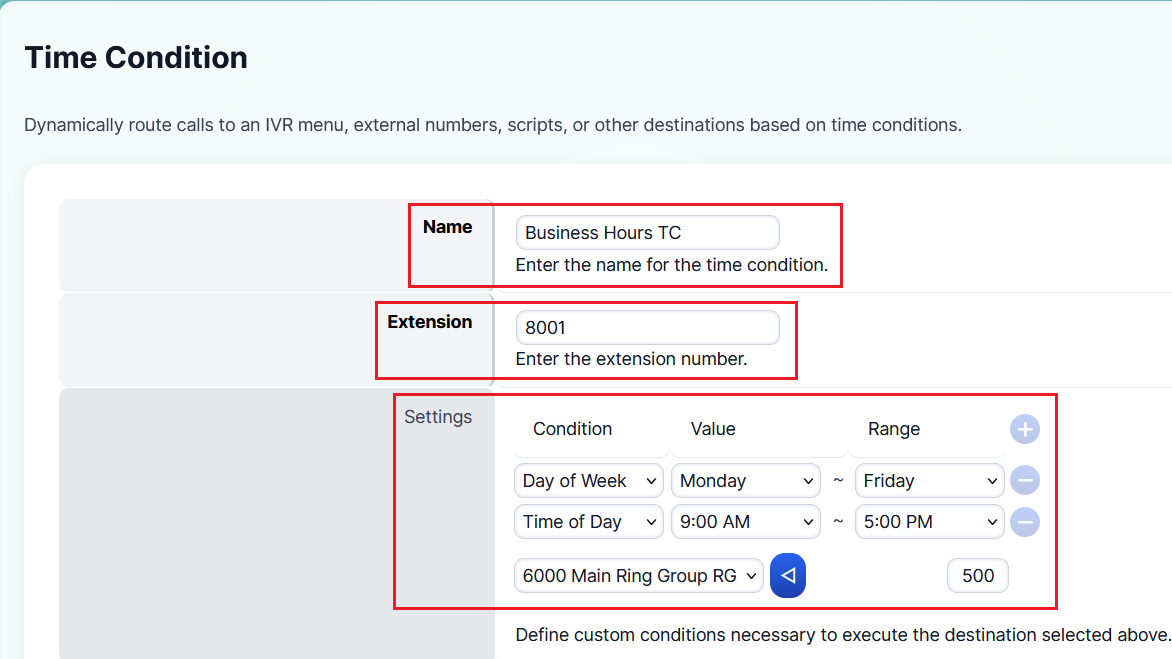
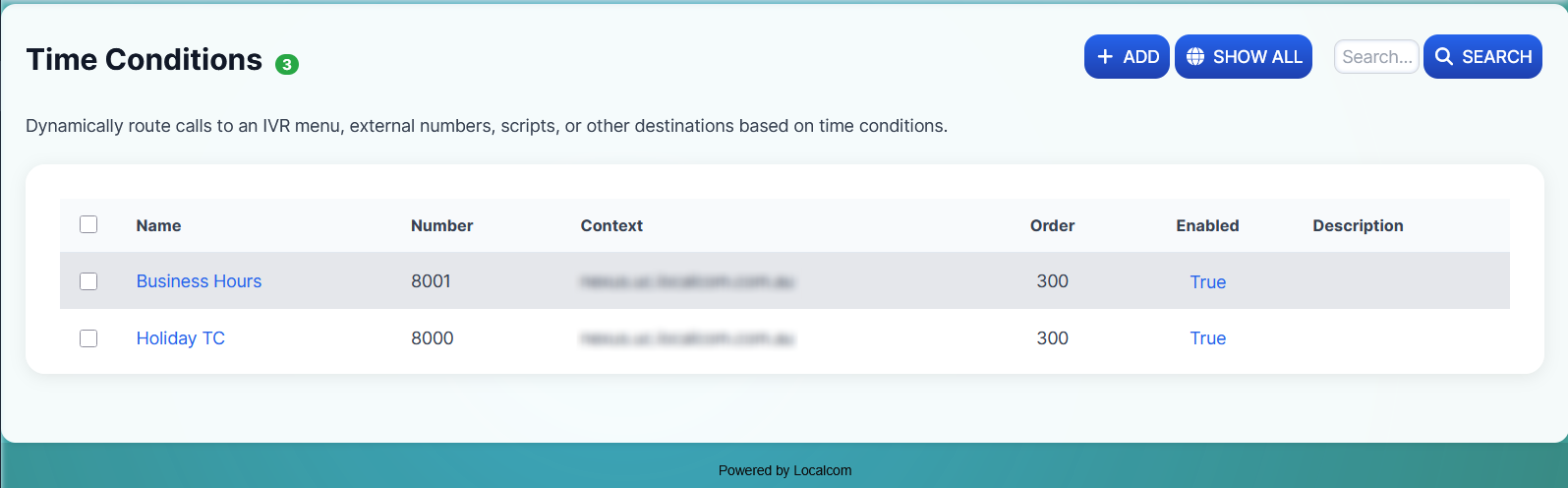
Create Holiday and Business Hours Time Conditions under Applications → Time Conditions.
Holiday Time Condition setup:
Business Hours Time Condition setup:
-
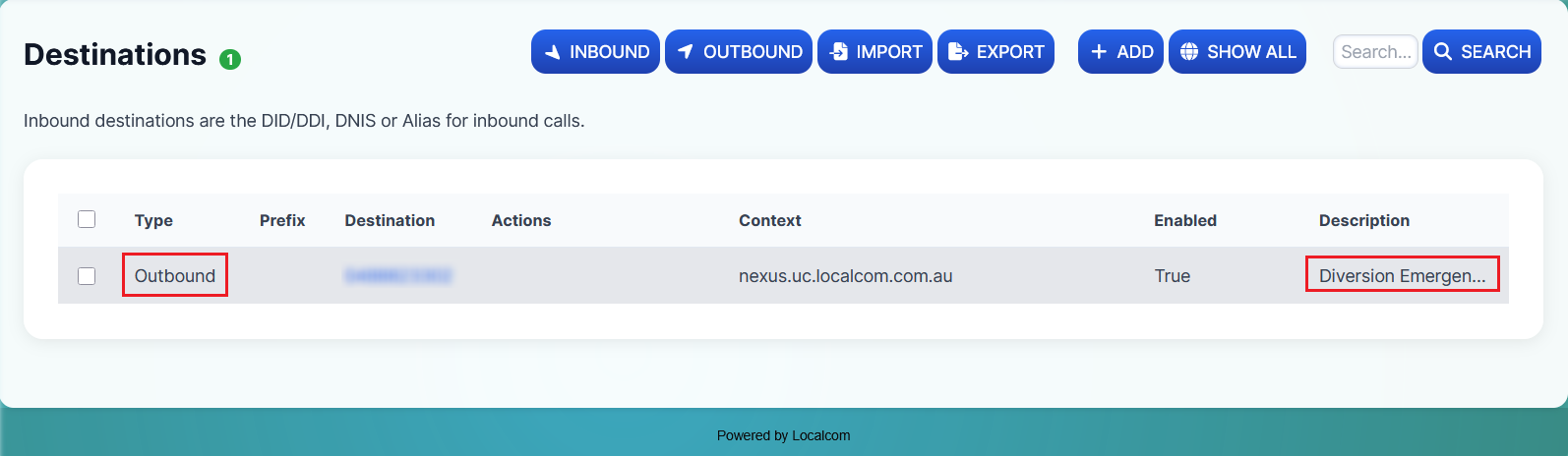
Create an Emergency Contact Diversion (mobile or DID number) under Dialplan → Destinations (Outbound).
-
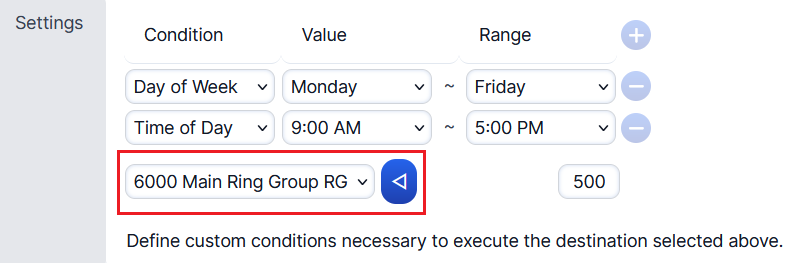
Set the Main Inbound Action (e.g., Extension, Ring Group, Queue, or IVR Menu) on the Business Hours Time Condition.
-
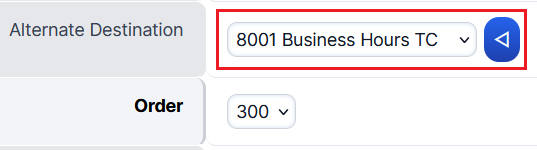
Assign the Business Hours Time Condition as the Alternate Destination under the Holiday Time Condition.
-
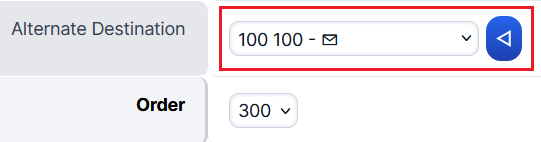
Assign the out-of-office destination (e.g., Voicemail Inbox or Diversion mobile/DID number) as the Alternate Destination under the Business Hours Time Condition.
-
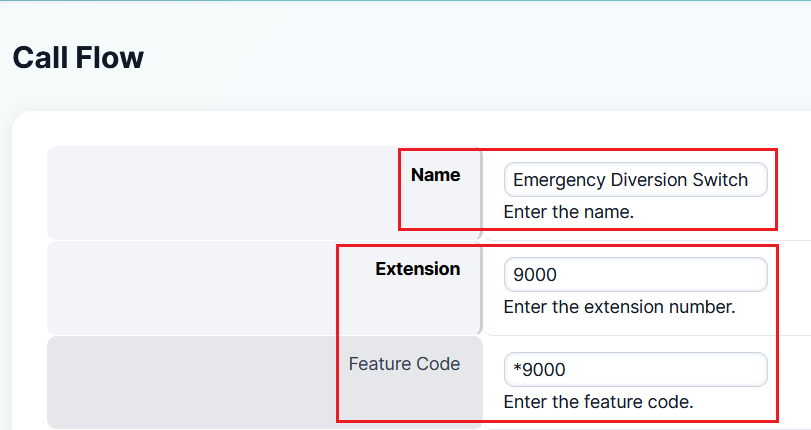
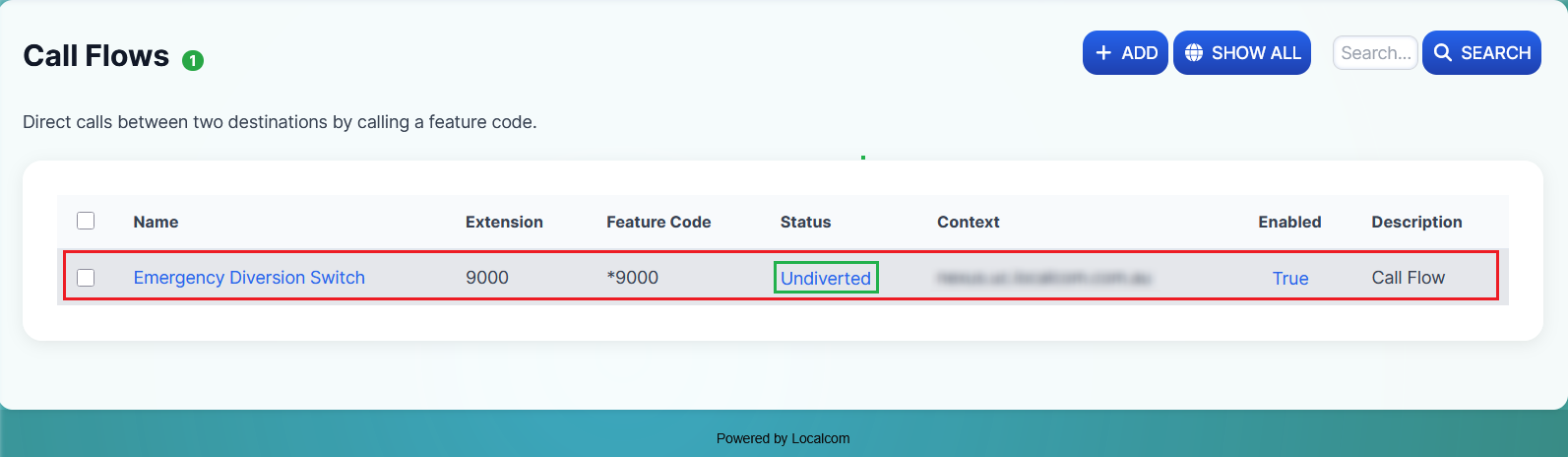
Create a Manual Diversion Call Flow Switch for emergency failover under Applications → Call Flows.
-
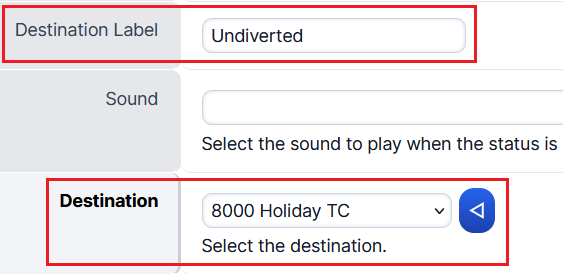
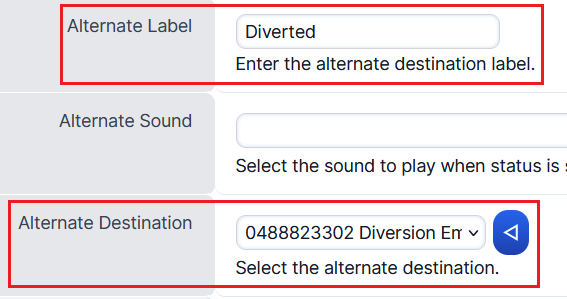
Configure the Call Flow with the following assignments:
- Destination Label: Undiverted (or anything sensible)
- Destination: Holiday Time Condition
- Alternate Label: Diverted (or anything sensible)
- Alternate Destination: Emergency Contact Diversion (mobile/DID)
-
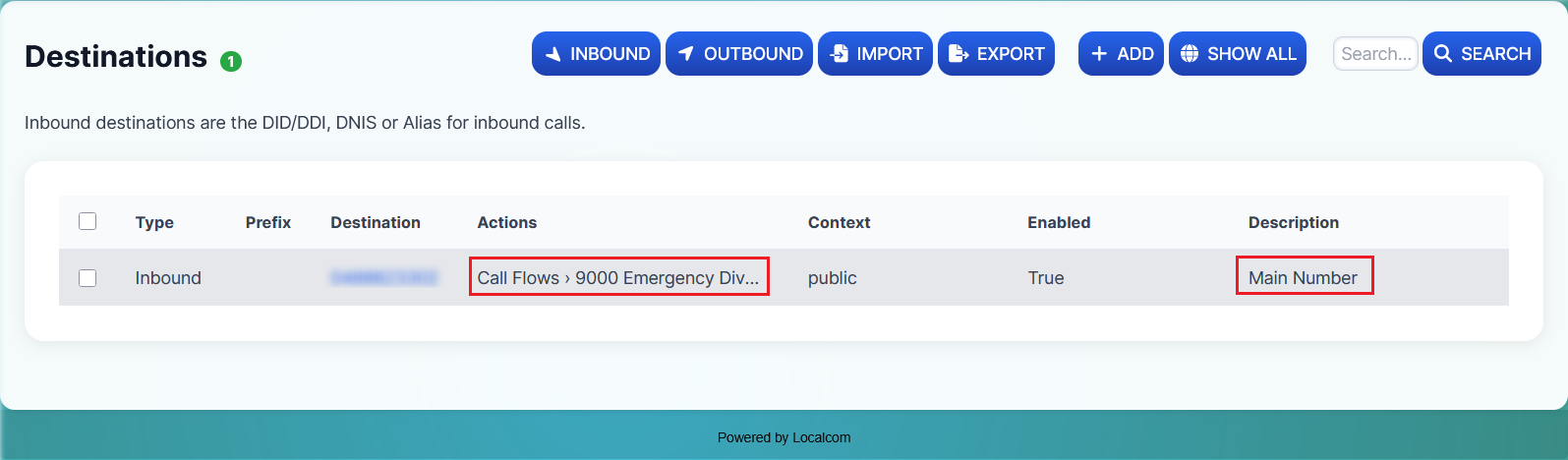
Assign the Manual Call Flow Diversion Switch as the Main Inbound Action for the Inbound DID number.
Set up Ring Groups
Ring Groups allow multiple extensions to ring simultaneously or in sequence when an inbound call arrives. This is useful for teams or departments where any available member should be able to answer.
-
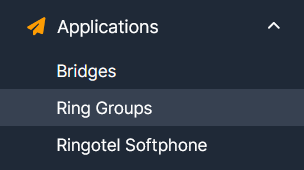
Navigate to Applications → Ring Groups.
-
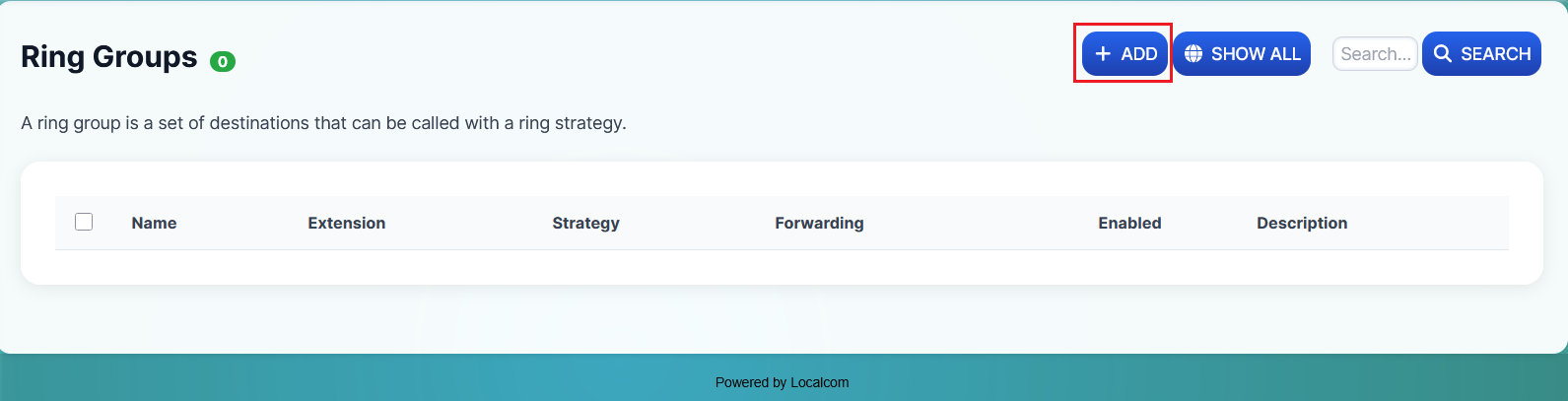
Click on the +ADD button to open a new Ring Group add form.
-
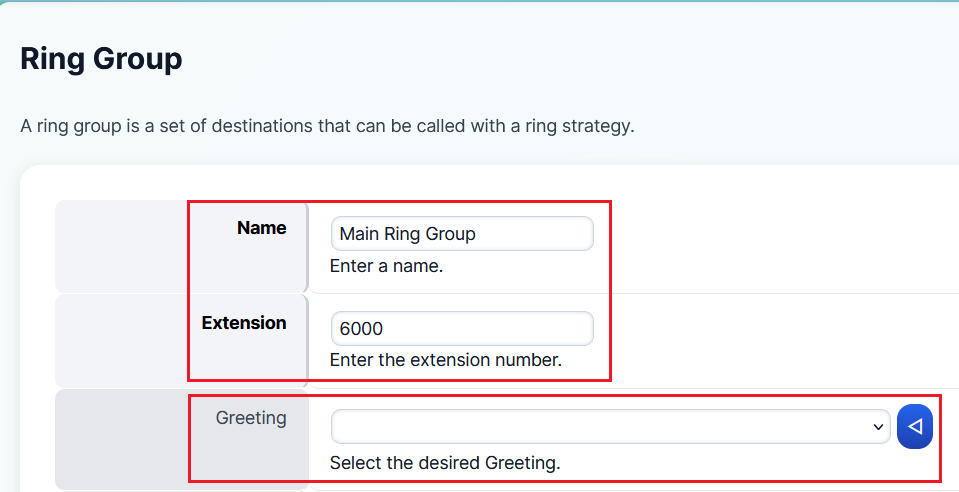
Specify a clear and descriptive name for the Ring Group along with its standard category extension. You may also attach a greeting that will play when an inbound call reaches this Ring Group.
-
Select the ringing strategy for the Ring Group:
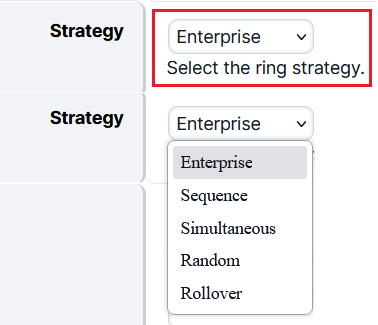
Strategy Description Simultaneous Rings all destinations. All destinations share the same thread. Sequence Calls destinations in sequence, lower order goes first. Enterprise Rings all destinations. Each destination uses its own thread. Rollover Calls destinations in sequence and skips busy destinations. Random A random destination will ring. -
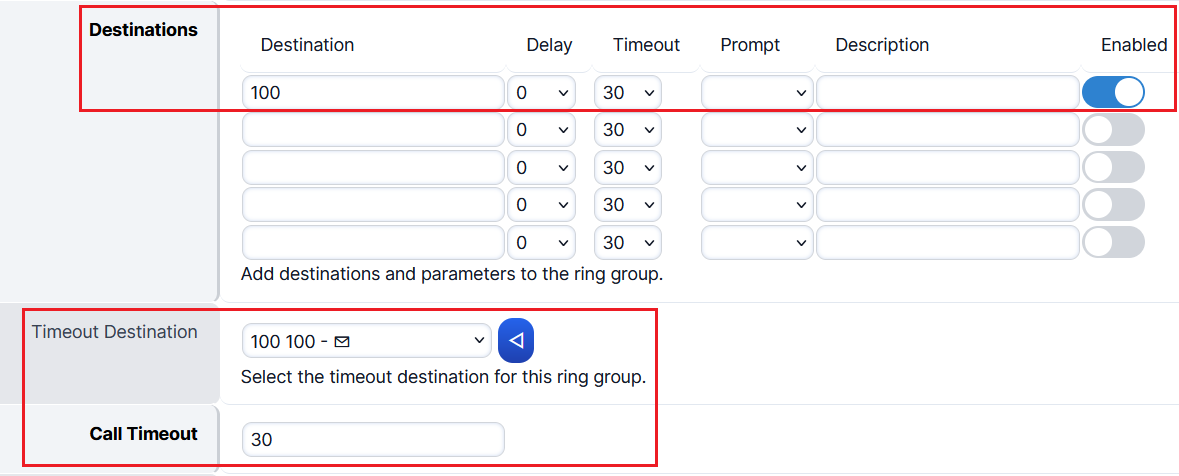
Define the destinations that should ring (internal extensions or external phone numbers). Set the call timeout duration (in seconds) and choose a timeout destination (where the call goes if no one answers).
-
Set the Ring Back to au-ring — this is the sound the caller hears while waiting (typically a music on hold or ring back tone).

-
Additional optional settings are available for further customization:
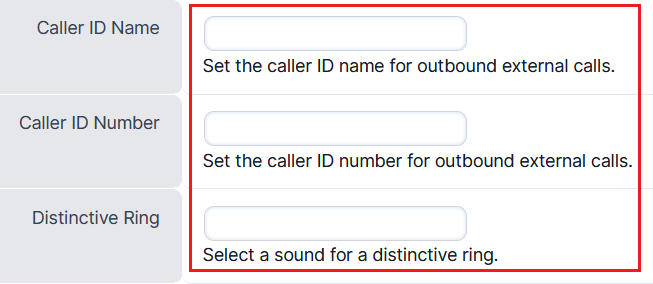
- Caller ID Name — The Caller ID name used for outbound external calls
- Caller ID Number — The Caller ID number used for outbound external calls
- Distinctive Ring — Have a distinctive ring tone for inbound calls to this Ring Group
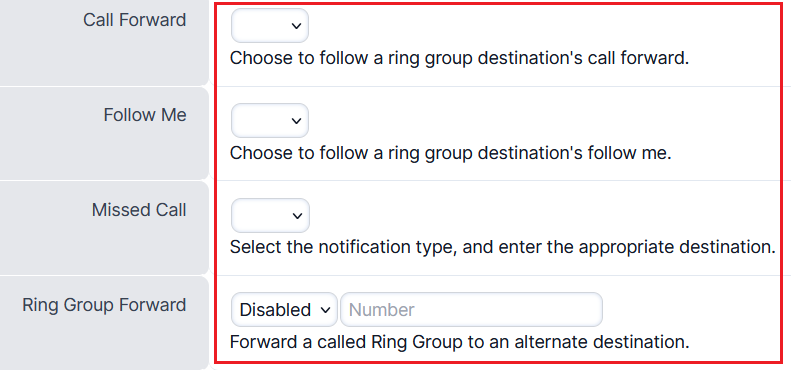
- Call Forward — Enable or disable following the call forwarding setting of a destination in the Ring Group
- Follow Me — Enable or disable the Follow Me feature of a destination in the Ring Group
- Missed Call — Enable missed call notifications to be sent to a specified email address
- Ring Group Forward — Enable or disable Ring Group call forwarding and specify an alternate destination
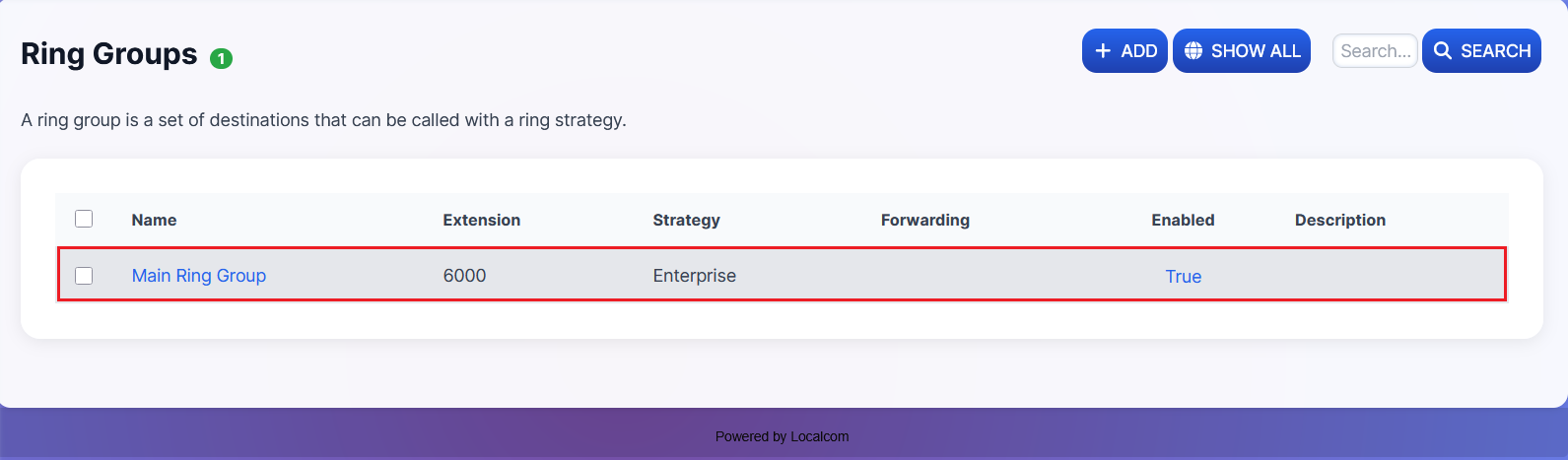
Result: Once the new Ring Group has been successfully created, it will appear under Applications → Ring Groups. You can assign this to any inbound destination action.
Set up Call Center Queues and Agents
Call Center Queues allow you to route inbound calls to a pool of agents with advanced queuing strategies, hold music, and performance statistics. Before creating a queue, you must first create the agents who will handle calls.
Creating Call Center Agents
-
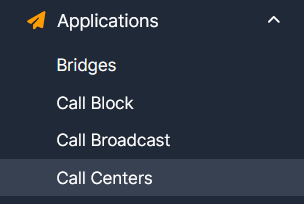
Navigate to Applications → Call Centers.
-
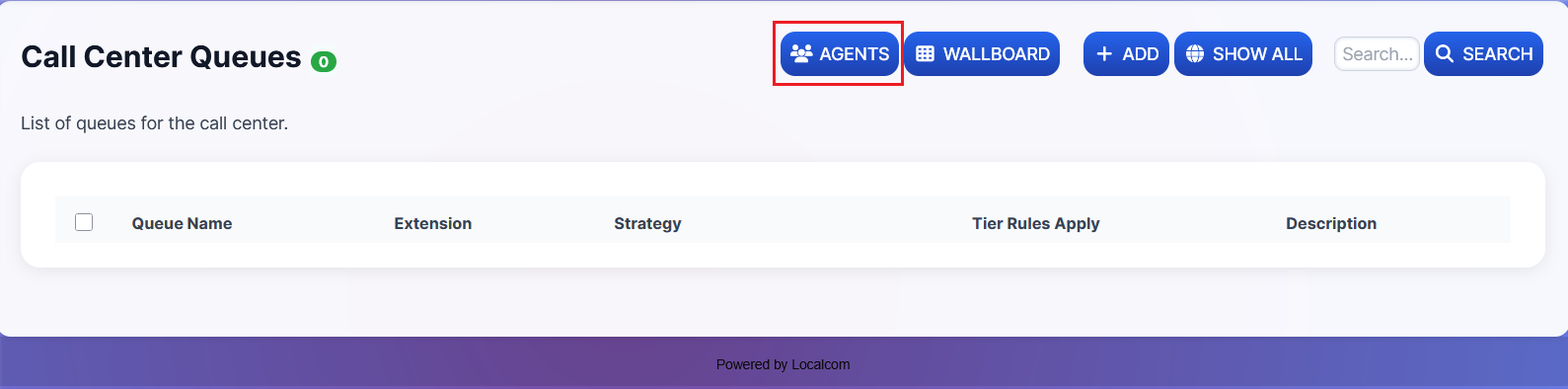
Click the AGENTS button to manage call center queue agents.
-
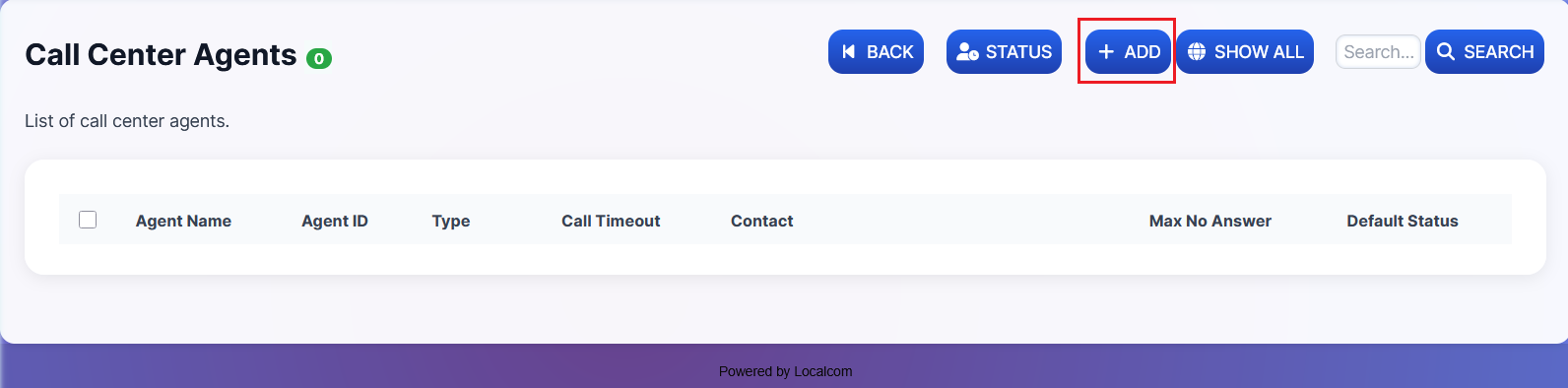
Click the +ADD button to open a new call center queue agent form.
-
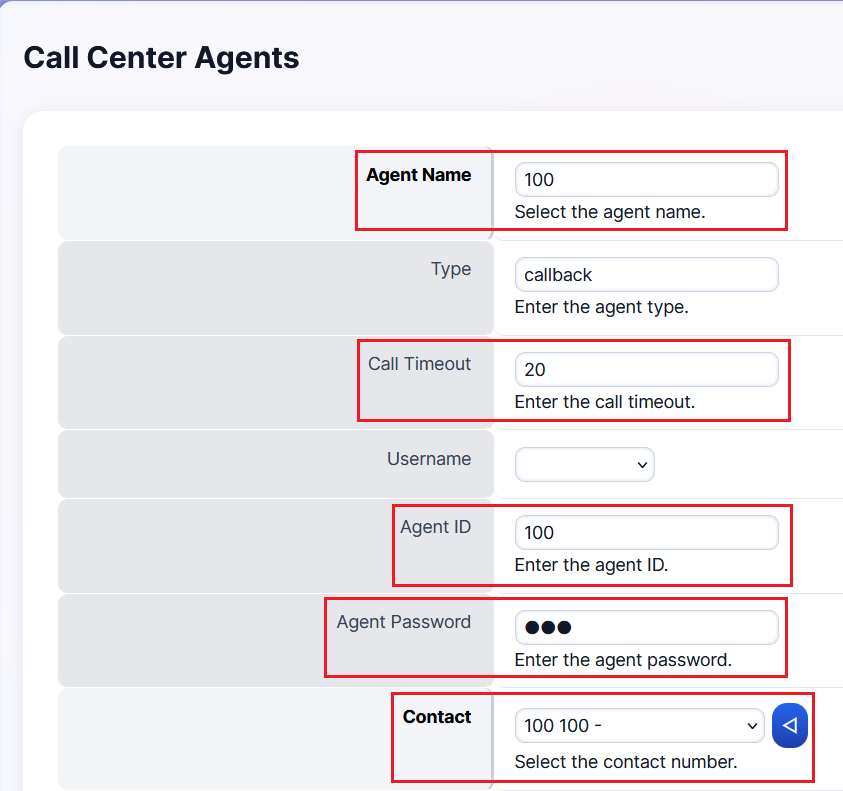
Fill in the agent details:
- Name — Should match the user's name specified in the extension
- Call Timeout — Set according to your needs (e.g., 30 seconds, 60 seconds)
- Agent ID — Same as the extension number
- Password — Should match the Agent ID
- Contact — Select from the dropdown (e.g., Extension 100)
-
Set the default agent status. If left blank, it retains the last known status upon restarting the queue. Typically, this is set to "Available" to keep the agent always logged in.

-
Configure additional timing settings (all specified in seconds):
Setting Description No Answer Delay Time Time the system waits before trying the agent again if they didn't answer within the Call Timeout Max No Answer Maximum attempts to call the agent. If set to 1, one missed call removes them from the round. If set to 2, they get two chances. Wrap Up Time Time allocated between calls for the agent Reject Delay Time Wait time before offering a new call to an agent who manually rejected a call Busy Delay Time Wait time before trying an agent who is on Do Not Disturb Record Enable or disable recording of all inbound queue calls 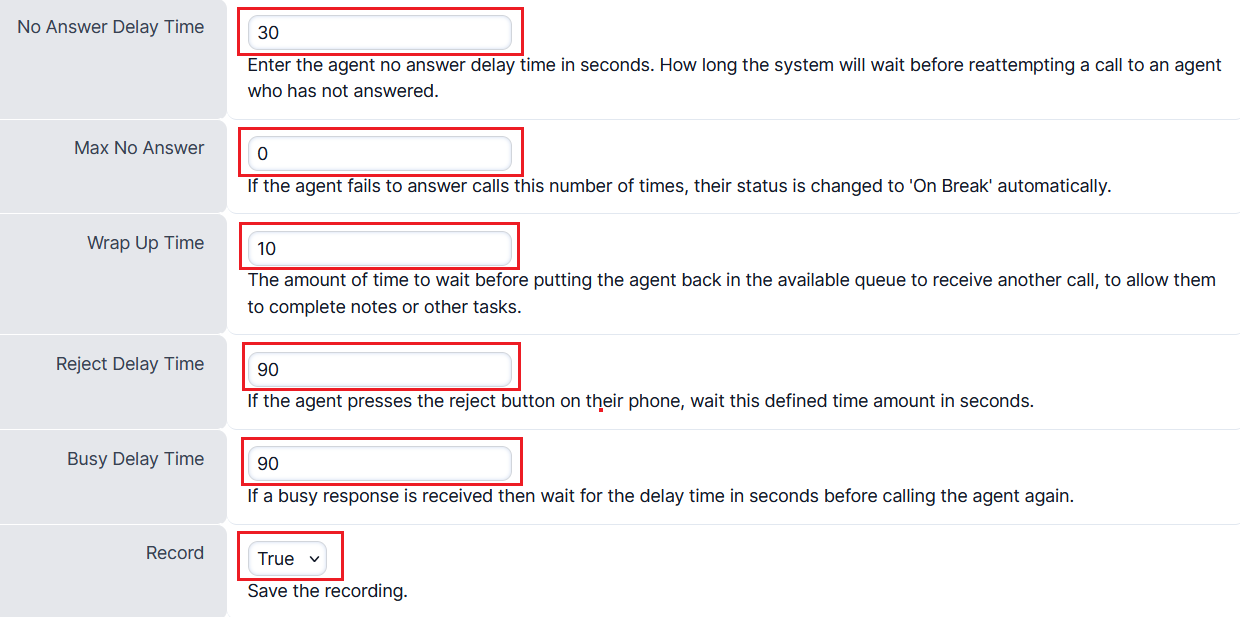
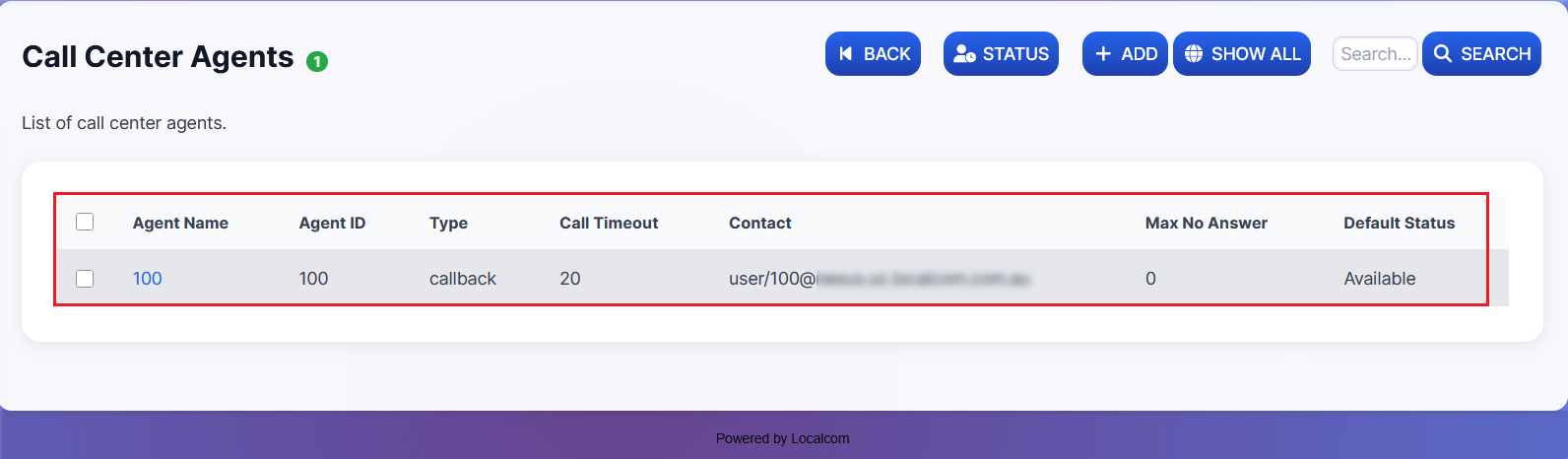
Result: Once the new call center agent has been successfully created, it will appear as shown below.
Creating a Call Center Queue
-
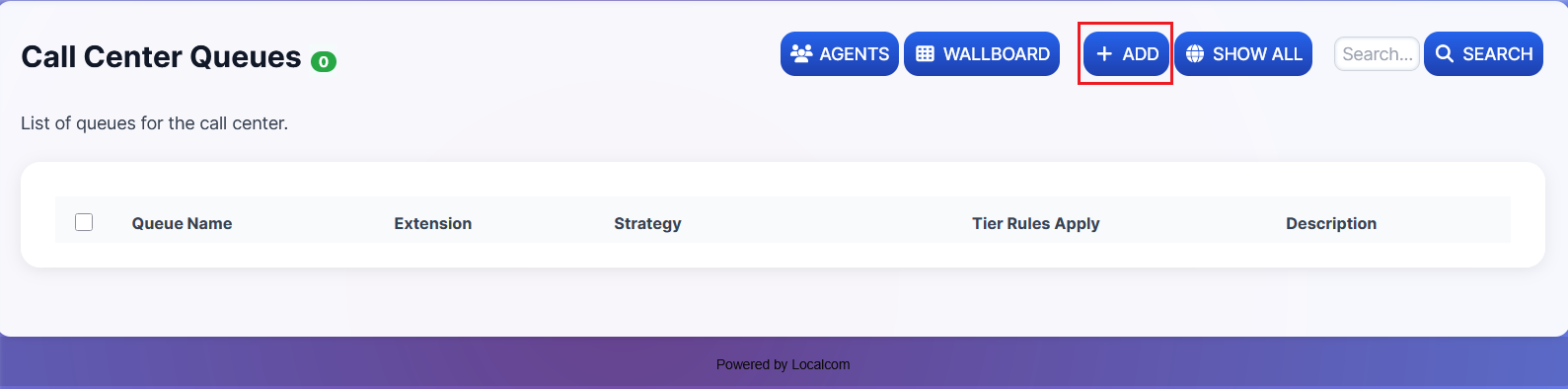
Click the Back button, then click +ADD to open a new call center queue form.
-
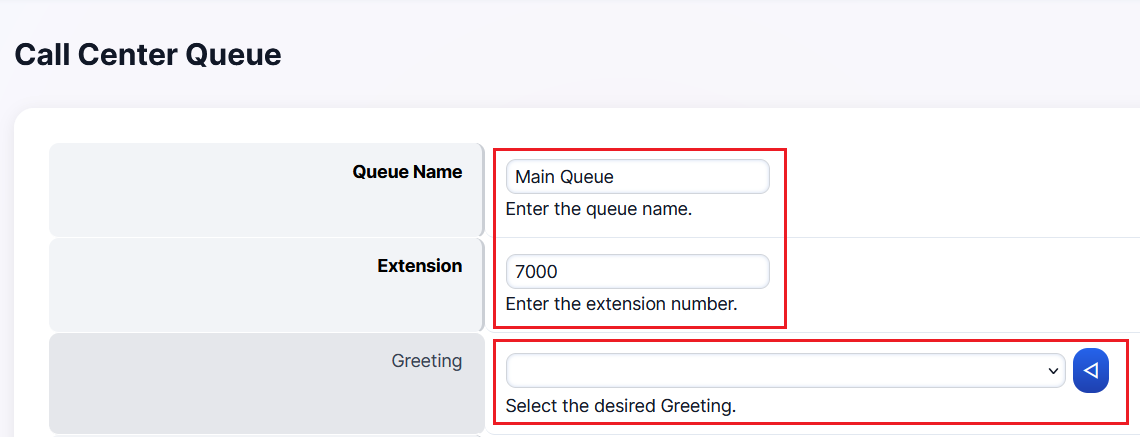
Specify a suitable name for the queue along with its standard category extension. You may also attach a greeting that will play when a call reaches this queue.
-
Select the ringing strategy for the queue:
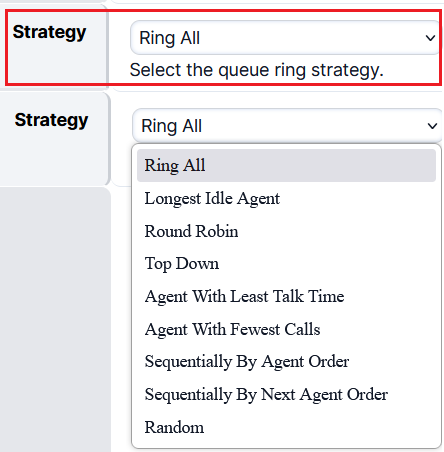
Strategy Description Ring All All agents ring simultaneously Longest Idle Agent The agent who has been idle the longest rings, depending on tier level Round Robin Rings the next available agent in line Top Down Agents ring from the first to last in order Agent With Least Talk Time Rings the agent with the least total talk time Agent With Fewest Calls Rings the agent with the fewest calls Sequentially By Agent Order Agents ring in sequence by tier and tier order Sequentially By Next Agent Order Agents ring in sequence by tier and tier order Random Rings agents randomly in no particular order -
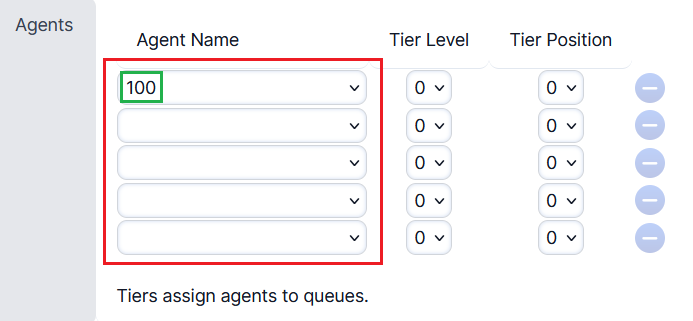
Select agents from the dropdown list. You may specify the tier level and tier position if required.
-
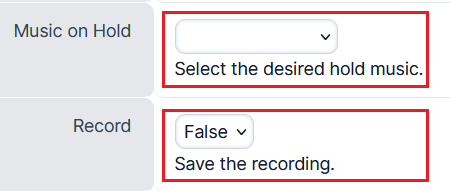
Choose a custom hold music or use the system default. You may also enable or disable call recording for inbound calls to the queue.
-
Configure advanced queue settings (usually kept on default):
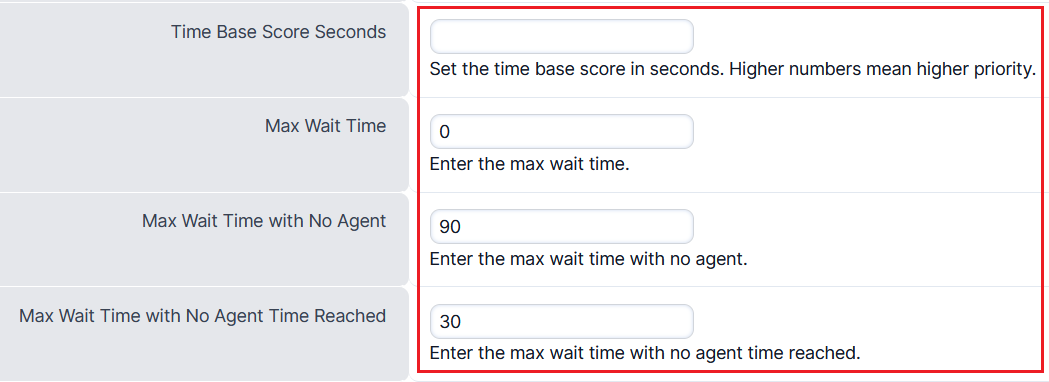
Wait Time Settings:
- Time Base Score — Determines whether the caller's wait time resets when switching queues (Queue) or continues system-wide (System)
- Time Base Score - Seconds — Allows assigning a custom wait time score to prioritize calls across queues
- Example 1: Prioritize VIP callers by assigning a higher wait score, even if they entered the queue later
- Example 2: Set a time threshold (e.g., 5 minutes) where regular callers gain equal priority to VIP callers
- Max Wait Time — Maximum time a caller can wait in the queue (0 = unlimited)
- Max Wait Time with No Agent — How long a caller waits when no agents are available before triggering a timeout action (default: 90 sec)
- Max Wait Time with No Agent Time Reached — Alternate timeout when no agent is available (default: 30 sec)
Tier Settings:
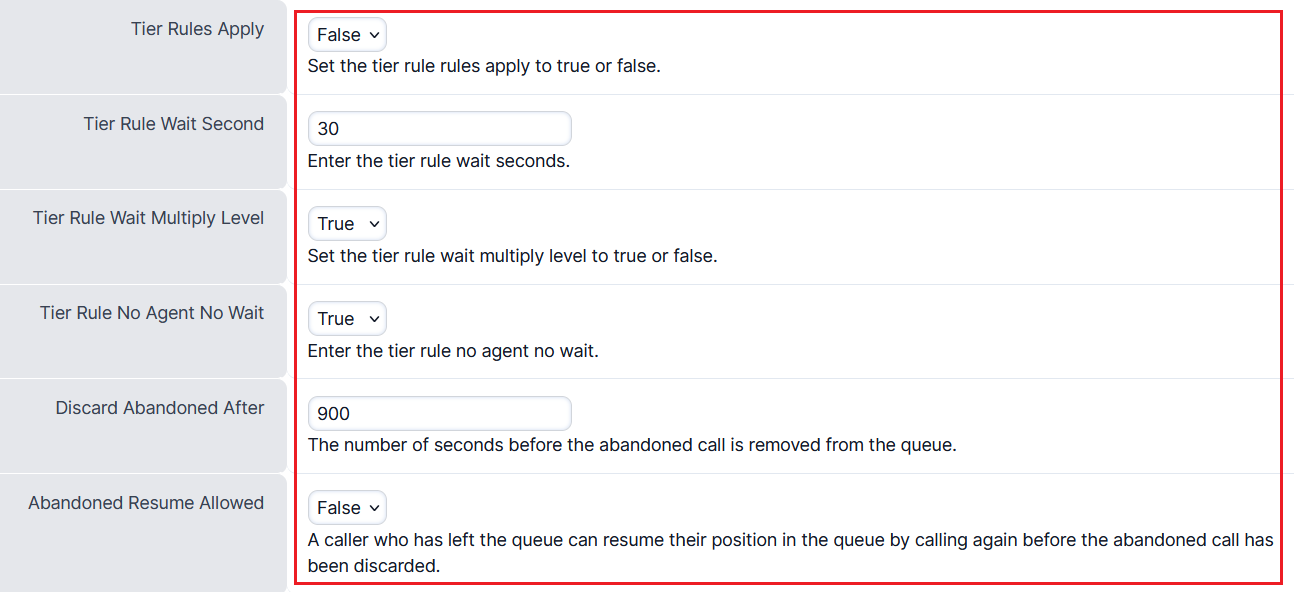
- Tier Rules Apply — Whether to apply tier-specific rules (True) or use all tiers equally (False)
- Tier Rule Wait Second — Wait time before moving to the next agent tier (default: 30 sec)
- Tier Rule Wait Multiply Level — If enabled, wait time increases between tiers; if disabled, tiers progress without extra delay
- Tier Rule No Agent No Wait — When enabled, skips waiting if no agents are available in the current tier
- Discard Abandoned After — How long to retain abandoned calls before discarding (default: 900 sec)
- Abandoned Resume Allowed — Allows callers to resume their queue position within the discard timeout
-
Set the Timeout Destination — where the call goes if no one answers when the Max Wait Time settings are reached.

-
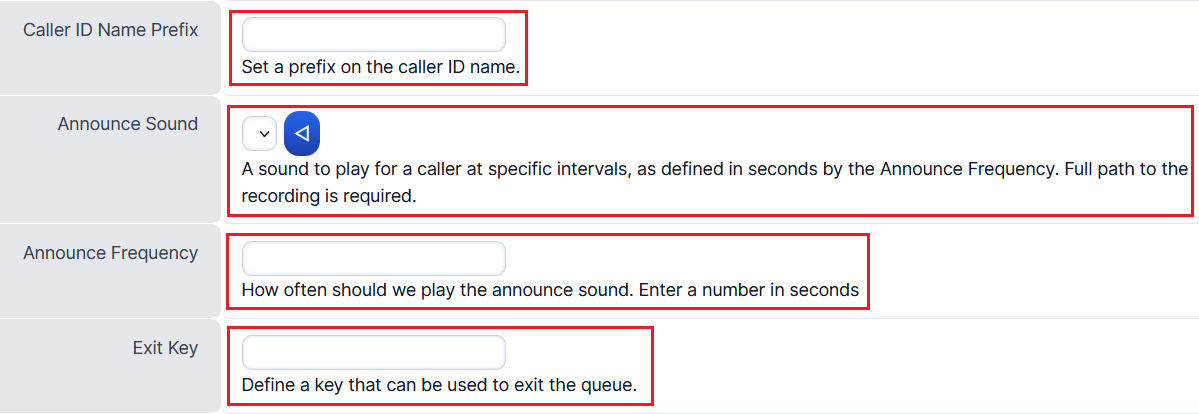
Configure additional feature settings:
- Caller ID Name Prefix — Displays a custom prefix (e.g., business name) before the caller ID on incoming calls
- Announce Sound — Plays a selected audio recording to callers at set intervals while waiting
- Announce Frequency — How often the announcement sound is played (in seconds)
- Exit Key — Allows callers to exit the queue by pressing a specified digit, triggering the timeout action
-
Give a relevant description for the queue and click SAVE.
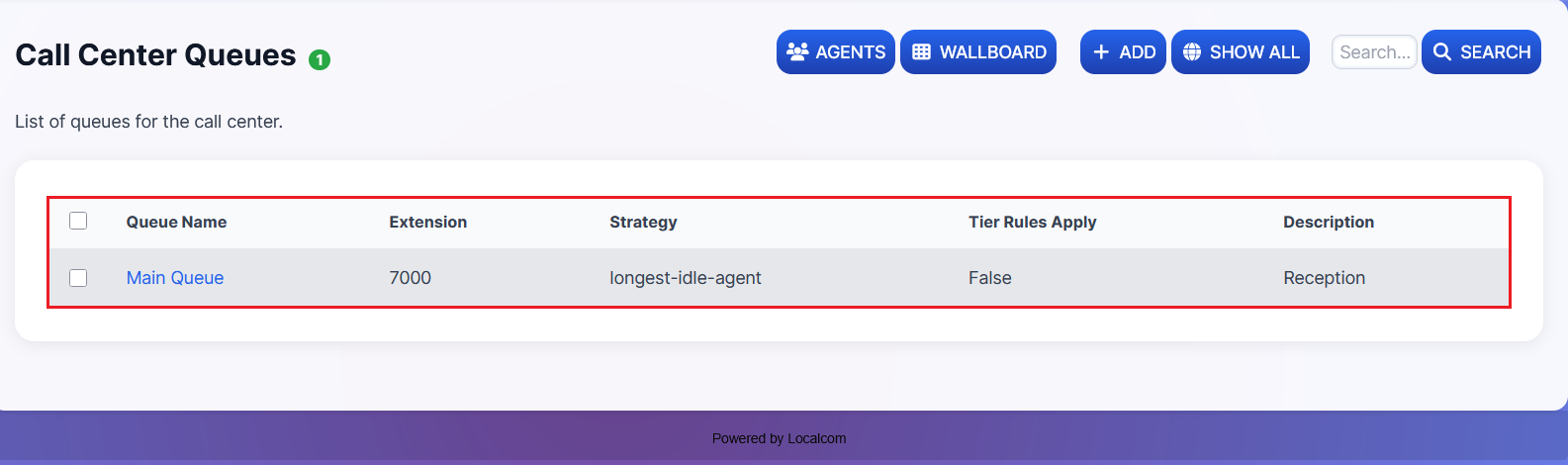
Result: Once created, the queue will appear in the list. You can assign it to any inbound destination action.
Managing and Monitoring Queues
-
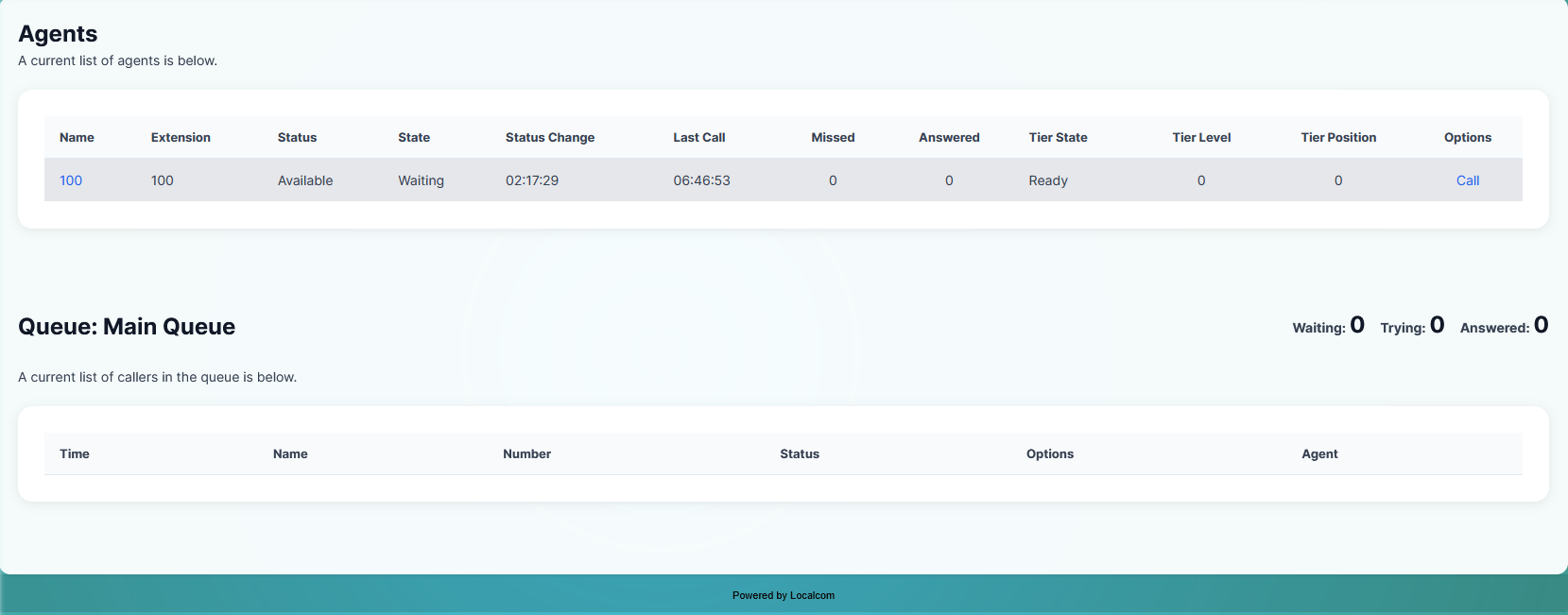
The created queue can be managed and monitored using the Reload, Wallboard, and View buttons at the top right of the queue page.
- Reload button: Restarts the queue to apply any settings changes. An OK prompt will confirm the reload.

- View button: Shows a list of agents with their statistics, including:
- Agent status and extension number
- Queue waiting status and status change time
- Missed calls and calls answered count
- Applicable tier rules
- Current callers in the queue

Wallboard for Live Monitoring
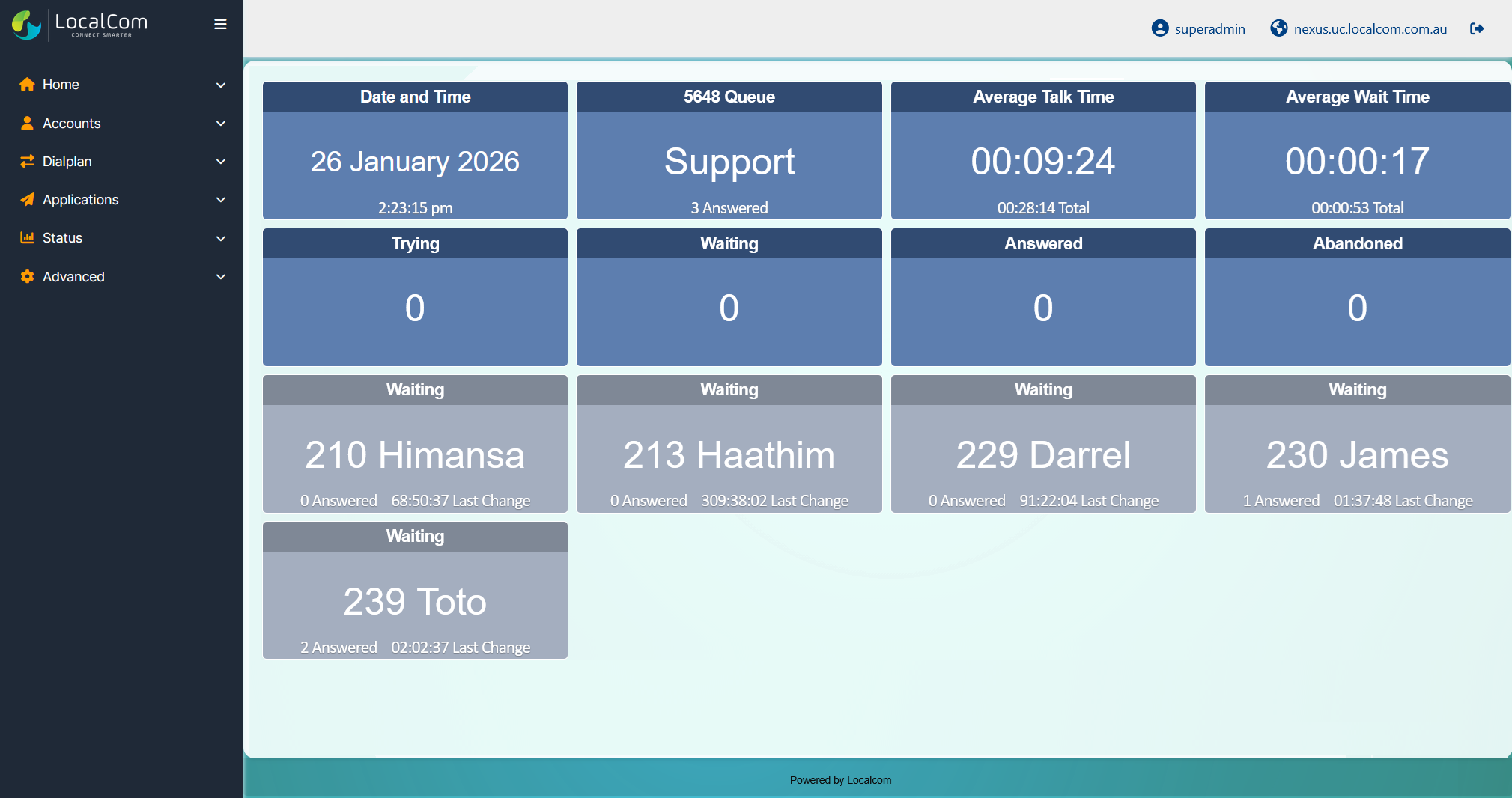
The Wallboard provides a visual real-time display featuring:
- Date and time
- Queue name and extension
- Agent currently awaiting a call
- Number of calls answered or abandoned
- Caller currently in the queue
- Count of callers attempting to reach an agent

Queue and Agent Performance Statistics
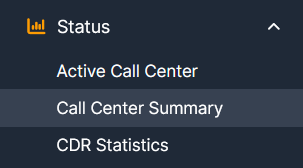
Access detailed call center statistics by navigating to Status → Call Center Summary. This view offers queue performance metrics with filters and CSV download options.
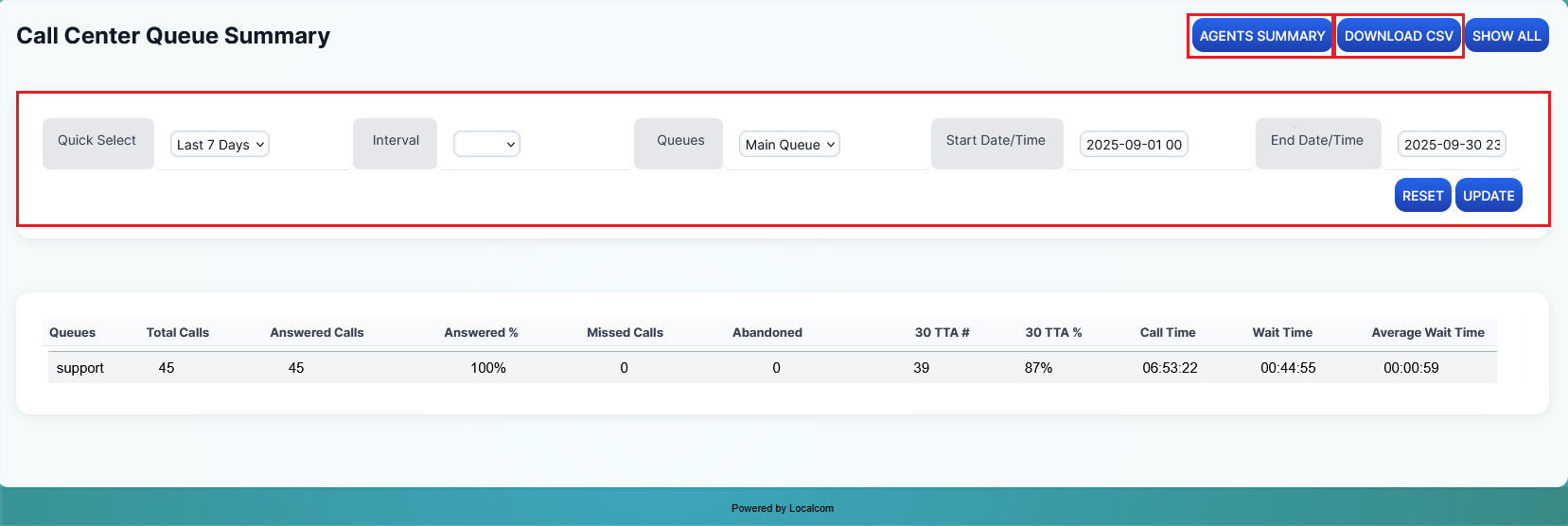
Call Center Queue Summary:
Displays statistics including:
- Total calls in queues
- Answered calls
- Missed calls
- Abandoned calls
- Call time, wait time, and average wait time
You can filter by dates, times, queue names, and intervals (hourly, daily, weekly, monthly, or yearly). The quick select dropdown allows choosing time frames like today, last seven days, this week, this month, or this year. After applying filters, click the download button to export as CSV.
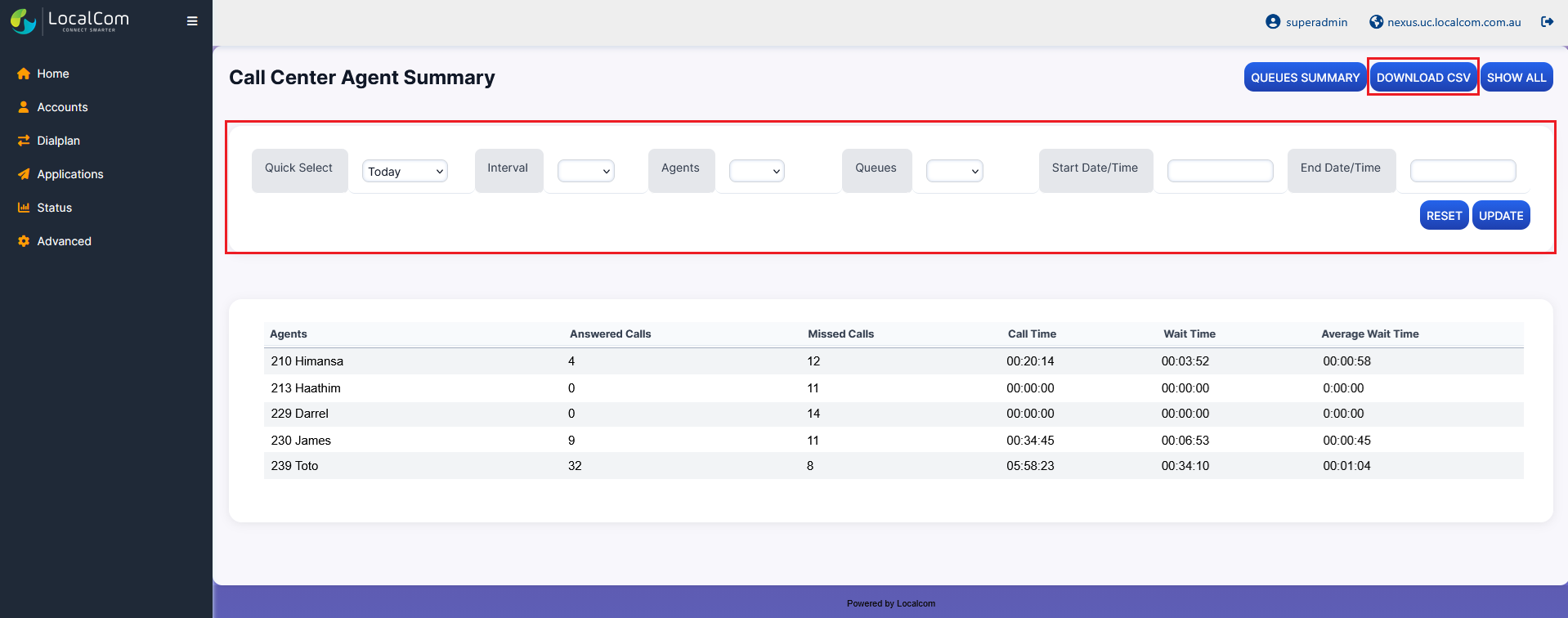
Call Center Agents Summary:
Click the agents summary button to view detailed per-agent information:
- Agent's name
- Number of calls answered
- Number of missed calls
- Call time (Duration)
- Wait time
- Average wait time
The same filters and CSV download options are available.
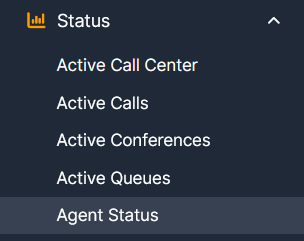
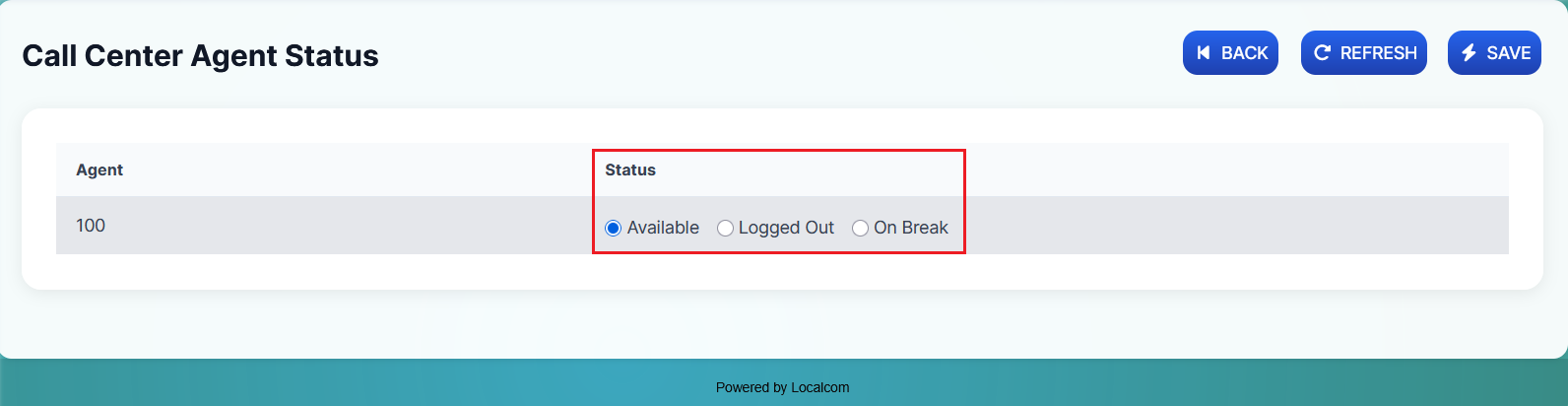
Agents Status:
This section lists all call center agents with the option to change the status of one or more agents. Access via Status → Agents Status.
Set up IVR Menus
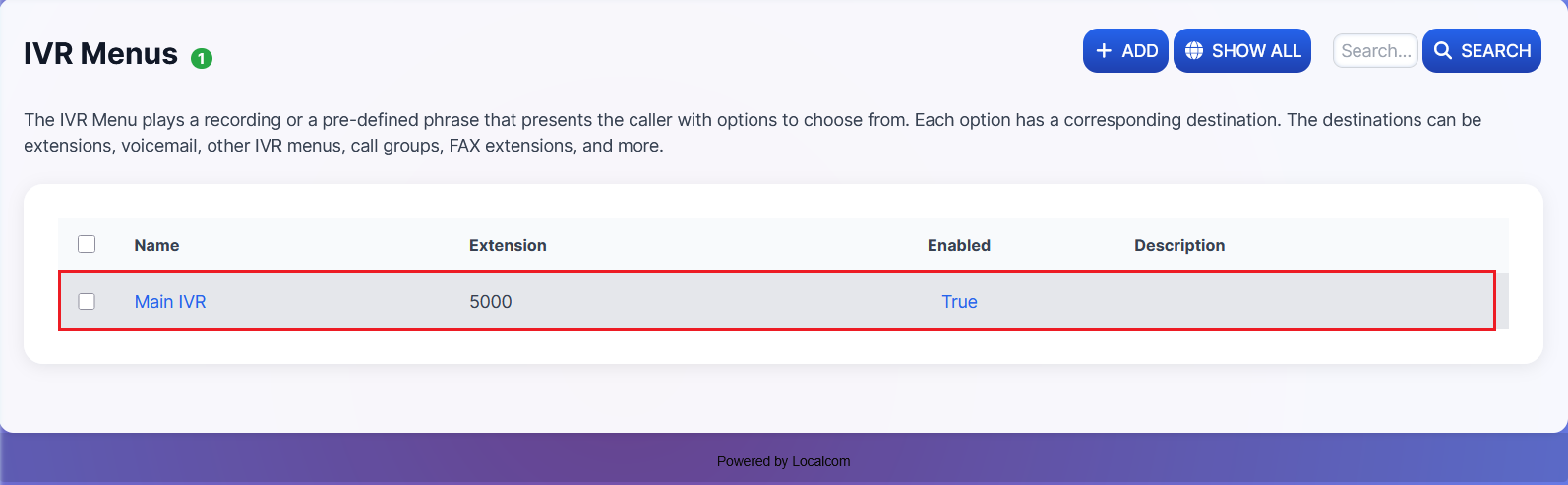
IVR (Interactive Voice Response) Menus allow callers to navigate a phone menu system by pressing digits. This is useful for directing callers to the right department or extension without human intervention.
-
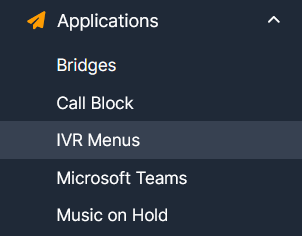
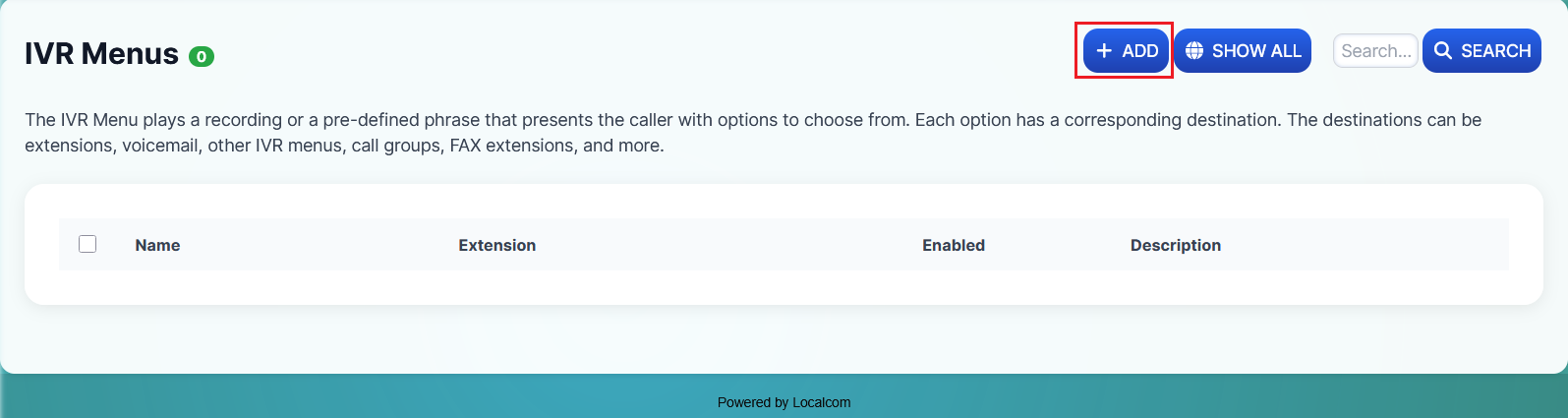
Navigate to Applications → IVR Menus.
-
Click on the +ADD button to open a new IVR Menu add form.
-
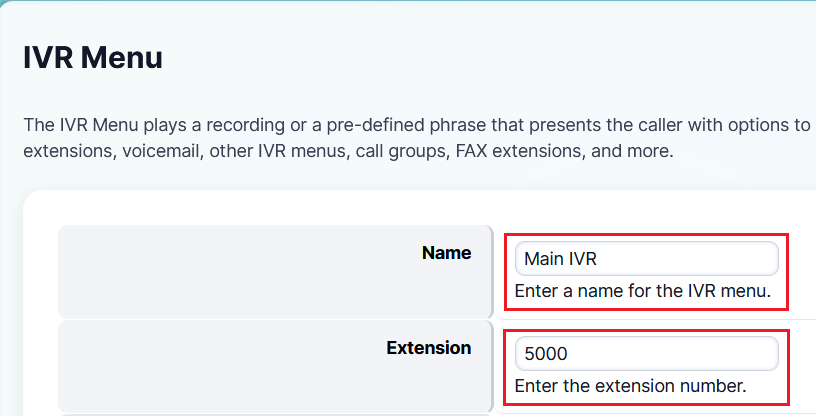
Specify a clear and descriptive name for the IVR Menu along with its standard category extension.
-
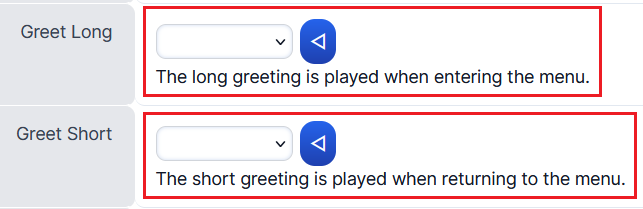
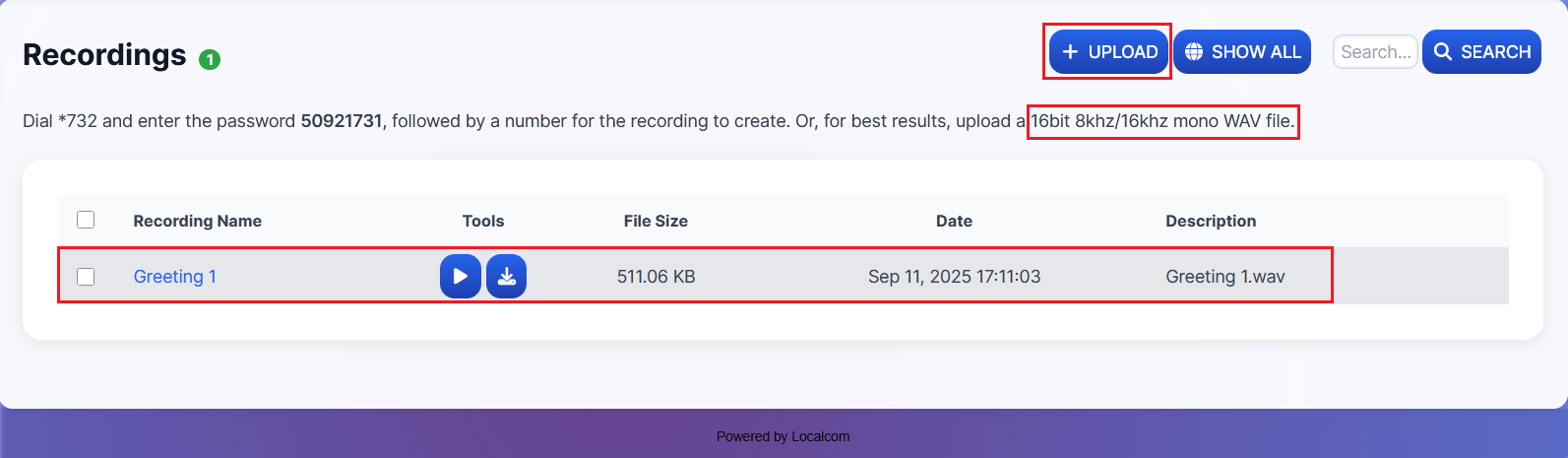
Attach greetings that will play when a call reaches this IVR Menu:
- Greet Long — The long greeting when entering the menu
- Greet Short — The short greeting played when returning to the menu
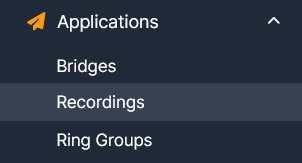
These recordings should be uploaded under Applications → Recordings.
Audio File Requirements
To avoid issues and for best results, upload recordings in WAV format with these settings:
- Bit Resolution: 16 Bit
- Audio Frequency: 8000 / 16000 / 32000 / 48000 Hz
- Audio Channels: Mono
- PCM Format: A-law
-
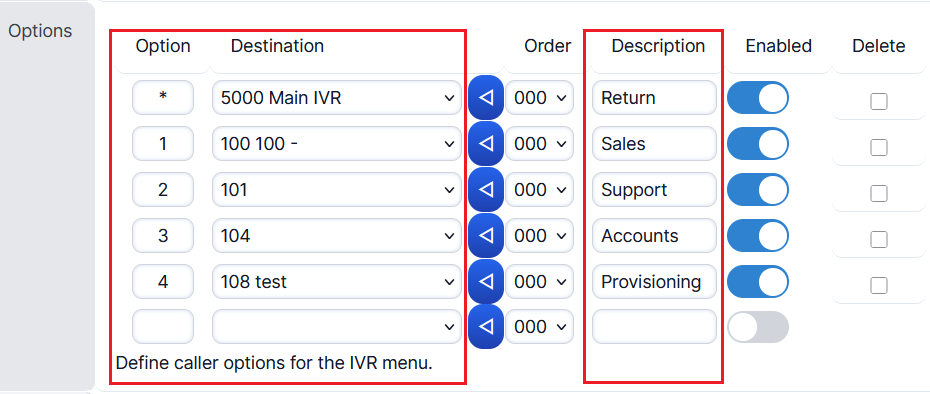
Define the caller options for the IVR menu. When a caller selects an option, they will be redirected to the corresponding destination. You can also add descriptions for each option.
-
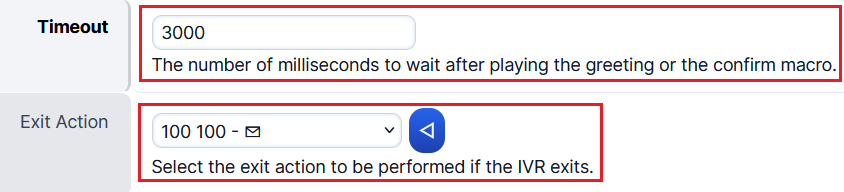
Specify the Timeout duration in milliseconds — the time a caller has to select an option (default: 3000 ms = 3 seconds). If no option is selected, the caller is redirected to the Exit Action.
-
Enable (True) or disable (False) the Direct Dial feature to allow callers to dial extensions directly from the IVR menu.

-
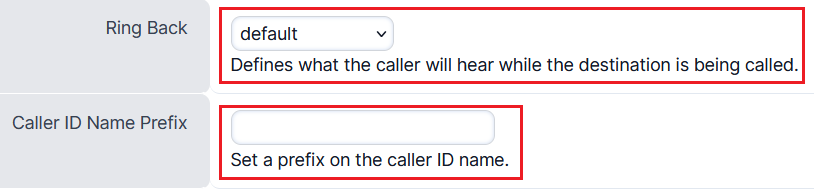
Set the Ring Back to au-ring or your preferred tone — this is the sound callers hear while the destination is being called.
You may also define a Caller ID Name Prefix for call origin identification (e.g., Sydney#0400123123).
Result: Once the new IVR menu has been created, it will appear under Applications → IVR Menus. You can assign it to any inbound destination action.
Set up Call Forwarding on Extensions
Call Forwarding allows you to redirect incoming calls from one extension to another extension or external number, based on different conditions such as busy, no answer, or device not registered.
-
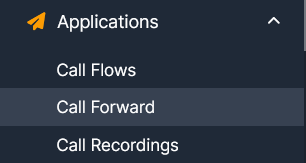
Navigate to Applications → Call Forward.
-
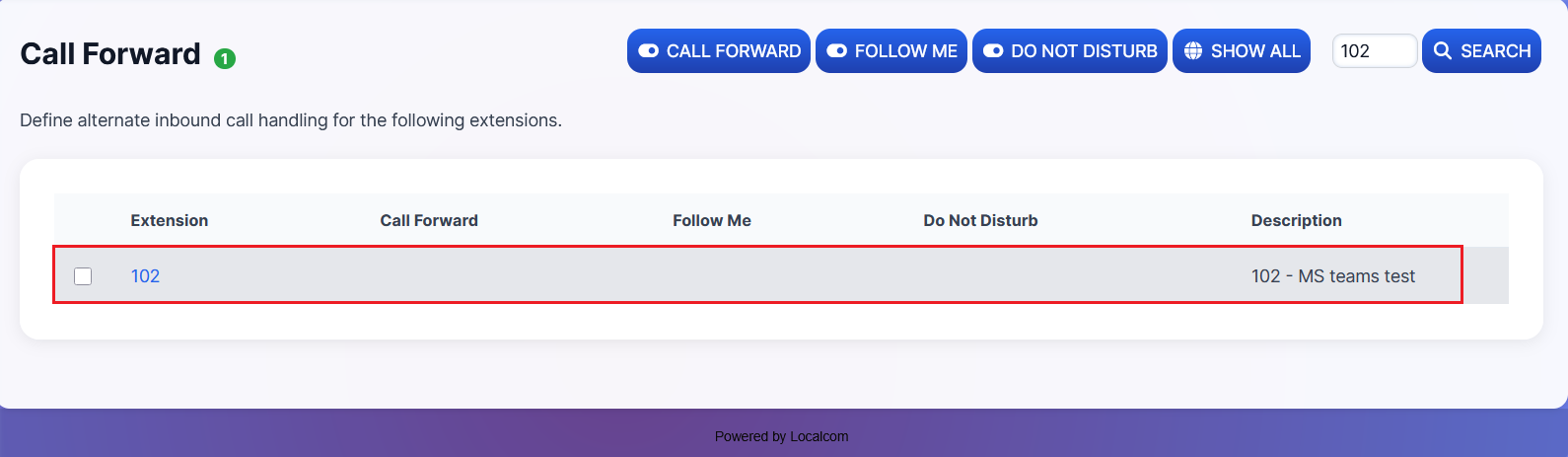
Click on the extension for which you want to set up call forwarding.
-
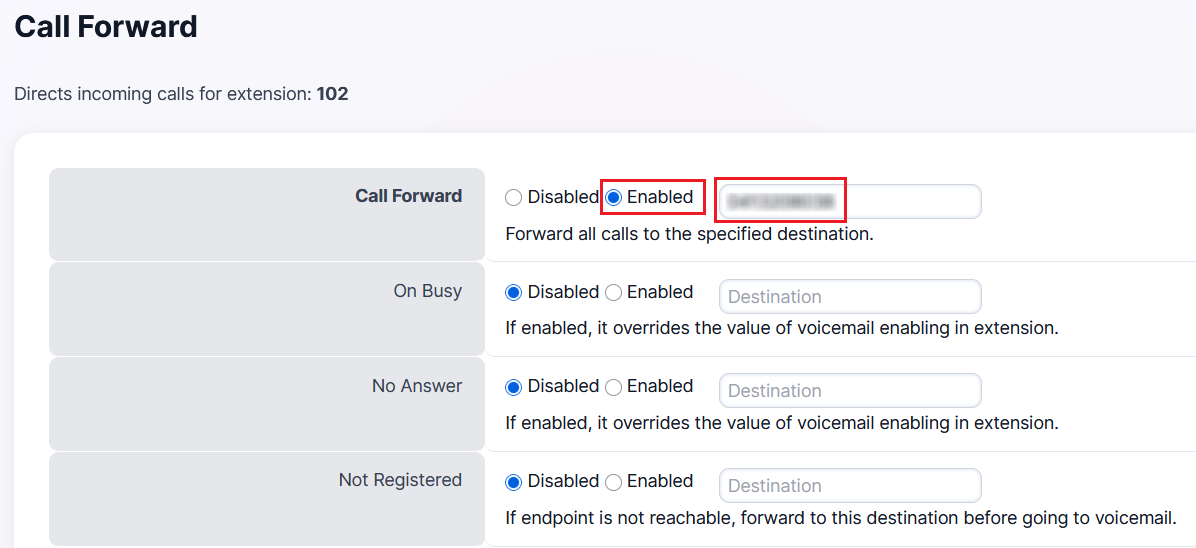
Configure the forwarding rules:
Rule Description Call Forward Unconditional forward — all incoming calls are diverted to the specified destination, regardless of other rules On Busy Forwards calls when the extension is busy or occupied with another call No Answer Forwards calls when the extension fails to answer or there is no answer Not Registered Forwards calls when the extension has lost its registration on the PBX 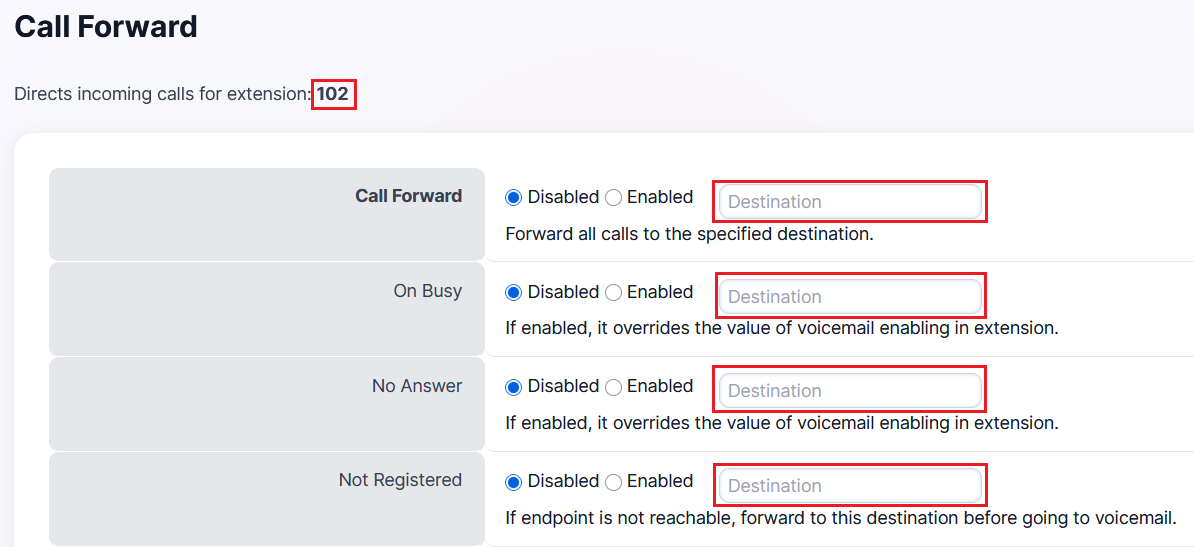
-
Enable the required forwarding action and specify the destination (internal extension or external DID number).
-
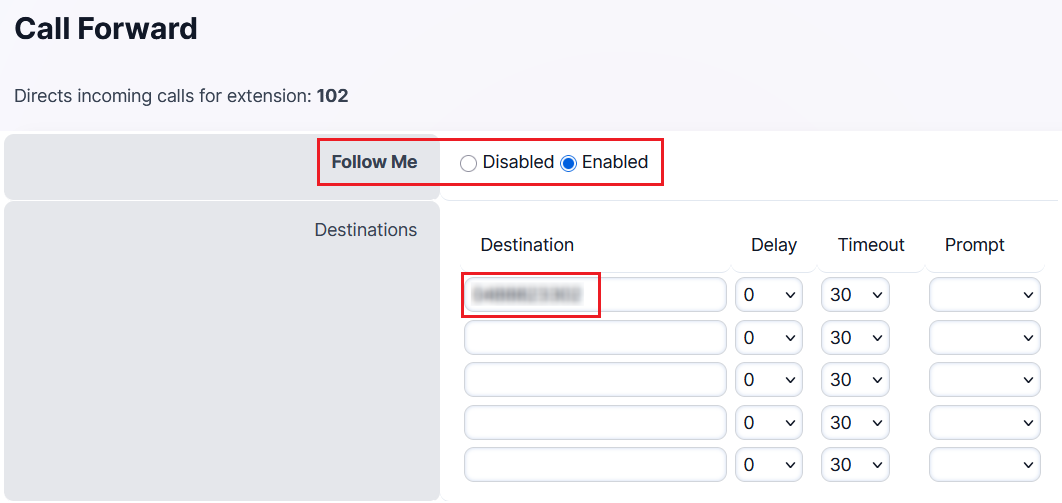
You also have the option to enable additional features:
- Follow Me: When enabled with an external number or extension specified, all incoming calls are automatically redirected to the Follow Me destination. When disabled, calls only ring the extension.
- DND (Do Not Disturb): When enabled, all calls to the extension are declined (and may redirect to voicemail if enabled). When disabled, calls come through normally.

Set up Call Block on Extensions
Call Block allows you to block specific inbound or outbound calls on extensions, based on caller ID or number patterns. Use this to prevent unwanted calls or restrict outbound dialing.
-
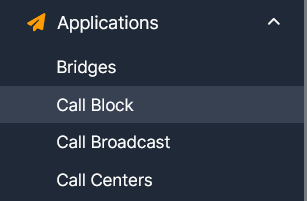
Navigate to Applications → Call Block.
-
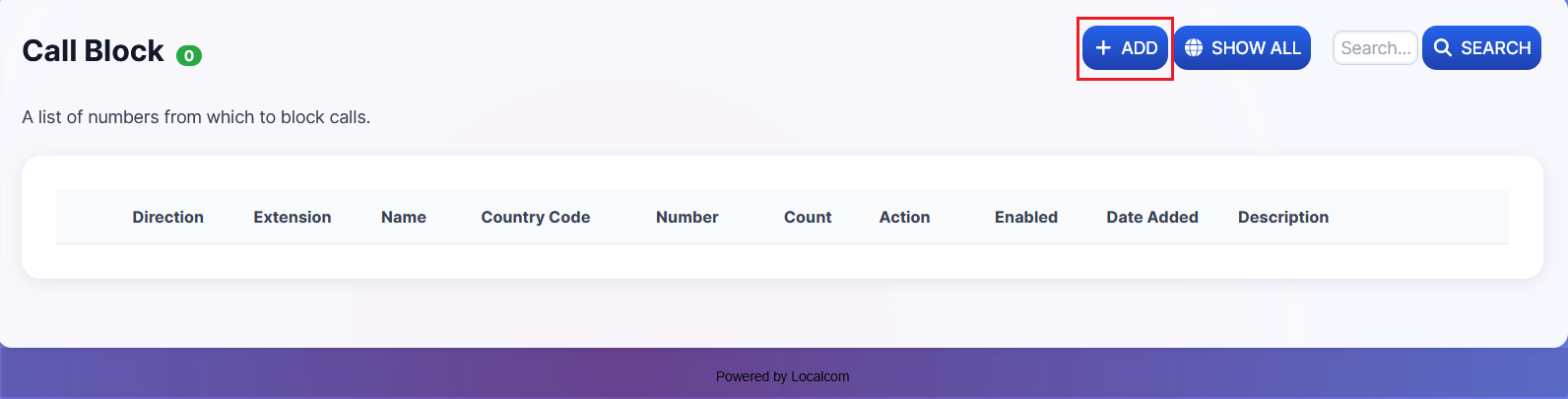
Click on the +ADD button to add a new call block rule.
-
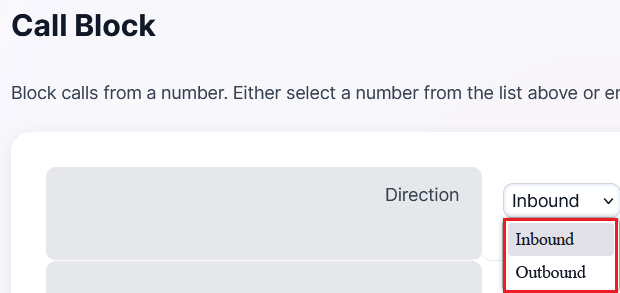
Select the direction of calls to block (Inbound or Outbound).
-
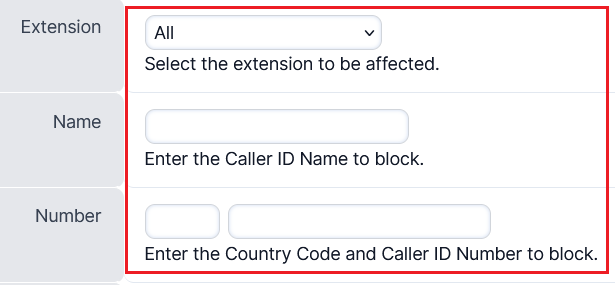
Specify the block settings:
- Block for a specific extension or all extensions
- Specify the Caller ID name and number to be blocked
-
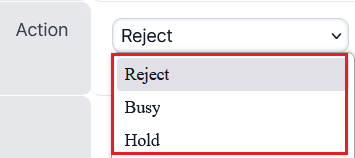
Specify the action for the blocked call:
- Reject — Decline the call
- Busy — Show as busy to the caller
- Hold — Place the call on hold
Set up Music On Hold (MOH)
Music On Hold plays audio to callers when they are placed on hold or waiting in a queue. NexusUC comes with default hold music, but you can upload custom audio files.
-
Navigate to Applications → Music on Hold.
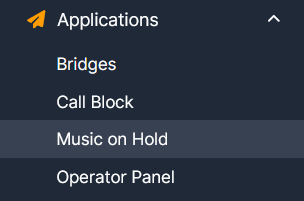
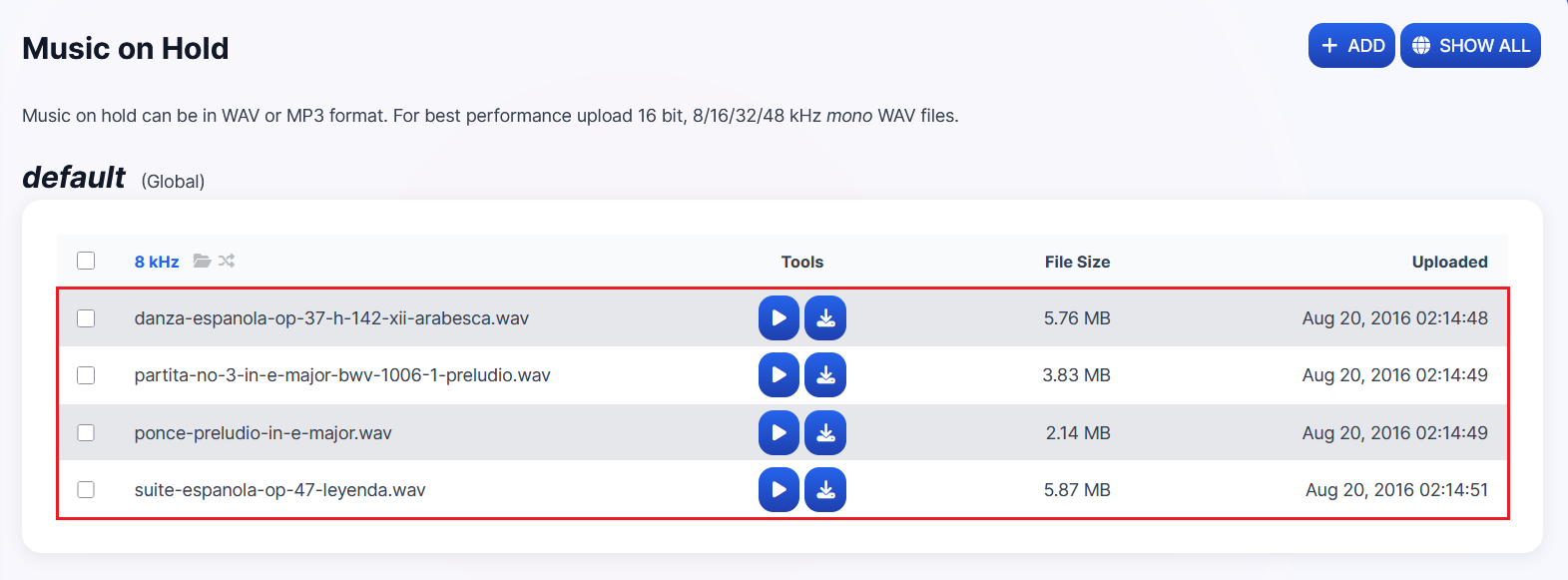
This section already has some on-hold music files by default in 8/16/32/48 kHz frequencies.
-
To upload a custom on-hold music file, click the +ADD button in the top right corner.
Audio File Requirements
Upload hold music in WAV format with these settings:
- Bit Resolution: 16 Bit
- Audio Frequency: 8000 / 16000 / 32000 / 48000 Hz
- Audio Channels: Mono
- PCM Format: A-law
-
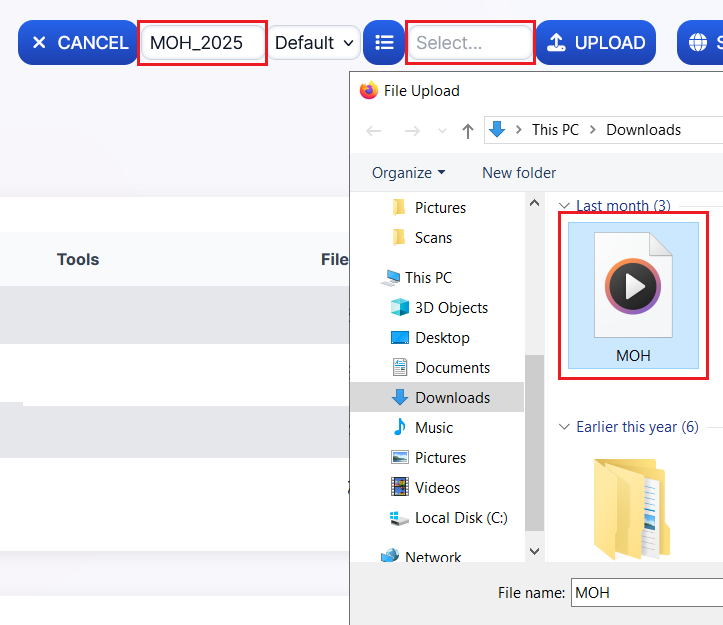
If you want to upload to an existing category, select it. Otherwise, click the + button to create a new MOH category.


-
Enter a name for the new category (if creating a new one).

-
Leave the dropdown set to "Default" and click "Select" to choose a file to upload.
-
Once the file has been selected, click the Upload button. Large files may take some time.

-
Once uploaded, the new category and file will be listed at the bottom of the page.

-
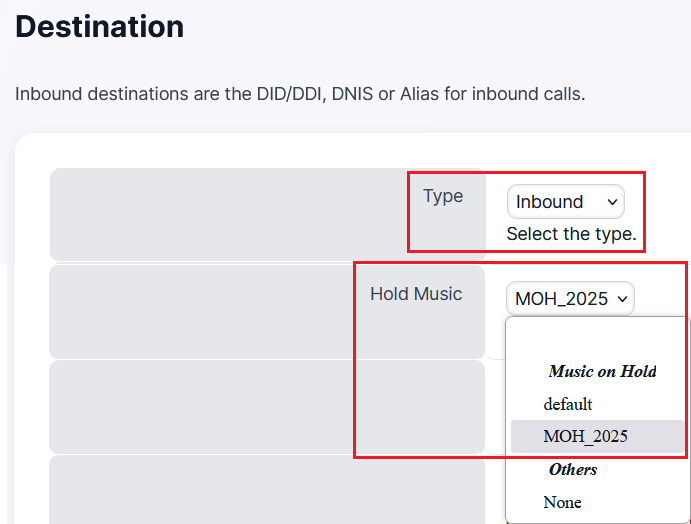
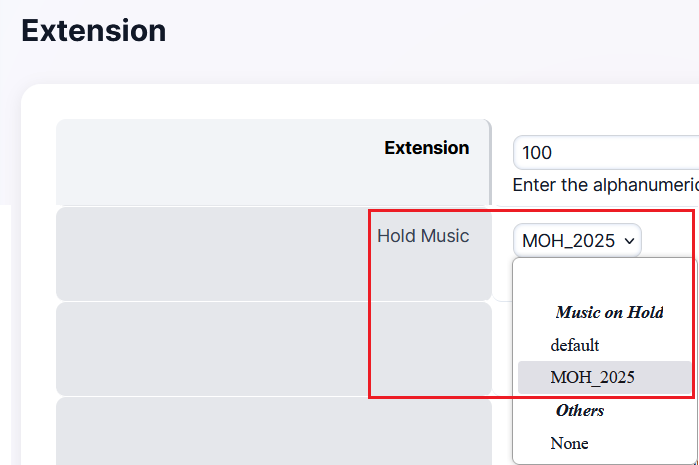
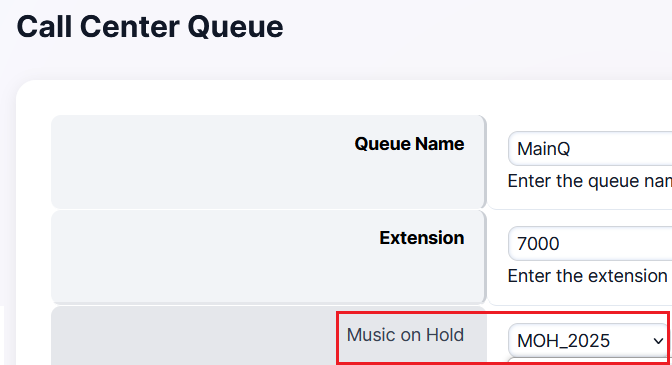
Now assign this hold music to be played when calls to a destination, extension, or call center queue are placed on hold.
Assigning to a destination:
Assigning to an extension:
Assigning to a call center queue:
Set up Voicemail & Shared Voicemail Inbox
Voicemail allows callers to leave messages when an extension is unavailable. NexusUC supports both individual and shared voicemail inboxes, with options for email delivery, custom greetings, and BLF key access.
-
Navigate to Applications → Voicemail.
-
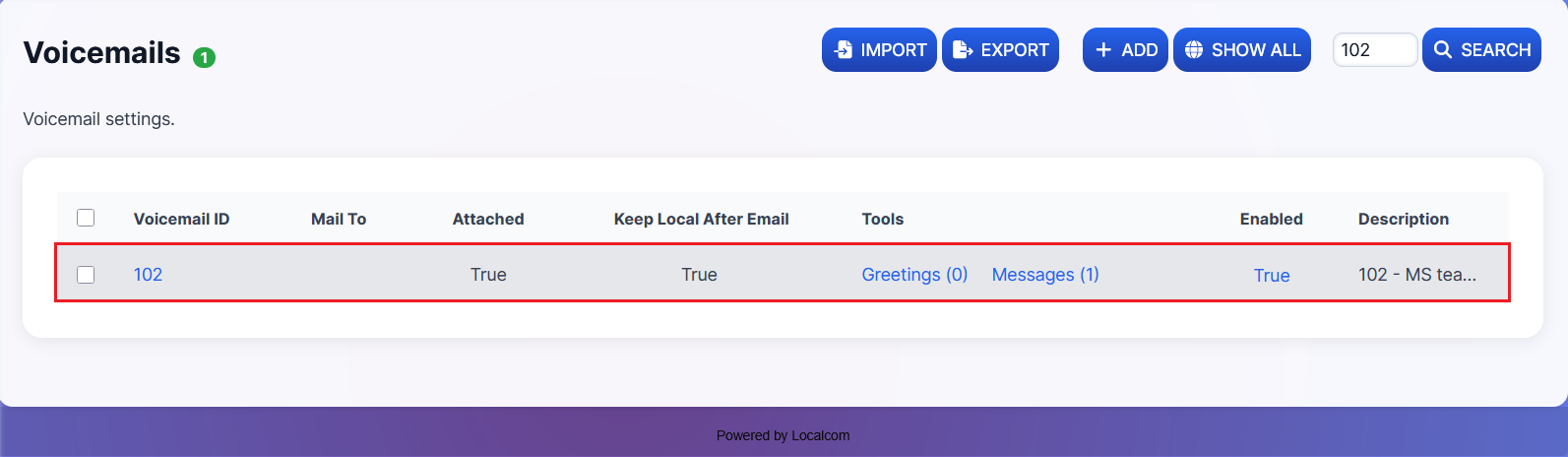
Here you can see existing voicemail inboxes (enabled or disabled), modify settings, and create new shared voicemail inboxes.
Configuring Voicemail Greetings
-
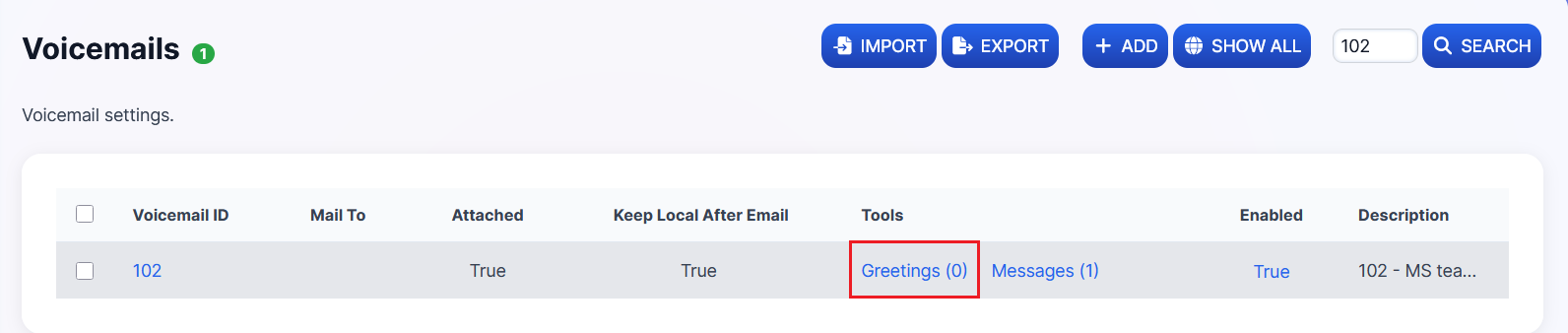
Click on the Greetings tool for the voicemail inbox you want to edit.
-
You can attach a greeting in two ways:
Option A: Upload a recorded greeting file in WAV format
-
Click "Select" to choose a file to upload
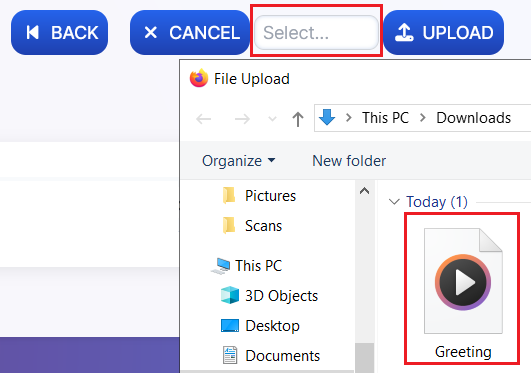
-
Click the Upload button (large files may take some time)

-
The greeting will appear once uploaded and attached:
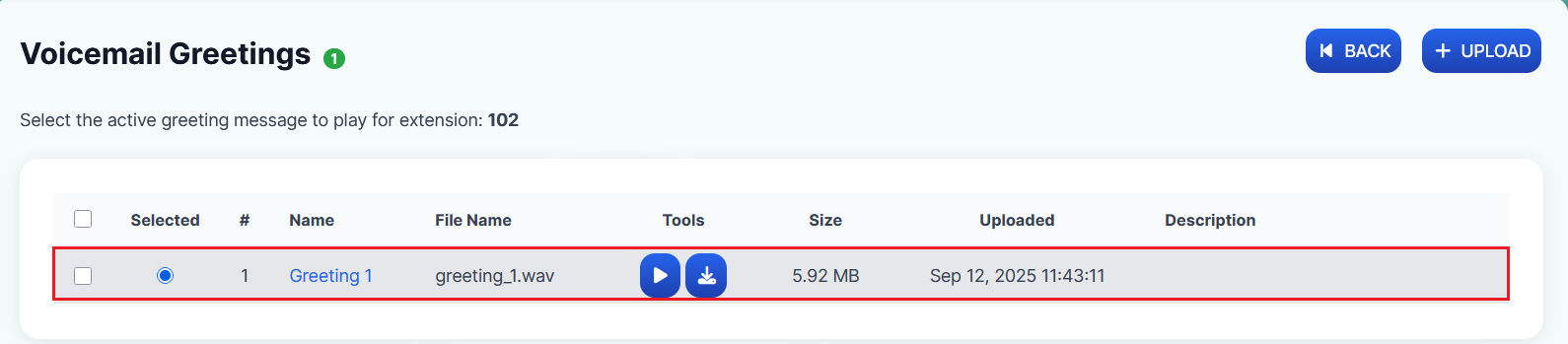
Option B: Record a greeting manually from the phone
- Dial *97 to access the voicemail menu
- Press 5 for Advanced Options
- Press 1 to Record a Greeting
- Press any number between 1 and 9 (this tags the greeting in the system — e.g., choosing 1 labels it as greeting1)
- Record the greeting at the tone, then press # to end
After recording, you'll be presented with these options:
- Press 1 — Listen to the recording
- Press 2 — Save the recording
- Press 3 — Re-record the greeting
Warning
Make sure you press 2 to save the recording so that it will be applied.
-
Editing Voicemail Settings
-
Click on the voicemail inbox from the list to edit additional settings.
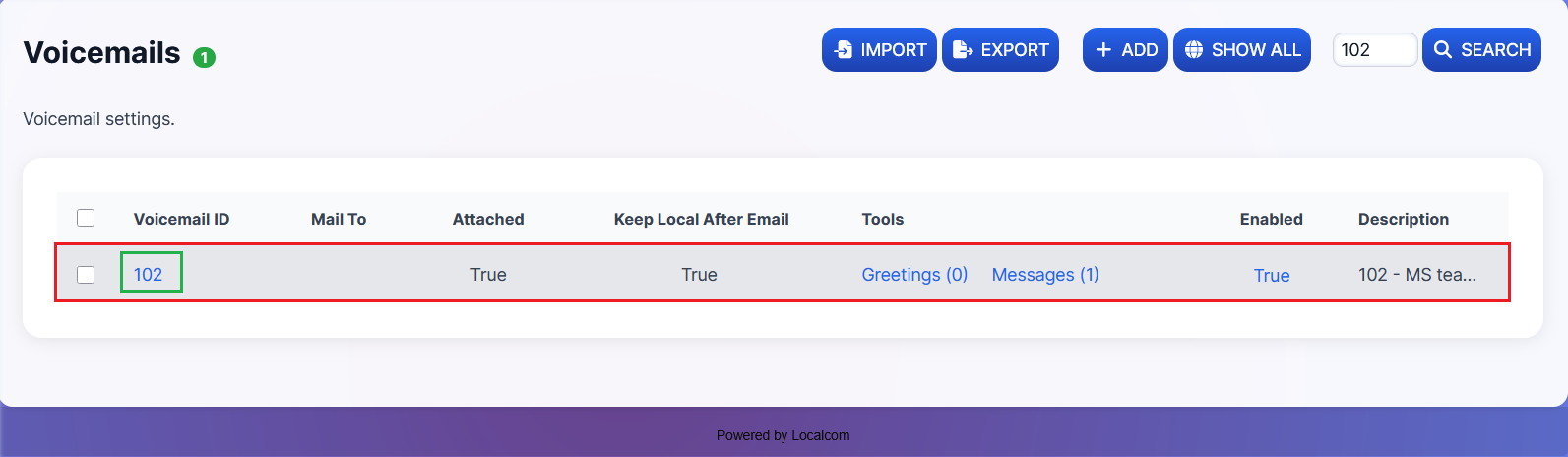
-
Available settings:
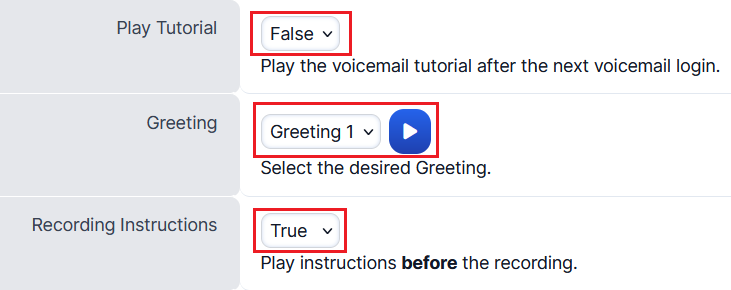
Greeting Settings:
- Play Tutorial — Whether to play the voicemail tutorial after the next login
- Greeting — Choose which greeting to use from recorded/uploaded greetings
- Alternate Greet ID — An alternative greet ID used in the default greeting
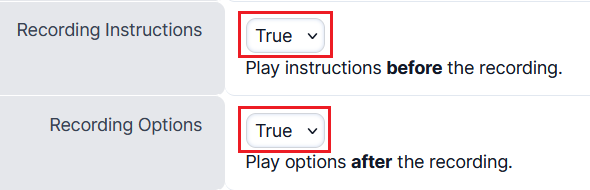
Recording Settings:
- Recording Instructions — Whether to play instructions before the recording
- Recording Options — Whether to play options after the recording
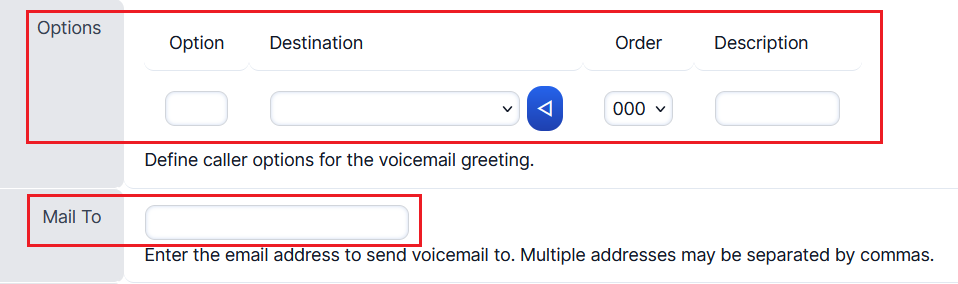
Notification Settings:
- Options — Define caller options for the voicemail greeting
- Mail to — Have voicemails emailed to a specified address
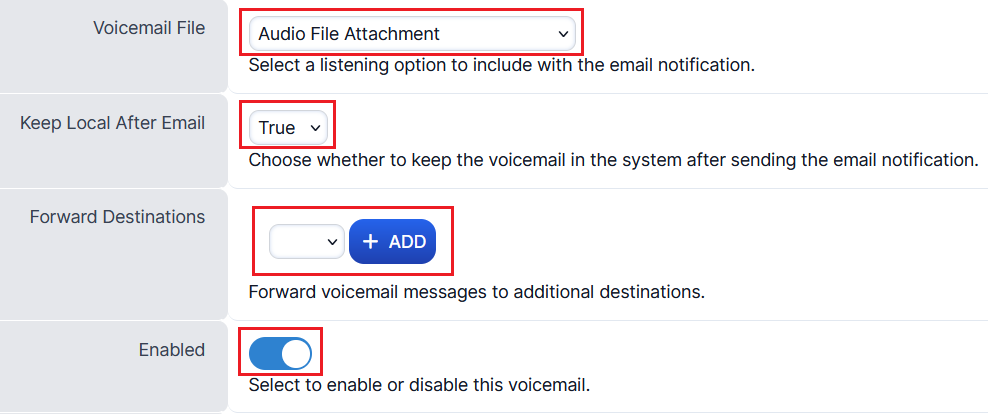
Storage Settings:
- Voicemail File — Select a listening option to include with the email notification (select Audio File Attachment)
- Keep Local — Whether to keep the voicemail in the system after sending email (accessible from PBX or phone)
- Enabled — Enable or disable the voicemail inbox
Accessing Voicemail Messages
-
You can access saved voicemails in two ways:
Option A: Via Phone
Dial *97 and press 1 to listen to new voicemail messages.
Note
This method only works if "Keep Local After Email" is set to True.
After listening to a new message, you have these options:
- Press 1 — Listen to the new message
- Press 2 — Save the new message
- Press 3 — Hear the message envelope (source number, date & time)
- Press 5 — Return the call
- Press 7 — Delete the message recording
- Press 8 — Forward the message
- Press 9 — Forward the message to email
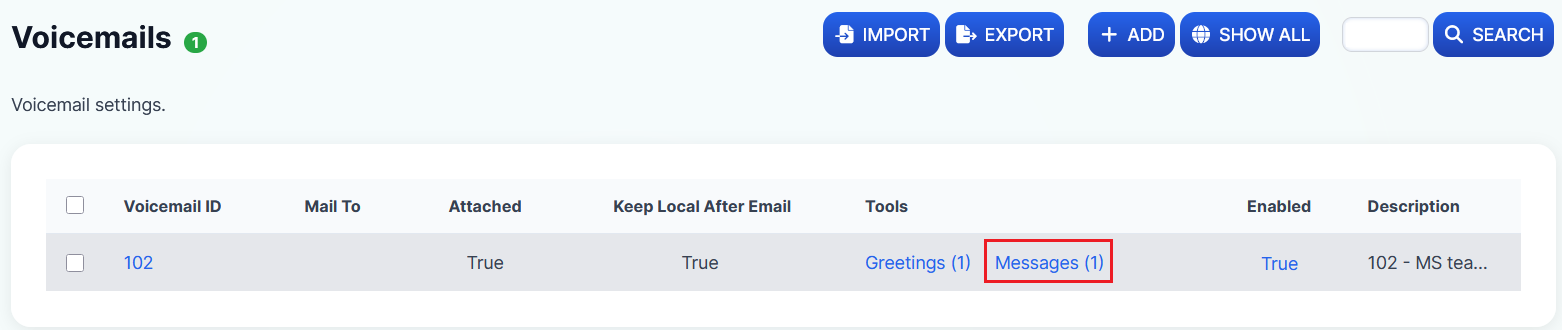
Option B: Via the PBX
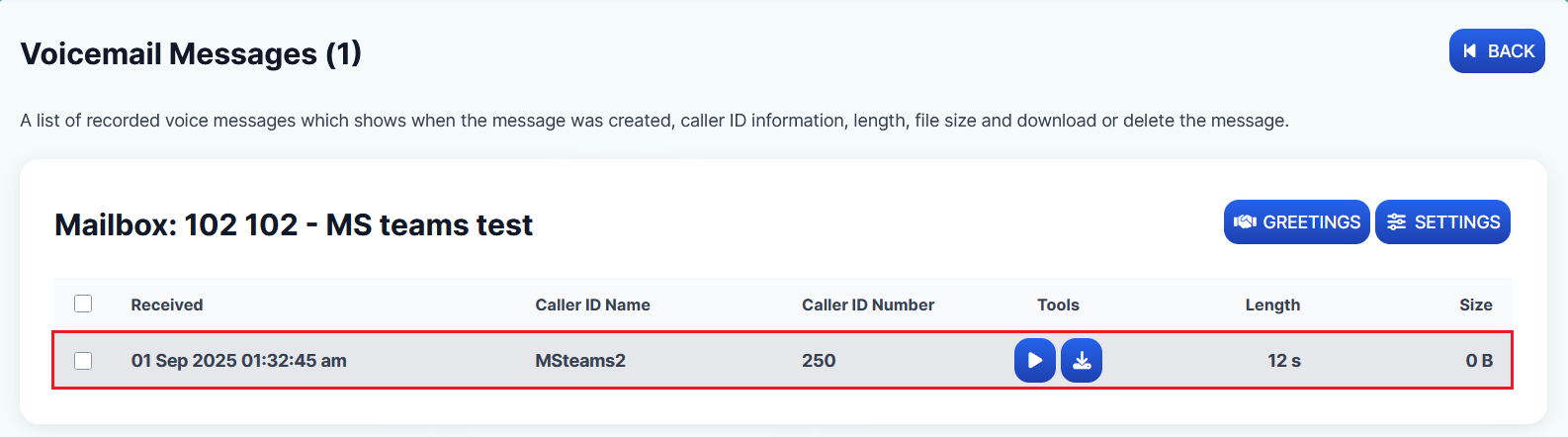
Navigate to Applications → Voicemail and click on the Messages tool for the relevant voicemail inbox. New messages are indicated with a number count in brackets.
Setting Up a Shared Voicemail Inbox
-
Navigate to Applications → Voicemail.
-
Click on the +ADD button to open a new Voicemail Inbox add form.

-
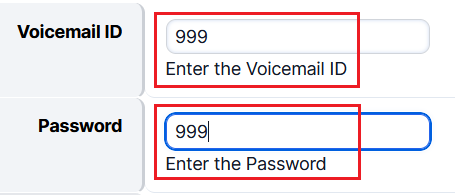
Set a suitable voicemail ID and password for the new shared inbox. For easier access, make the voicemail ID and password the same.
-
Configure all other required settings and greetings as described in Steps 3 to 6 above.
-
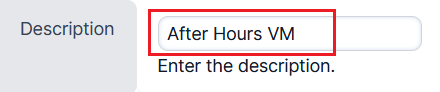
Give a suitable description for the shared inbox (e.g., "After Hours VM" or "Busy VM").
Configuring BLF Key for Shared Voicemail
-
Navigate to Accounts → Devices and select the device(s) where the BLF key should be added.
-
If devices are using a profile, go to Accounts → Devices → Profiles instead.
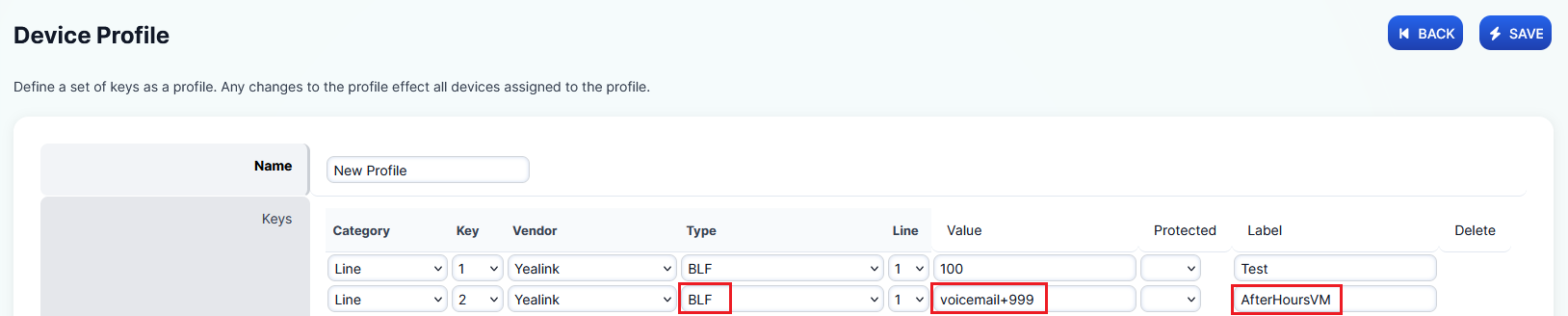
In the selected device or profile, scroll to the Keys section and add a new entry:
- Value: voicemail+ext (e.g., voicemail+999 for a shared voicemail box)
- Label: A meaningful name (e.g., "Shared VM", "Busy VM", or "AfterHrs VM")
-
Click Save, then click Provision under each device to apply the changes.
-
To ensure proper provisioning, go to Status → Registrations, tick the checkbox next to the extension, and click Provision. Then tick the box again and click Unregister to force the phone to reboot and apply settings.
Note
Confirm with the customer that the BLF key for the shared voicemail box appears on the phone. If not, ask them to perform a factory reset and check again.
Configuring DTMF Key for Auto-Password Entry
If the user prefers to skip manually entering the shared VM inbox password, you can configure a DTMF key on the phone that auto-enters the password.
-
Navigate to Accounts → Devices and select the device(s), or go to Accounts → Devices → Profiles if using profiles.
-
In the Keys section, add a new entry:
In this example, the shared VM Inbox 999 has a password of 999:
- Value: VM password# (e.g., 999#)
- Label: VM Pass
When a user accesses the shared VM inbox, they simply press the DTMF key when the password is prompted.
Set up Fax Server
The Fax Server allows you to send and receive faxes through NexusUC with email notifications and attachment delivery.
-
Navigate to Applications → Fax Server.
-
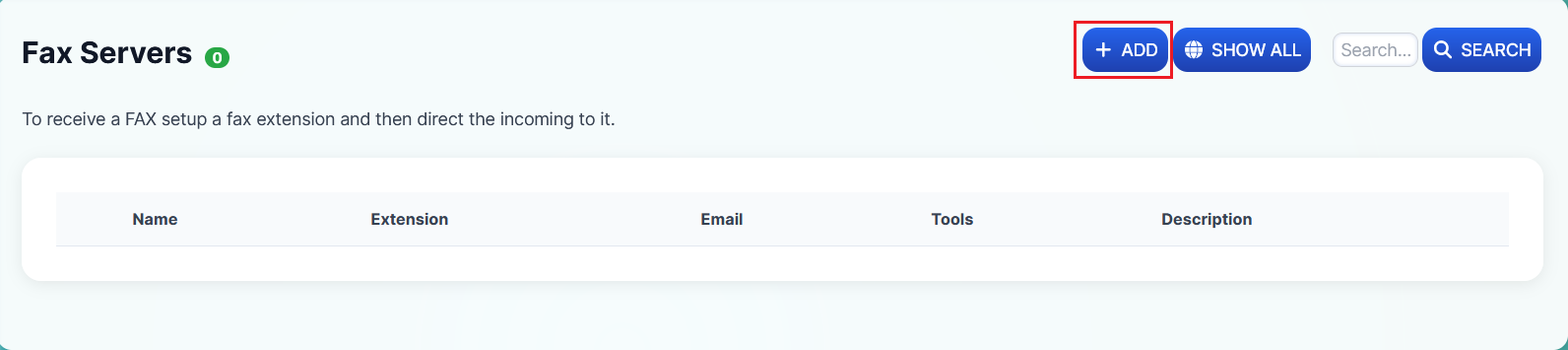
Click on the +ADD button to open a new Fax Server add form.
-
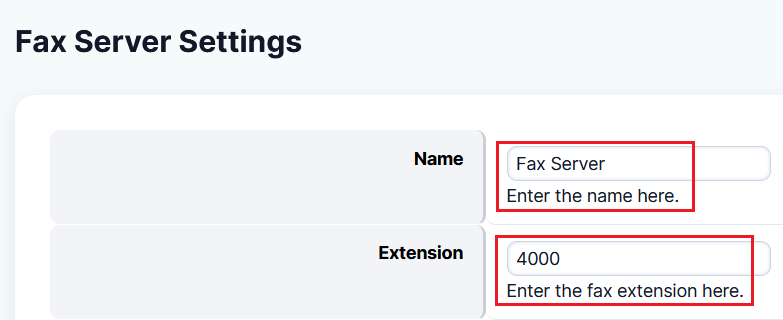
Specify a name for the fax server along with its standard category extension. Then set the destination number (same as the Fax Server extension) and the recipient's email address for fax notifications (up to 2 email addresses).
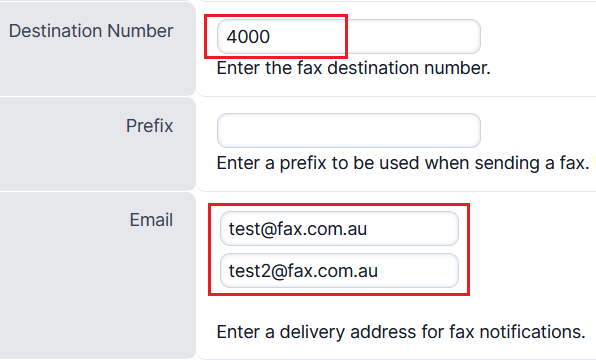
-
Set the fax file option to send as an attachment. Specify the Caller ID Name and Number for outbound fax.
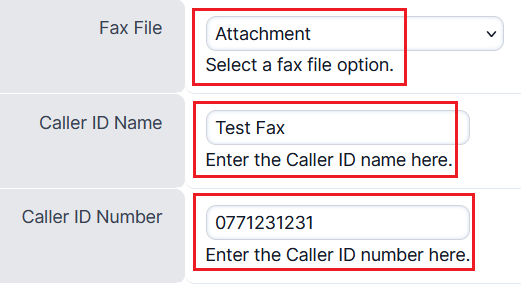
-
Assign the users who can access and manage the fax server settings, and give a suitable description.
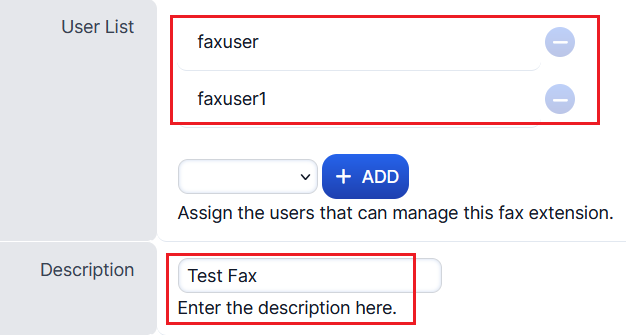
Users can be created under Accounts → Users with the settings shown below:
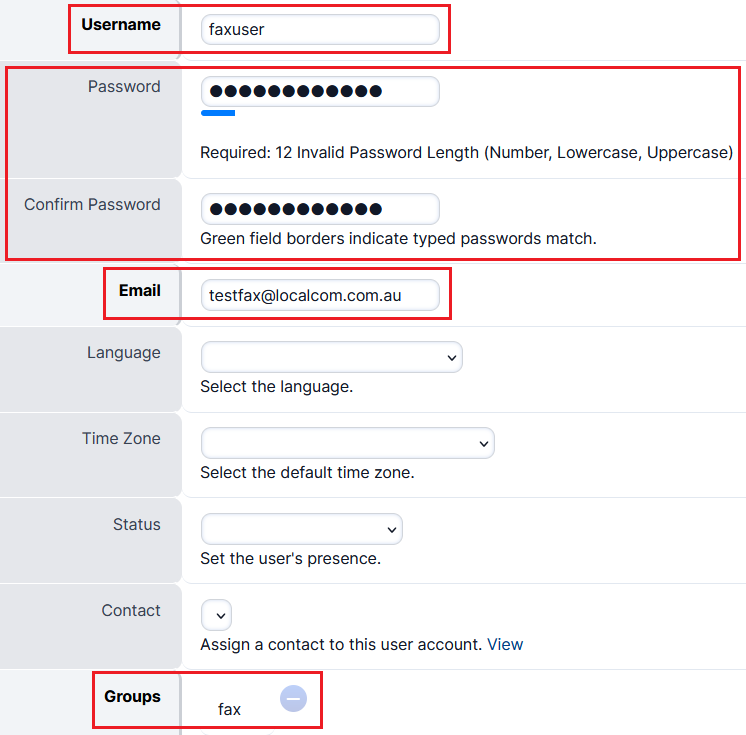
Result: Once created, the Fax Server will appear under Applications → Fax Server.
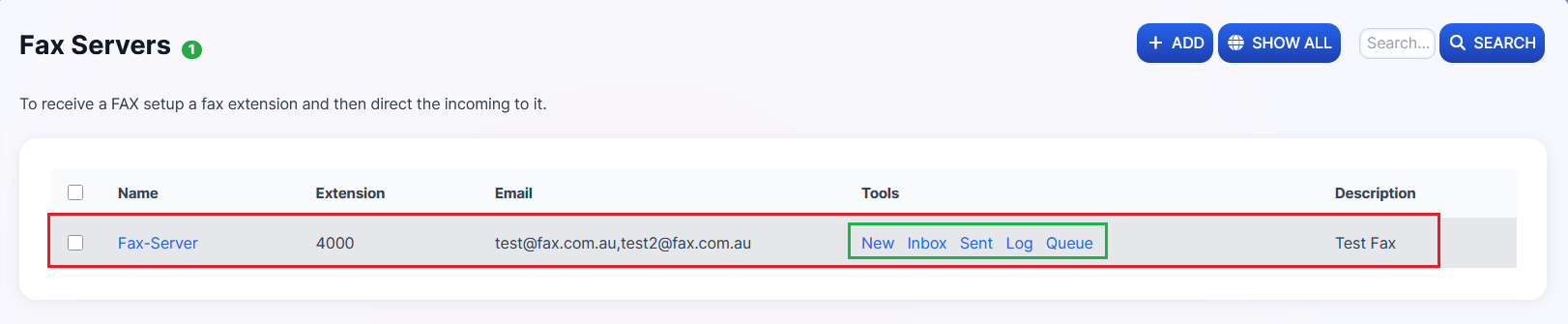
The Fax Server provides these sections:
- New Fax — Compose and send a new fax
- Inbox — Received faxes
- Sent — Outbound fax records
- Fax Log — Successful and failed attempts for both inbound and outbound faxes
- Fax Queue — Outbound faxes queued to be sent
Sending a New Fax
-
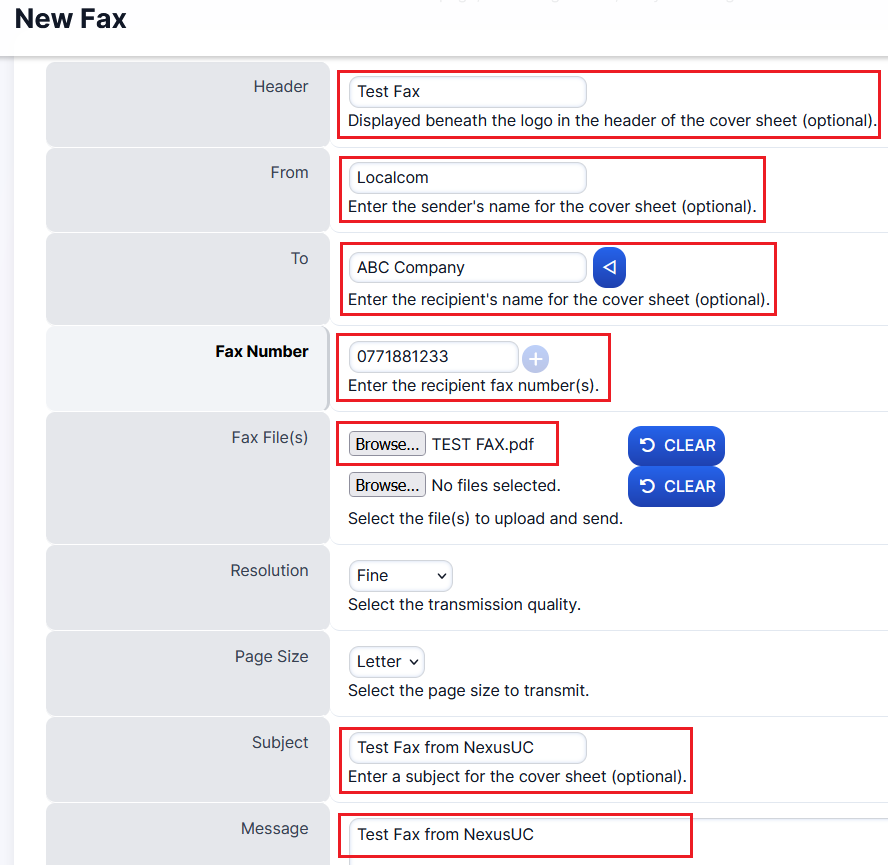
Click on the New button under Tools. Fill in the following:
- Sender's and receiver's names
- Recipient's fax number
- Upload any attachments (fax files)
- Subject for the fax
- Message to be shown as body text content
-
Click Preview to see the fax before sending. If it looks correct, click Send.

-
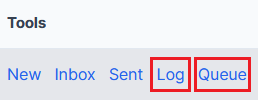
Once the fax is queued, use the Log and Queue sections to track delivery status.
The Inbox and Sent sections show records of inbound and outbound faxes along with PDF attachments.
Set up the Importing of Contacts or Phonebook Directories
NexusUC allows you to bulk-import contacts (individuals or organizations) so they appear in the phone directory for all extensions.
-
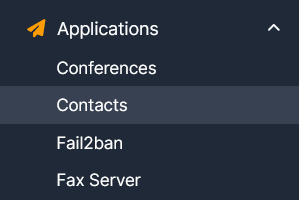
Navigate to Applications → Contacts.
-
Use the Google Sheet template below to prepare your contacts for mass import. Download/save the sheet in CSV format before importing.

Template field descriptions:
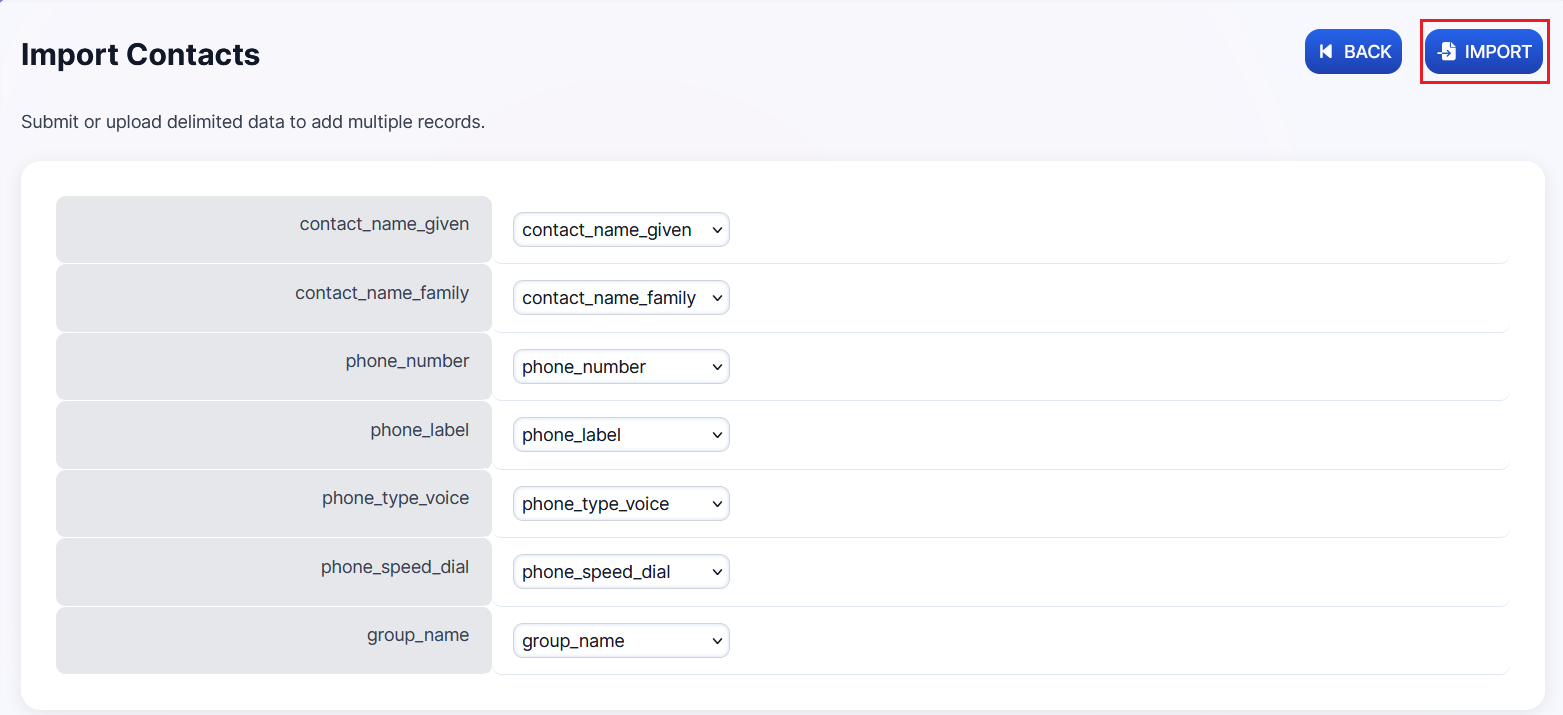
Field Description contact_name_given First name or full business name contact_name_family Surname (leave blank for business names) phone_number Contact number (mobile or landline) — mandatory phone_label Label as Mobile, Work, or Home (optional) phone_type_voice Must be set to 1 phone_speed_dial Number for speed dial (optional) group_name Use "user" if no custom groups are needed; otherwise, specify a custom group for each user/department -
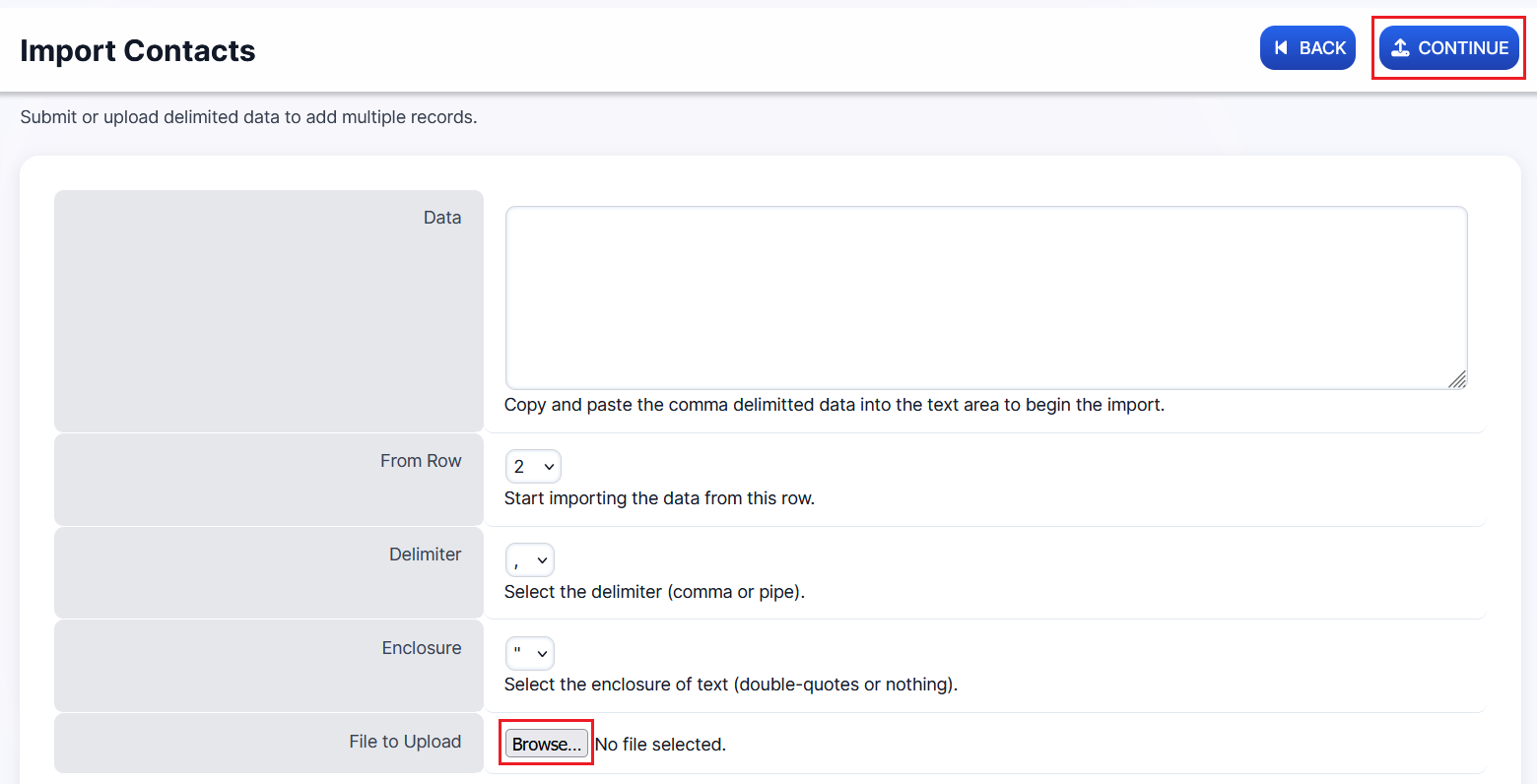
Once the CSV is ready, import it:
- Log in to NexusUC
- Navigate to Applications → Contacts
- Click the Import button

- Click Browse and select your completed CSV file
- Click Continue, then Import
Accessing Call Detail Records (CDR) and Call Recordings
Call Detail Records provide comprehensive logging of all calls through the PBX, including source, destination, duration, and quality metrics. Call recordings (when enabled) can be played back or downloaded from here.
-
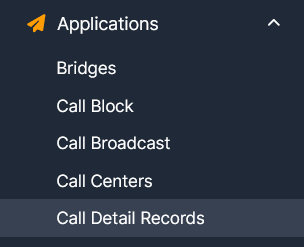
Navigate to Applications → Call Detail Records.
-
Use the available filters to find specific call records, or export them using the Export or CSV button.
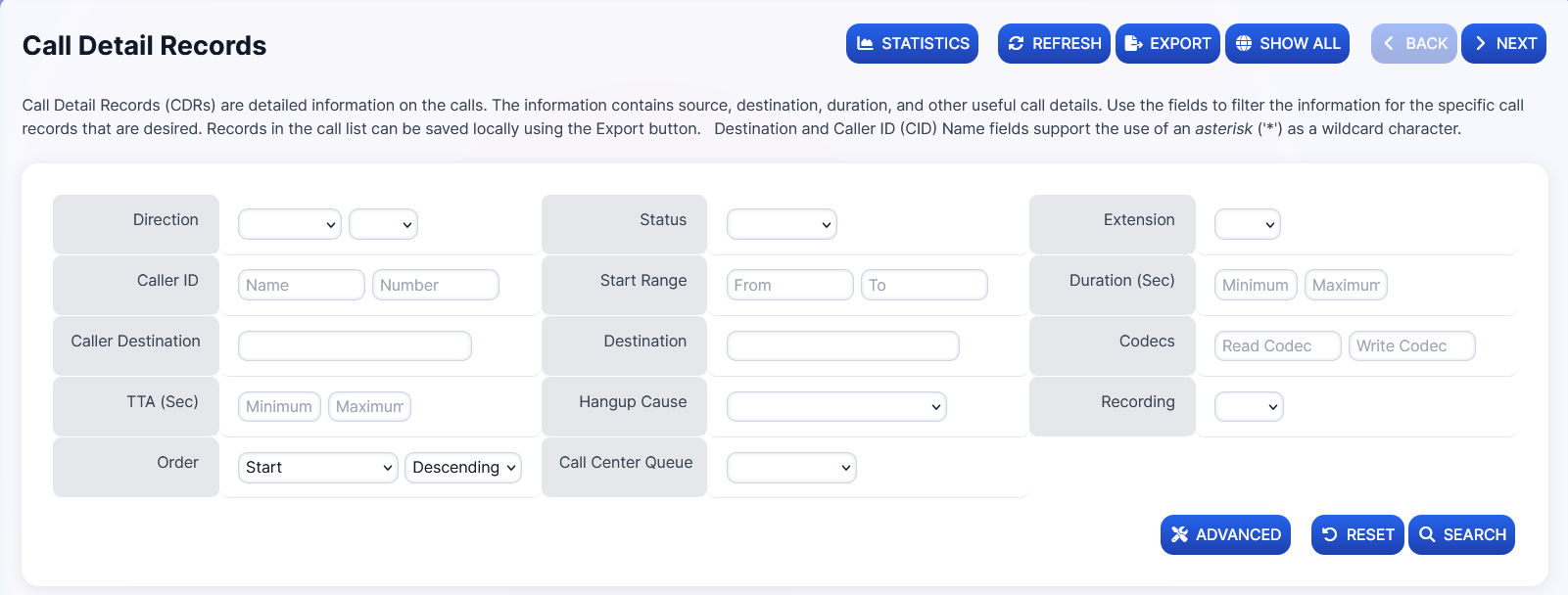
Available CDR Fields:
| Field | Description |
|---|---|
| Extension | Phone extension |
| Caller Name | Caller ID name |
| Caller Number | Origin of the call |
| Caller Destination | Call destination |
| Recording | Link to the recording if available |
| Date & Time | When the call entered the system |
| Codecs | Phone codec used |
| TTA | Time To Answer |
| PDD | Post Dial Delay (time between final dialed digit and hearing a ring tone) |
| MOS | Mean Opinion Score (voice quality) |
| Duration | Length of the call |
| Status | Call outcome (Answered, Missed, Voicemail, etc.) |
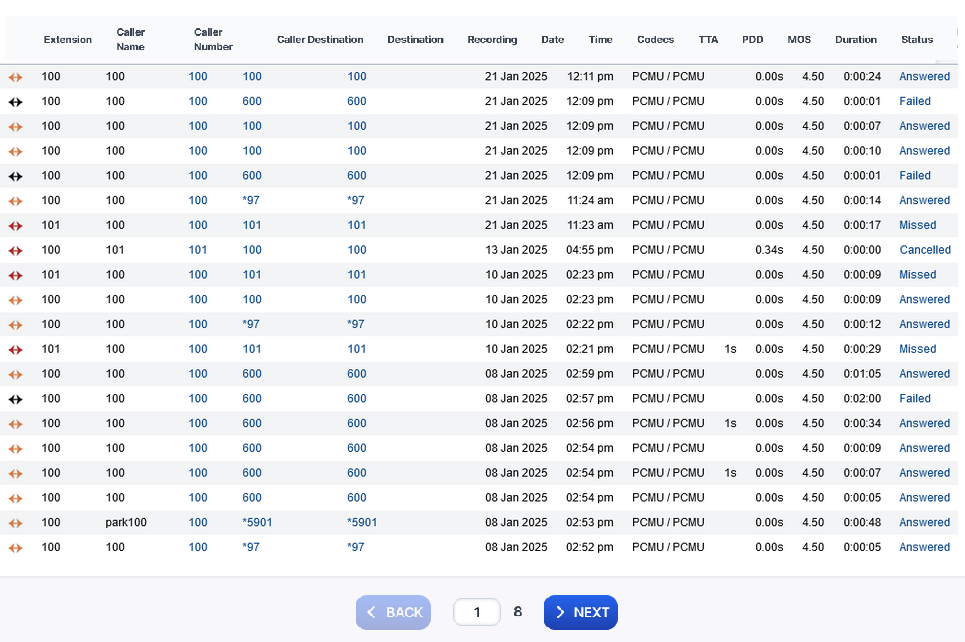
The system uses XML CDR for reporting.
Call Recordings
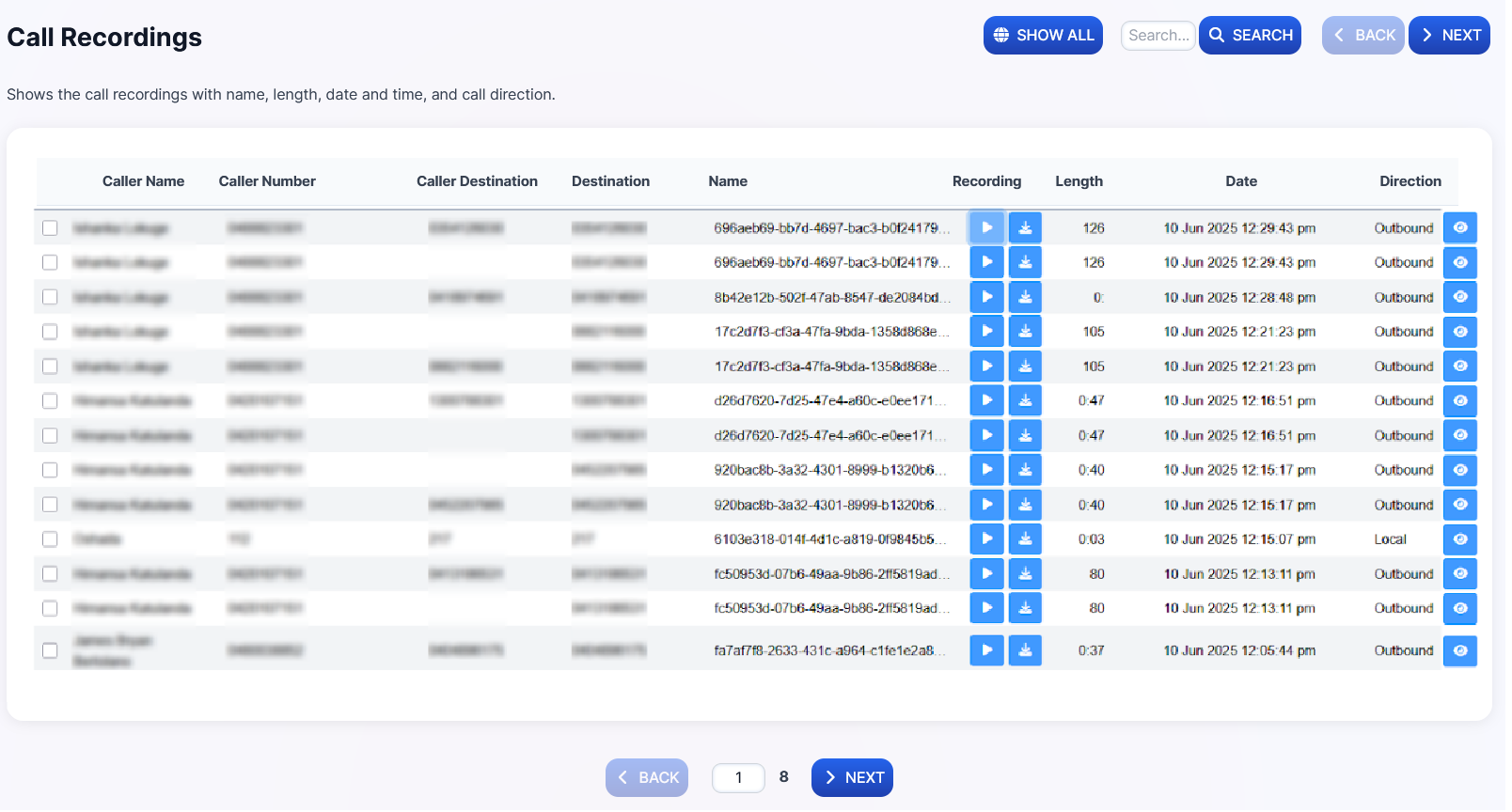
You can play or download call recordings in two ways:
-
From CDR: Click either of the two available buttons under the Recording column if recording was enabled for that extension or queue.

-
From Call Recordings: Navigate to Applications → Call Recordings for a dedicated view of all recordings.
Set up Ringotel Softphone Extension
Ringotel is a softphone application that allows users to make and receive calls using their NexusUC extension from a mobile device or computer. Setting up Ringotel requires linking a user account to the extension and activating the Ringotel license.
-
Navigate to Accounts → Extensions.
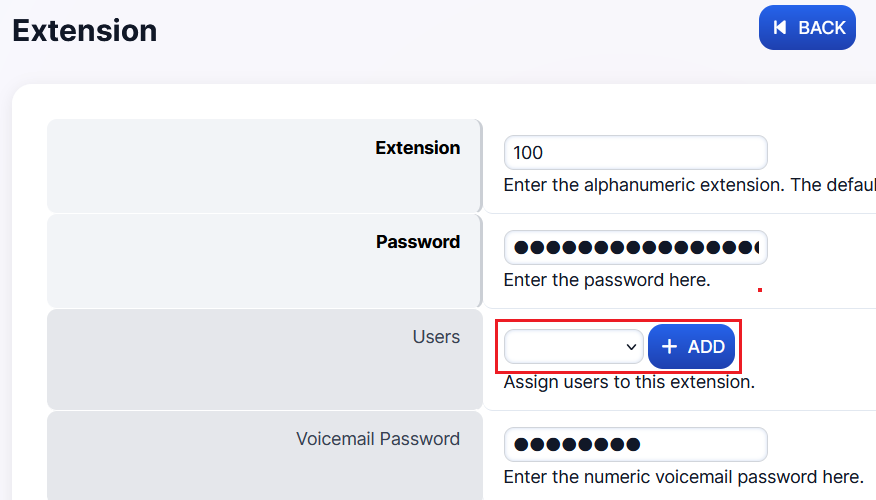
-
Click on the extension you want to set up and check whether a user is attached to it.
-
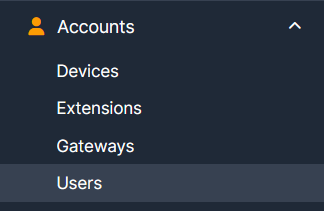
If no user is attached, navigate to Accounts → Users and create a new user with the same extension number (e.g., 100).
-
Click +ADD to create a new user.

-
Fill in the following details:
Field Description Username Can be the same as the extension number Password Must contain 12 characters (numbers, lowercase & uppercase) Email Email address where Ringotel credentials will be sent Status Set to Available First Name & Last Name User's name (if required) Groups User group assignment. Select "admin" for admin rights if needed. 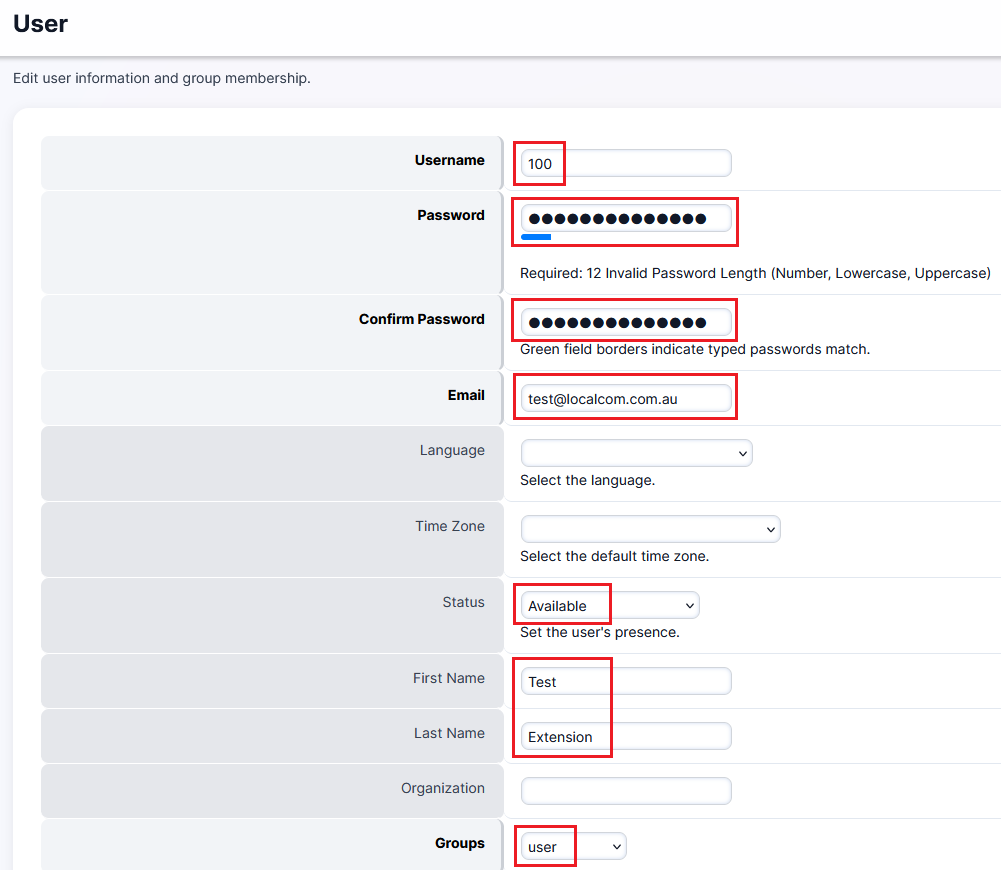
-
Click Save to create the user.
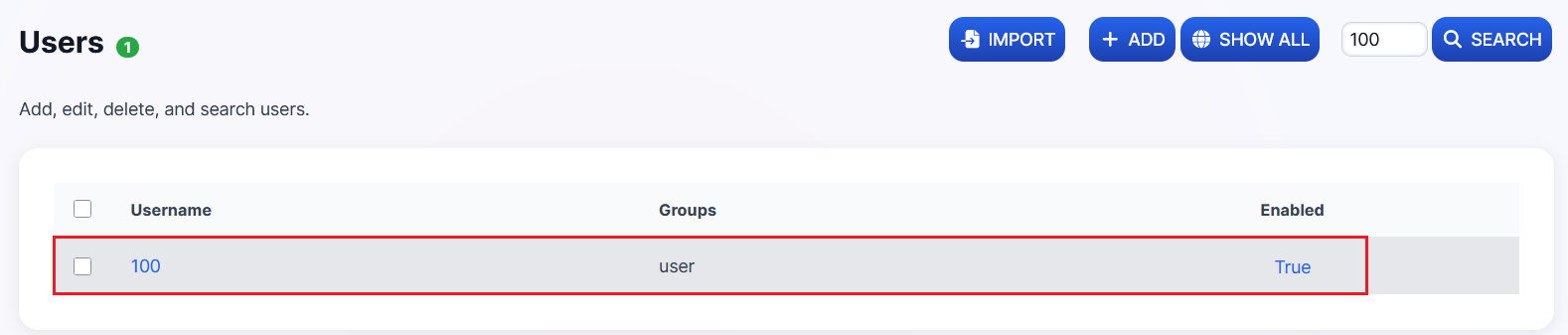
Result: The newly created user will appear as shown below.
-
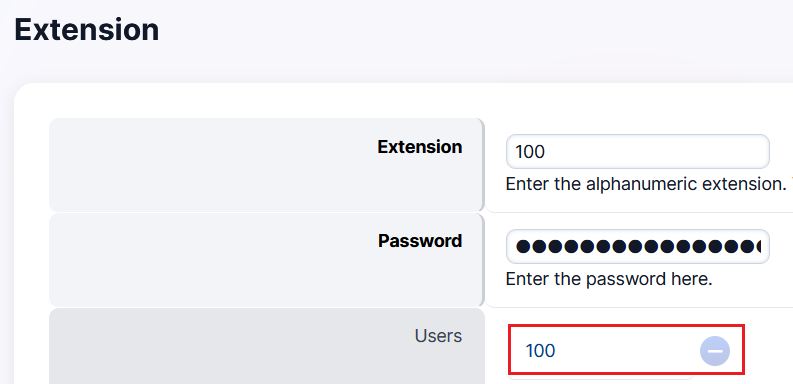
Navigate back to Accounts → Extensions, click on the extension, attach the user from the dropdown, and click +ADD to save.
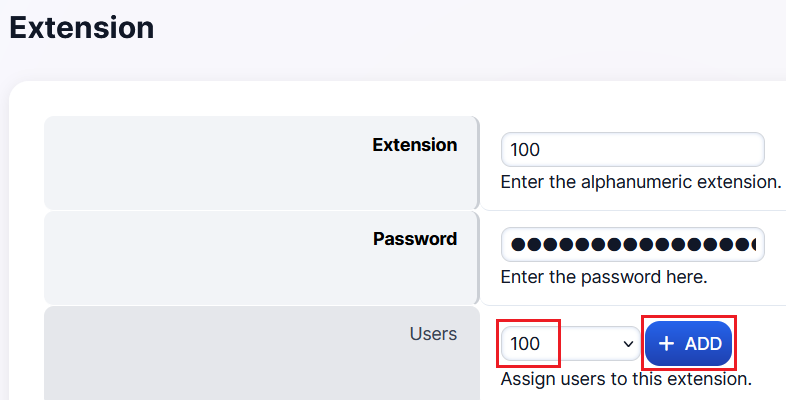
Once the user is attached:
Activating Ringotel
-
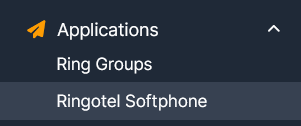
Navigate to Applications → Ringotel Softphone.
-
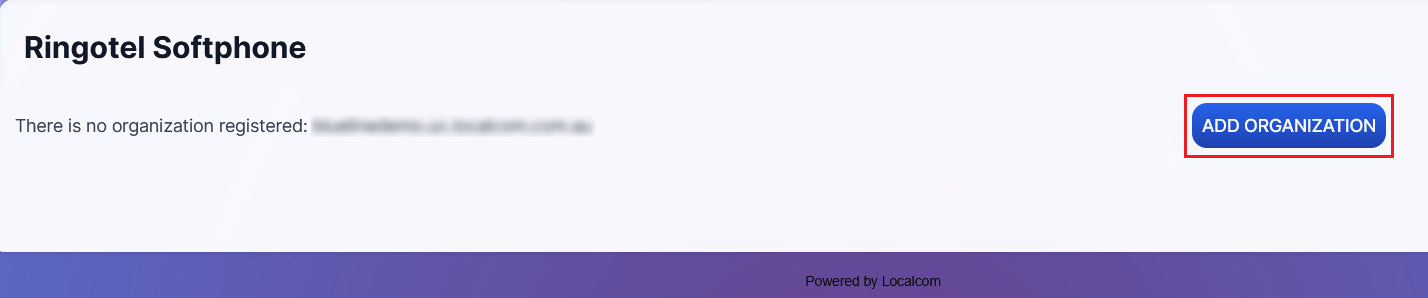
Click ADD ORGANIZATION to add a new Ringotel domain on the Ringotel server.
Note
This step is only required for new domains.
The new Ringotel softphone extension record:

-
Tick the checkbox next to the extension and click ACTIVATE USERS to activate the Ringotel license.

-
The Ringotel extension license is now Active, and credentials will automatically be sent to the specified email address.

-
If credentials don't arrive, tick the checkbox and click RESET PASSWORDS to resend them to the email.